
Quick answer: Most WhatsApp Web failures come from four things — a stale browser session, cached data, a browser extension, or the 14-day inactivity rule logging you out. Reload the page, clear cookies for the site, test in a private window, then relink from your phone. That sequence resolves the majority of cases in under five minutes.
Key takeaways
- Check whether the problem is yours before troubleshooting for an hour. If friends on their phones are fine, it is your browser.
- Extensions are the single most underestimated cause on a computer where everything else works.
- Being logged out unexpectedly is usually a rule, not a fault. Two inactivity timers apply.
- Work and campus machines fail for reasons your home computer never will.
60-second triage
| Check | If yes |
|---|---|
| Are your friends’ phones also affected? | WhatsApp is down. Nothing to fix — wait it out |
| Did it break during the QR scan? | Linking problem. Skip to the Link a device section |
| Were you logged out without warning? | Session expired. Skip to the unexpected logouts section |
| Is this a work or campus laptop? | Network or device policy. Skip to the laptop section |
| Does it still fail in a private window? | Not an extension. Start with the fix sequence below |
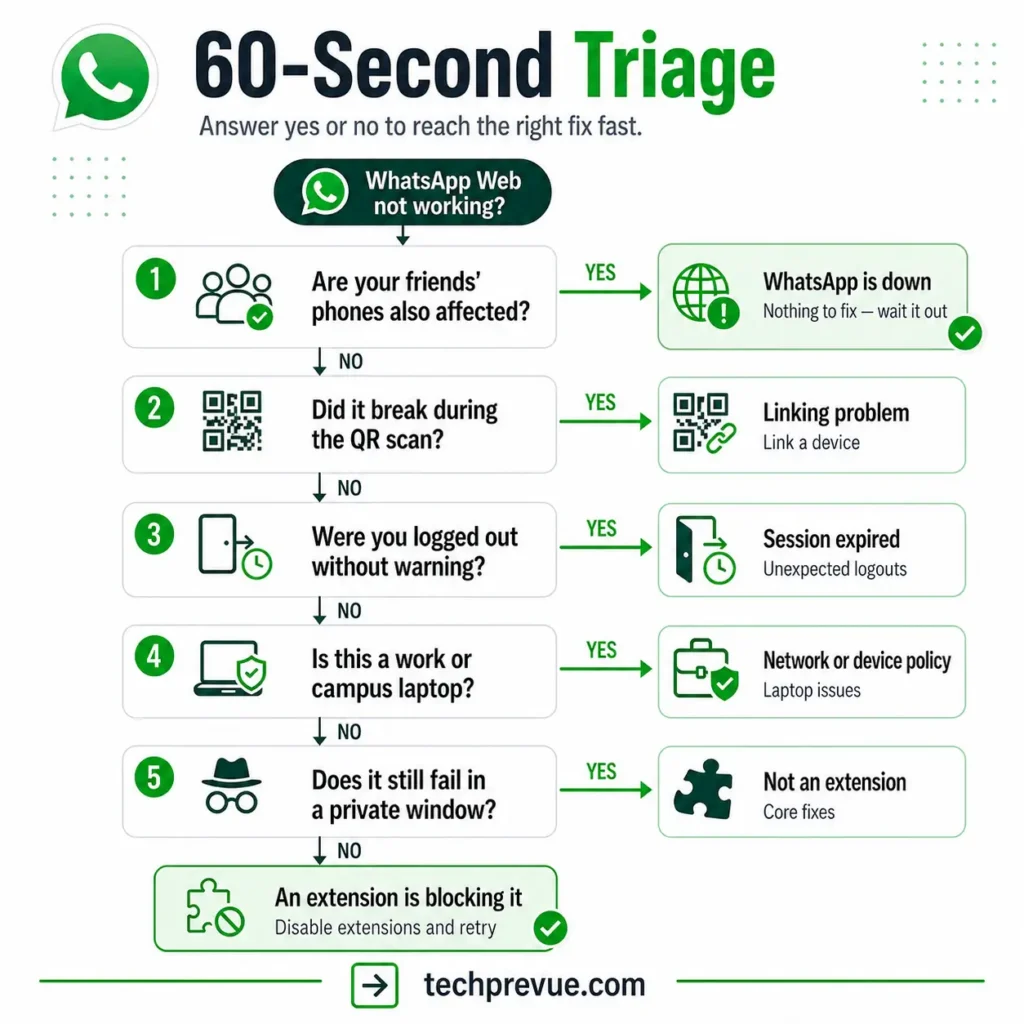
Below are the eleven reasons why WhatsApp Web is not working for most people, ordered by how often each one turns out to be the culprit. Start at the top and stop as soon as something fixes it.
- Is WhatsApp Web down, or is it just you?
- What to do when WhatsApp Web is not working
- Why my WhatsApp Web is not working on my laptop
- Why WhatsApp Web is not working in Chrome
- When "Link a device" is not working
- WhatsApp Web on your phone
- Messages not syncing or stuck loading
- Notifications not working
- Media, photos, and downloads failing
- You keep getting logged out
- When nothing works
- Frequently asked questions
Is WhatsApp Web down, or is it just you?
Start here, because five minutes of clearing caches is wasted if the service itself is having a bad afternoon.
Genuine outages are rare and short, and they affect messaging on phones at the same time. So the fastest test costs nothing: ask someone whether their phone app is delivering messages normally.
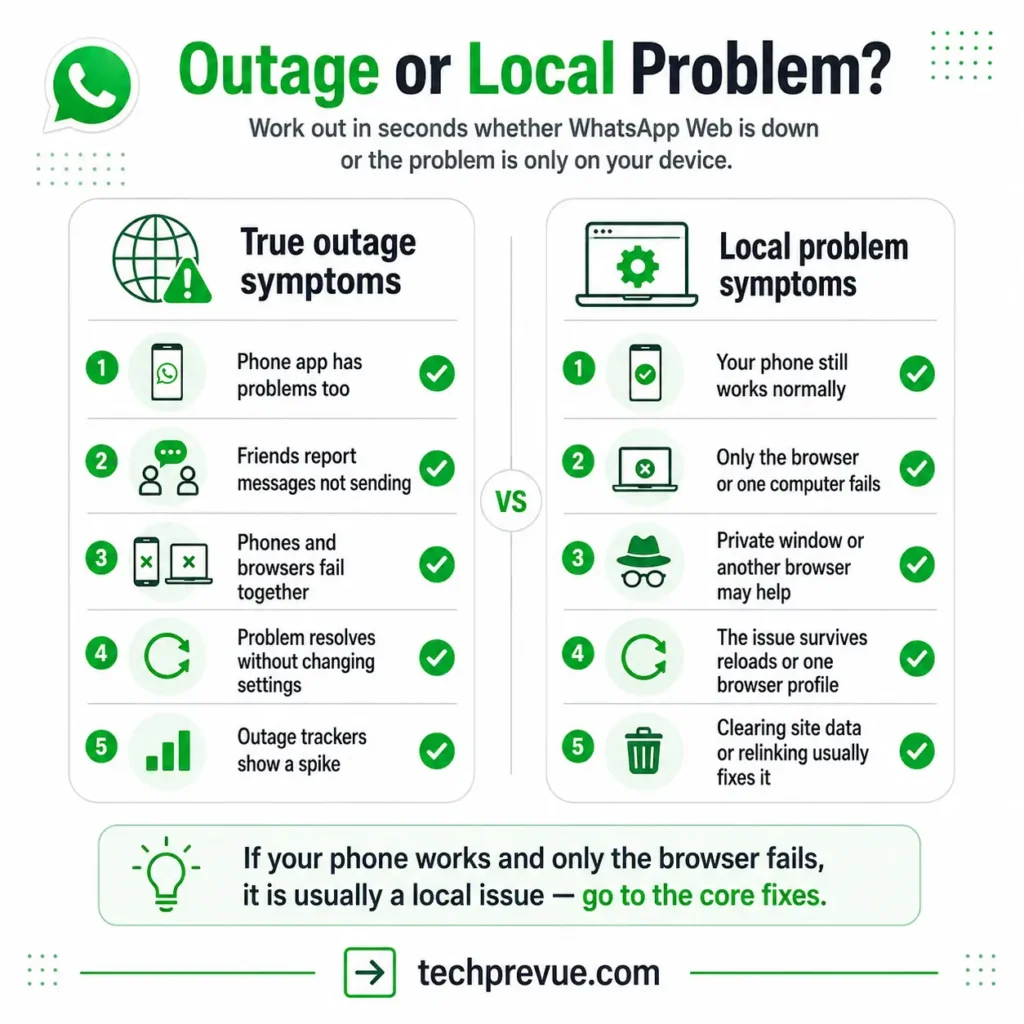
If their phone works and your browser does not, the problem is local and everything below applies. If nobody’s messages are moving, wait it out.
For confirmation, outage-tracking sites and WhatsApp’s own social accounts usually reflect a real incident within minutes. WhatsApp does not publish a consumer status page, so those are the practical options.
One caveat worth knowing: outage trackers rely on user reports, so a spike can reflect a regional network problem rather than anything wrong with WhatsApp.
There is also a pattern worth recognizing. A true outage takes down messaging everywhere at once, on phones and browsers together, and it resolves without you doing anything.
A local problem behaves differently. Your phone keeps working, only the browser fails, and the failure survives a reboot. If that describes your situation, skip ahead — nothing on WhatsApp’s side is broken.
What to do when WhatsApp Web is not working
Work through these in order. They are sequenced by how often they succeed against how much effort they cost.
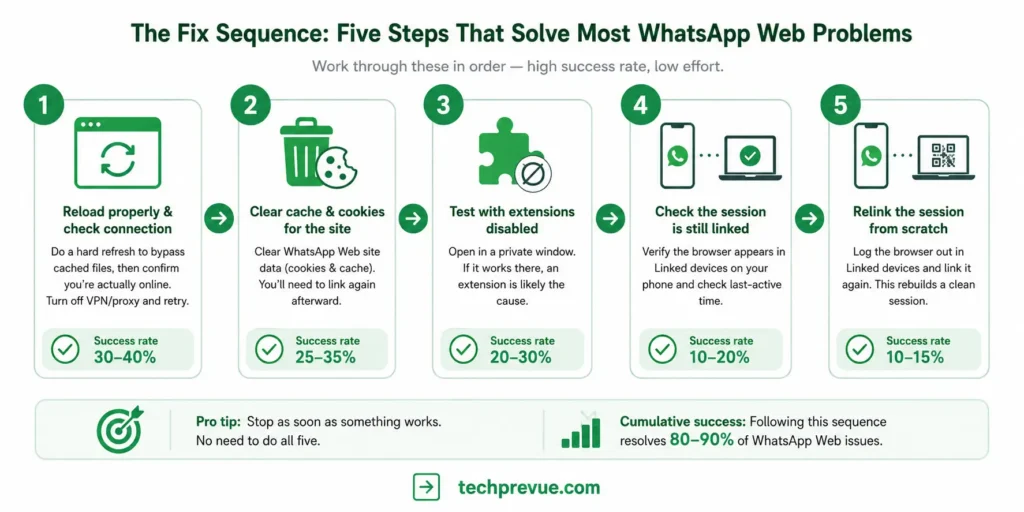
Reload properly, and check the connection
Press Ctrl + Shift + R on Windows and Linux, or Cmd + Shift + R on Mac. A hard refresh bypasses cached files that a normal reload would reuse.
Then confirm the computer is actually online. A browser tab that loaded an hour ago can look healthy long after the connection behind it dropped.
If you are on a VPN or proxy, turn it off and retry. VPN routing interferes with the connection more often than people expect.
Clear cache and cookies for the site
Stale cookies are the most common cause of a session that loads but does not function.
In Chrome, click the padlock beside the address bar, choose site settings, and clear the data for that site. This is more surgical than wiping your whole browsing history.
You will need to link the browser again afterward, so have your phone nearby before you do it.
Test with extensions disabled
Open a private or incognito window and load the site there. Extensions are disabled by default in private mode, so this isolates the cause in one step.
If it works in private and fails normally, an extension is responsible. Turn them off in batches rather than one at a time to find it faster.
The usual offenders are ad blockers, privacy tools, script blockers, and anything advertising itself as a WhatsApp enhancer. That last category has DOM-level access to your chats and is worth removing on principle, not just to fix this.
Check the session is still linked
Open Linked devices on your phone and look for the browser in the list.
If it is missing, the session ended at some point and the page you are staring at is a dead shell. That happens more often than people realize, because a logged-out tab does not always announce itself.
If it is listed but shows an old last-active time, the connection dropped rather than the session ending. A hard refresh usually revives it.
Relink the session
If the first three fail, log out and link the browser again from scratch.
Open Linked devices on your phone, log the browser session out, then start fresh. A rebuilt session clears state that no amount of cache clearing reaches.
Why my WhatsApp Web is not working on my laptop
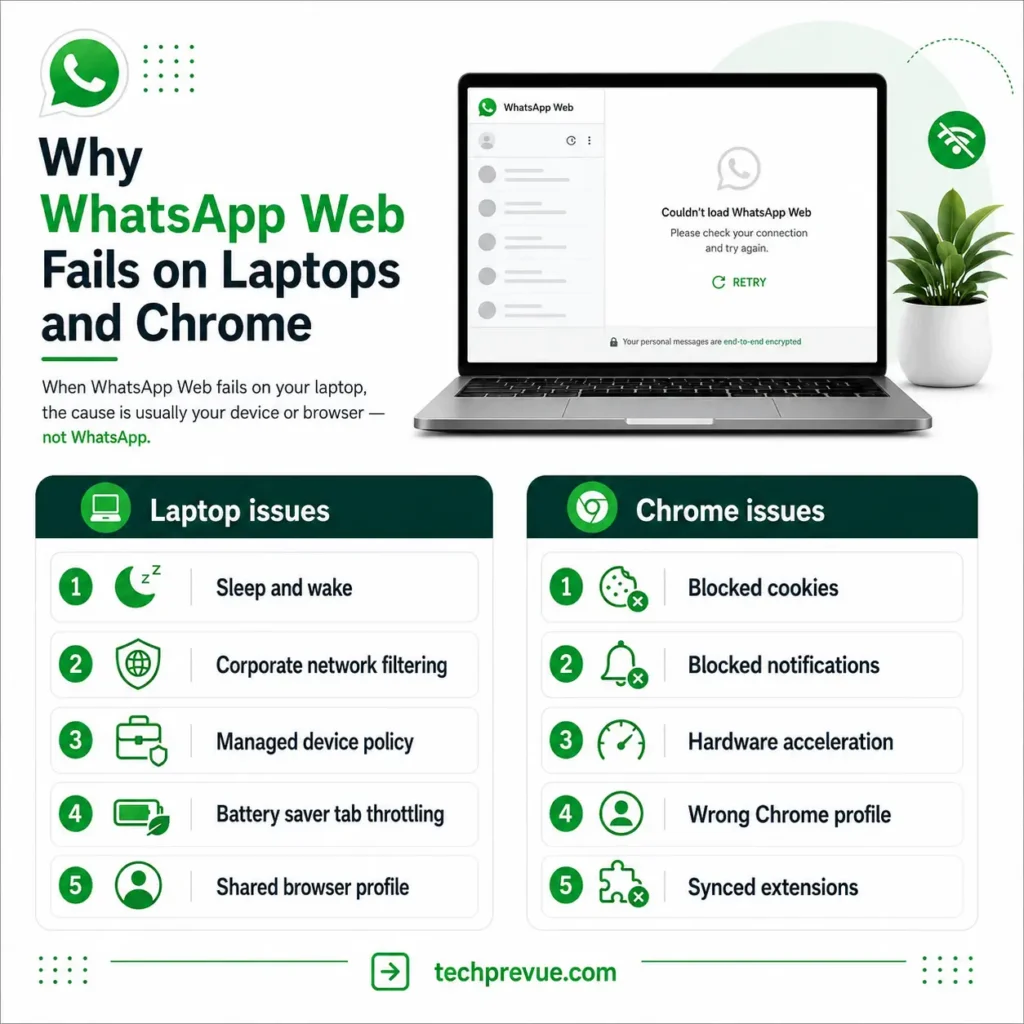
Laptops introduce failure modes desktops do not, and work laptops introduce more again.
Sleep and wake
A session that was open when the lid closed often wakes into a broken state. It looks connected and does nothing. A hard refresh fixes it.
Corporate network filtering
Some office and campus networks inspect or block the traffic the connection relies on. If it works on your phone hotspot and fails on the office network, that is your answer, and it is not something you can fix from the browser.
Worth raising with IT rather than working around, since most blocks of this kind are policy decisions rather than misconfigurations.
Managed device policy
Security software on a company machine can clear cookies on a schedule, which produces a daily logout with no other symptom.
Battery saver modes
Aggressive power settings throttle background tabs. If messages arrive only when you click into the tab, check whether your laptop is suspending it. Windows and macOS both do this by default when unplugged.
If it works fine on one laptop and fails on another with the same login, compare those four before assuming your account is the problem.
There is a fifth cause specific to shared laptops. If someone else has linked their own account in the same browser profile, the two sessions compete and the newer one wins.
Separate browser profiles solve that permanently, and take about a minute to set up. Each profile keeps its own cookies, so each holds its own independent session.
Why WhatsApp Web is not working in Chrome
Chrome-specific failures usually come down to three settings, all of which people change once and forget.
Blocked cookies
If third-party cookies are blocked globally, add an exception for the site. Click the padlock in the address bar to check what is being blocked on the page you are looking at.
Blocked notifications
These fail silently. The interface works, messages arrive, and nothing alerts you. Allow notifications for the site in Chrome’s site settings.
Hardware acceleration
Rare, but it causes rendering problems where the page loads with missing elements. Turning it off in Chrome’s system settings resolves it.
Also worth checking: Chrome profiles. If you use several, you may be looking at a profile where the session was never linked.
Other browsers behave differently
Safari’s tracking prevention clears site data more aggressively, so Safari users get logged out more often. Firefox in strict privacy mode blocks storage the site needs. Both are configuration issues rather than compatibility problems.
If the site fails in every browser on the machine, it is not the browser — go back to §3 (Start with the fix sequence above).
One more Chrome-specific check that catches people out. Extensions sync across devices when you are signed into Chrome, so an extension you installed on a different computer may already be running here.
That explains the frustrating case where WhatsApp Web is not working on a machine you have barely used.
When “Link a device” is not working
Linking failures behave differently from everything else on this page, because they happen before a session exists.
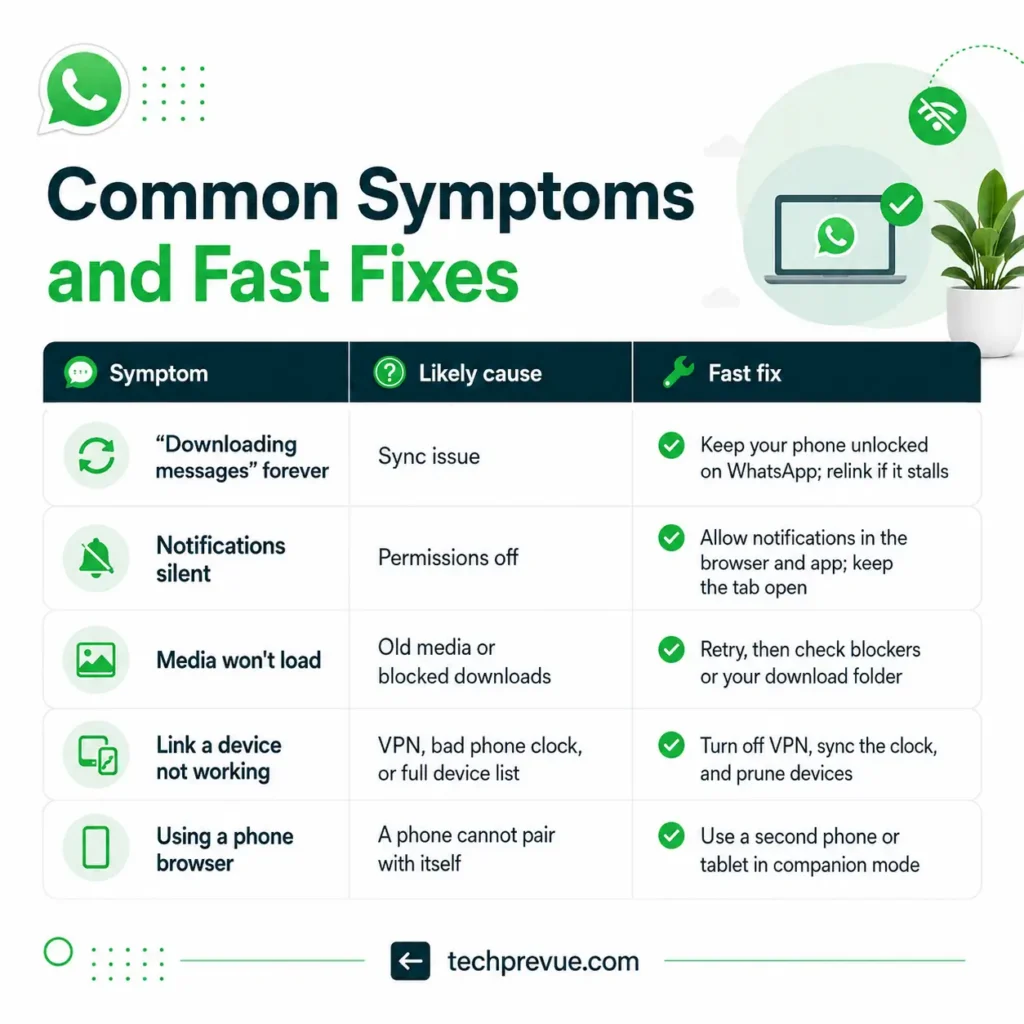
The quick diagnostic: if you never got past the QR code, the fault is in the linking process, not the browser session. Common causes are a phone that is itself a linked device rather than your primary phone, a VPN interrupting authentication, a phone clock that has drifted out of sync, or a full four-device list.
Each of those has a specific fix, and they are covered properly in our guide to WhatsApp Web login errors and how to fix them.
Come back here once you are linked and something still misbehaves.
WhatsApp Web on your phone
Some people search this after trying to open web.whatsapp.com in a phone browser and finding it will not log in.
That is not a fault. Your phone is already the primary device on your account, and an account cannot pair with itself, so the browser refuses the link by design. Requesting the desktop site does not change it.
What works instead is companion mode on a second phone or a tablet. The pillar guide covers the supported routes in how to use WhatsApp Web.
If you are trying to read one account on two phones, that is the path. If you are trying to run two numbers on one phone, that is a dual-app question rather than a browser one.
One genuine phone-side failure does exist and is worth ruling out. If your phone has not connected to the internet in over two weeks, every browser session you had is already gone, and the fix is to open WhatsApp on the phone before touching the computer.
The symptom is distinctive: the browser loads a login screen instead of your chats, even though you never logged out.
Messages not syncing or stuck loading
A session that opens but shows “Downloading messages” indefinitely is a sync problem, not a connection problem.
Keep your phone unlocked and sitting on WhatsApp while it finishes. Large histories take longer than people expect, and locking the phone mid-sync interrupts it.
If it stalls repeatedly at the same point, log the browser out and relink. A partial sync that keeps failing rarely recovers on its own.
Old messages missing while new ones arrive normally is different and usually not a fault. Linked devices sync a window of recent history rather than your entire archive.
The same applies to a browser you have just linked. A newly authorized session starts with recent conversations and fills in gradually, so an empty-looking chat list a few seconds after linking is normal.
Give it a minute before concluding something went wrong.
Notifications not working
This is the most reported complaint and the one with the least dramatic cause.
Three things all have to be true. Notifications must be allowed for the site in your browser, enabled inside the app’s own settings, and the tab has to be open.
That third condition is the one people miss. Close the tab and notifications stop entirely — the browser is not running in the background the way the desktop app is.
Check your operating system too. Focus modes on macOS and Windows suppress browser notifications without any indication inside the browser itself.
If you need alerts that survive a closed window, the desktop app is the right tool. That is the main practical advantage it retains.
A workable middle ground is pinning the tab. A pinned tab survives accidental closes, takes minimal space, and keeps notifications alive through a normal working day.
Media, photos, and downloads failing
Images that will not load usually mean the media has aged off WhatsApp’s servers, and a device that never received the original cannot fetch it later.
Downloads that fail at the browser end are a different problem, usually an ad blocker or a download folder that no longer exists.
Both cases, along with a missing download button and the files that cannot be saved at all, are covered in how to download video from WhatsApp Web.
You keep getting logged out
Unexpected logouts are usually rules working correctly rather than something breaking.
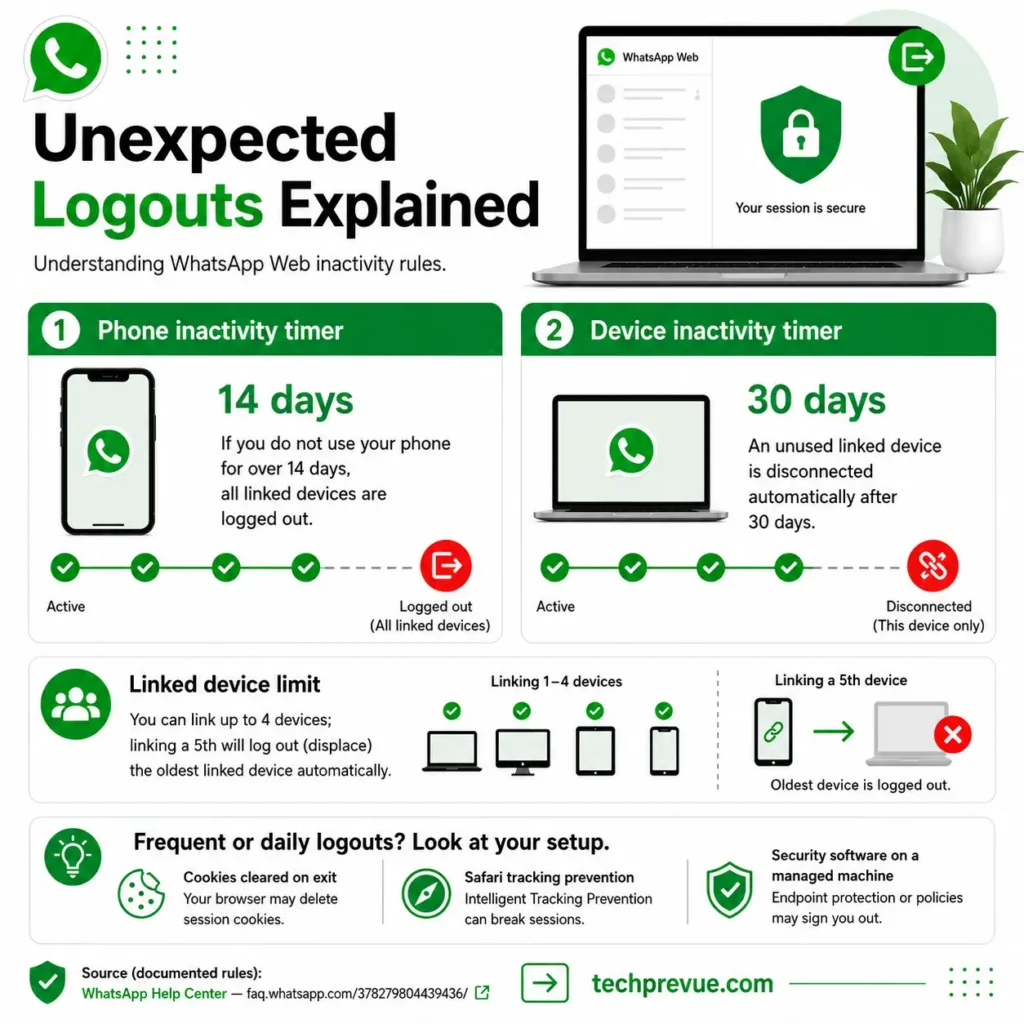
Two inactivity timers apply. Per WhatsApp’s documentation on linked devices, linked devices are logged out if you do not use your phone for over 14 days, and a device that sits unused for 30 days is disconnected automatically.
Neither triggers in normal use. If you are being logged out daily, look instead at browser settings that clear cookies on exit, security software on a managed machine, or Safari’s tracking prevention.
One more possibility worth ruling out: someone logged the session out from your phone. Open Linked devices and check what is listed. A session you do not recognize is a security matter, not a technical one.
There is also a limit that produces logouts nobody expects. Four devices can be linked at once, so authorizing a fifth silently displaces the oldest.
If you use a work computer, a home computer, a tablet, and a second browser, you are already at the ceiling. Prune the list rather than wondering why yesterday’s session keeps disappearing.
When nothing works
If you have worked through everything above, three options remain.
Try a different browser
Not as a fix, but as a diagnostic. Success in a second browser confirms the first one’s configuration is at fault and narrows the search considerably.
Try a different network
A phone hotspot rules network filtering in or out in about a minute.
Try a different computer
If a second machine on the same network works normally with the same account, the fault is confined to the first computer and you can stop suspecting your account entirely.
That narrowing matters more than it sounds. Most wasted troubleshooting time goes on people testing account-level fixes for a problem that lives in one browser profile.
Use the desktop app or your phone
Not satisfying, but if you have something urgent to send, solve the message first and the browser second.
Before you reinstall anything, remember that the browser holds almost no state — your messages live on your account. There is very little on your computer to repair.
That also means the drastic-sounding fixes are low risk. Clearing site data, relinking, and switching browsers all cost you a QR scan and nothing else.
The one thing worth doing before any of it is checking your linked device list. If an unrecognized session is sitting there, you are dealing with a security problem wearing the costume of a technical one.
For call-specific problems, which have their own causes, see our WhatsApp Web video call guide. For line breaks behaving oddly while typing, see how to go to the next line in WhatsApp Web.
Frequently asked questions
What to do if WhatsApp Web is not working right now?
Hard refresh with Ctrl + Shift + R, check whether someone else’s WhatsApp is working to rule out an outage, then test in a private window to rule out extensions. If all three pass, relink the session from your phone.
Why does WhatsApp Web work on one computer but not another?
Almost always browser configuration — extensions, blocked cookies, or privacy settings — or network filtering on one of the two connections. Your account behaves identically on both.
Does clearing my browser cache delete my messages?
No. Messages live on your account, not in the browser. Clearing cache logs you out and you will need to relink, but nothing is lost.
Why does it stop working when I close the tab?
The browser only runs while the tab is open. Notifications and message delivery stop until you reopen it, which is the main difference from the desktop app.
Is WhatsApp Web down often?
Genuine outages are uncommon and usually short. If your phone app is working normally, the service is up and the problem is local.
How do I know if someone else is using my session?
Open Linked devices on your phone. Every active session is listed with its device type and last active time. Log out anything you do not recognize.
Tested on July 31, 2026 in Chrome Version 151.0.7922.72 on Windows 11 and Safari Version 26.0 on macOS, with WhatsApp Version 2.22.13.77 on Android.
Source: WhatsApp Help Center.
