
Quick answer: WhatsApp publishes keyboard shortcuts for three platforms only — WhatsApp Web, WhatsApp for Windows, and WhatsApp for Mac. There are no official WhatsApp keyboard shortcuts for iPhone or Android, because phones use gestures and formatting characters instead. All three desktop lists differ from one another, so the shortcut that works in your browser may do nothing in the desktop app.
Key takeaways
- Three official lists exist, not one. Web, Windows, and Mac each have their own combinations.
- Browser shortcuts are longer on purpose — they add a modifier to dodge Chrome and Safari’s own commands.
- On WhatsApp Web, Mac uses Cmd + Ctrl, not Cmd + Option. Almost every third-party list gets this wrong.
- Your phone has no keyboard shortcuts, but it does have formatting shortcuts that work identically everywhere.
Every table below is transcribed from WhatsApp’s own Help Center documentation, checked on July 30, 2026.
What follows is every documented shortcut for WhatsApp chatting on each platform, a comparison showing where the three lists disagree, and the mobile equivalents for people who came here expecting WhatsApp keyboard shortcuts on a phone.
- Which WhatsApp apps have keyboard shortcuts?
- Keyboard shortcuts for WhatsApp Web
- WhatsApp Keyboard shortcuts for Windows desktop
- WhatsApp Keyboard shortcuts for Mac desktop
- The five worth learning first
- Where the three lists differ
- WhatsApp Keyboard shortcuts for emojis, GIFs, and stickers
- Shortcuts for WhatsApp chatting on your phone
- Text formatting shortcuts that work everywhere
- Why browser shortcuts are longer than app shortcuts
- Find the current list inside WhatsApp
- Frequently asked questions
Which WhatsApp apps have keyboard shortcuts?
Only three, and this is the first thing to settle because it saves a lot of searching.
WhatsApp’s shortcuts documentation has exactly three tabs: Web, Windows, and Mac. There is no iPhone tab and no Android tab.
That is not an oversight. A phone has no persistent keyboard, so WhatsApp built its mobile interfaces around taps, long-presses, and swipes instead of key combinations.
If you pair a Bluetooth keyboard with your phone, you get your operating system’s text-editing shortcuts — copy, paste, select all — but no WhatsApp-specific commands. Nothing in the app responds to a chat-management shortcut on mobile.
What phones do share with desktop are formatting shortcuts, the asterisks and underscores that turn text bold or italic. Those work identically on every platform and are covered in §8.
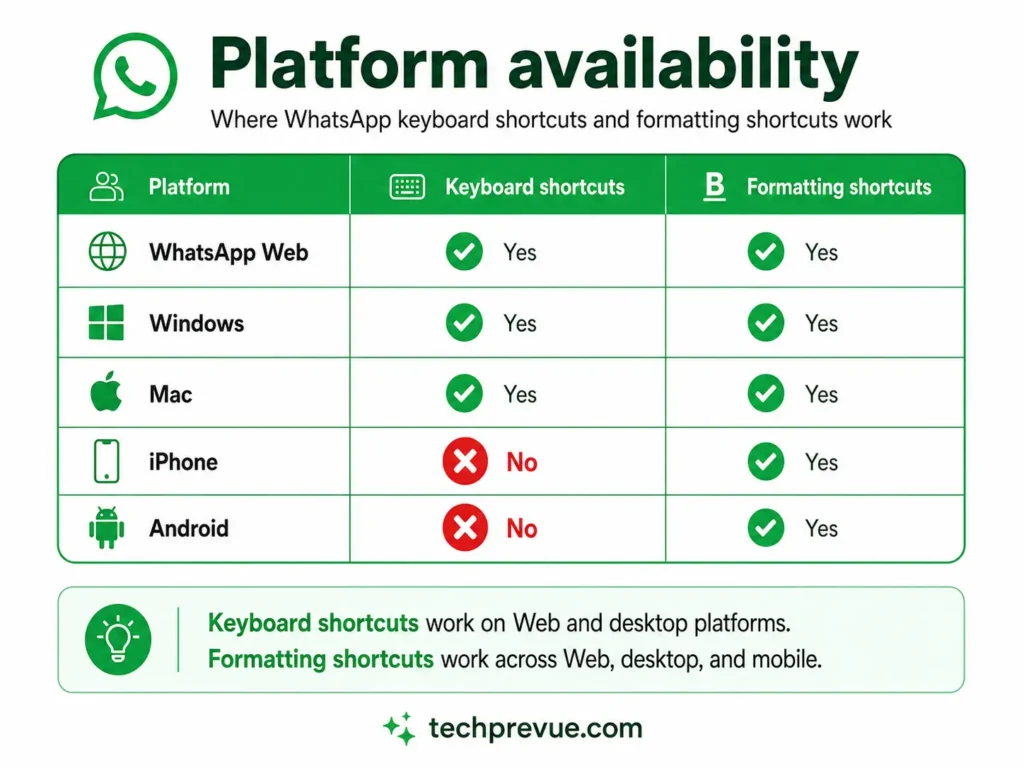
This matters if you are shopping for a faster workflow. Searching for keyboard shortcuts for WhatsApp on Android will return plenty of results, and almost all of them describe formatting characters or third-party launcher tricks rather than anything WhatsApp supports.
The honest framing is that mobile speed comes from gestures, and desktop speed comes from the keyboard. They are different systems, not incomplete versions of each other.
| Platform | Keyboard shortcuts | Formatting shortcuts |
|---|---|---|
| WhatsApp Web | Yes — 15 documented | Yes |
| WhatsApp for Windows | Yes — 33 documented | Yes |
| WhatsApp for Mac | Yes — 14 documented | Yes |
| iPhone | None | Yes |
| Android | None | Yes |
Keyboard shortcuts for WhatsApp Web
These work in Chrome, Firefox, Edge, Safari, and Opera. Note the Mac column carefully — it is where nearly every other published list goes wrong.
| Action | Windows and Linux | Mac |
|---|---|---|
| New chat | Ctrl + Alt + N | Cmd + Ctrl + N |
| New group | Ctrl + Alt + Shift + N | Cmd + Ctrl + Shift + N |
| Search chat | Ctrl + Alt + Shift + F | Cmd + Ctrl + / |
| Extended search | Alt + K | Cmd + K |
| Close chat | Escape | Escape |
| Mark as unread | Ctrl + Alt + Shift + U | Cmd + Ctrl + Shift + U |
| Mute | Ctrl + Alt + Shift + M | Cmd + Ctrl + Shift + M |
| Archive chat | Ctrl + Alt + Shift + E | Cmd + Ctrl + Shift + E |
| Pin chat | Ctrl + Alt + Shift + P | Cmd + Ctrl + Shift + P |
| Profile and About | Ctrl + Alt + P | Cmd + Ctrl + P |
| Settings | Ctrl + Alt + , | Cmd + Ctrl + , |
| Emoji panel | Ctrl + Alt + E | Cmd + Ctrl + E |
| GIF panel | Ctrl + Alt + G | Cmd + Ctrl + G |
| Sticker panel | Ctrl + Alt + S | Cmd + Ctrl + S |
| Lock screen | Ctrl + Alt + L | Cmd + Ctrl + L |
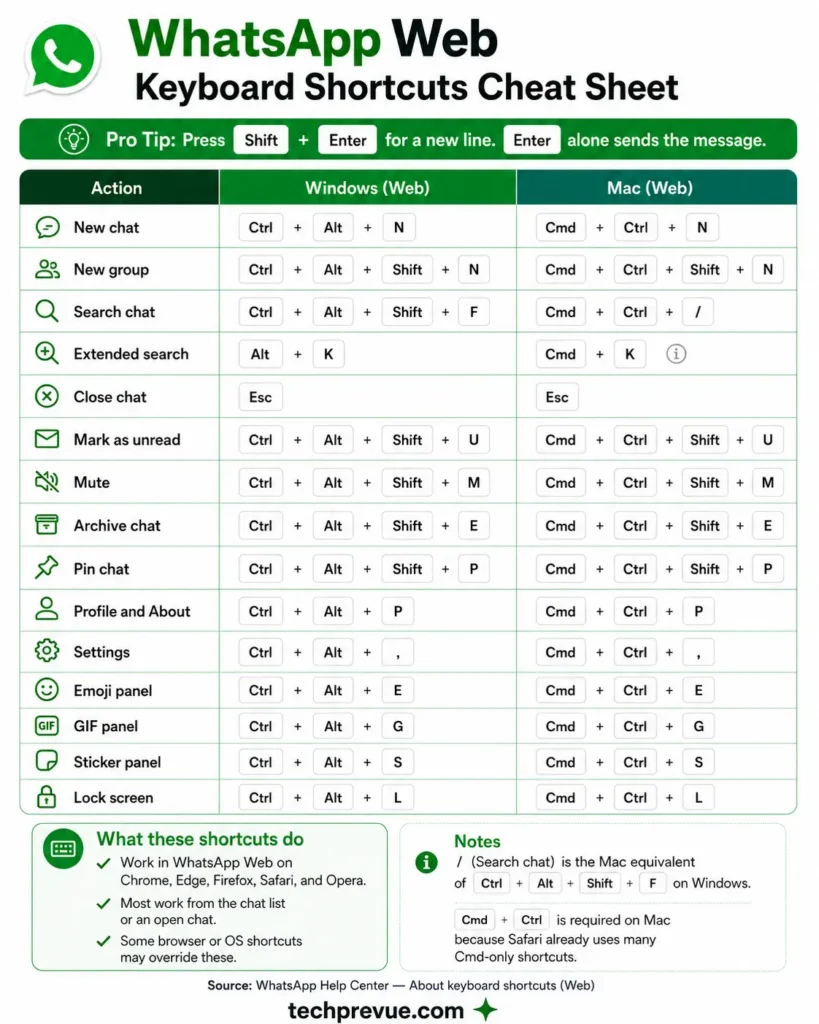
On Mac, the pattern is not what you would guess. Windows Ctrl becomes Cmd, and Windows Alt becomes Ctrl. So Ctrl + Alt + E becomes Cmd + Ctrl + E, not Cmd + Option + E.
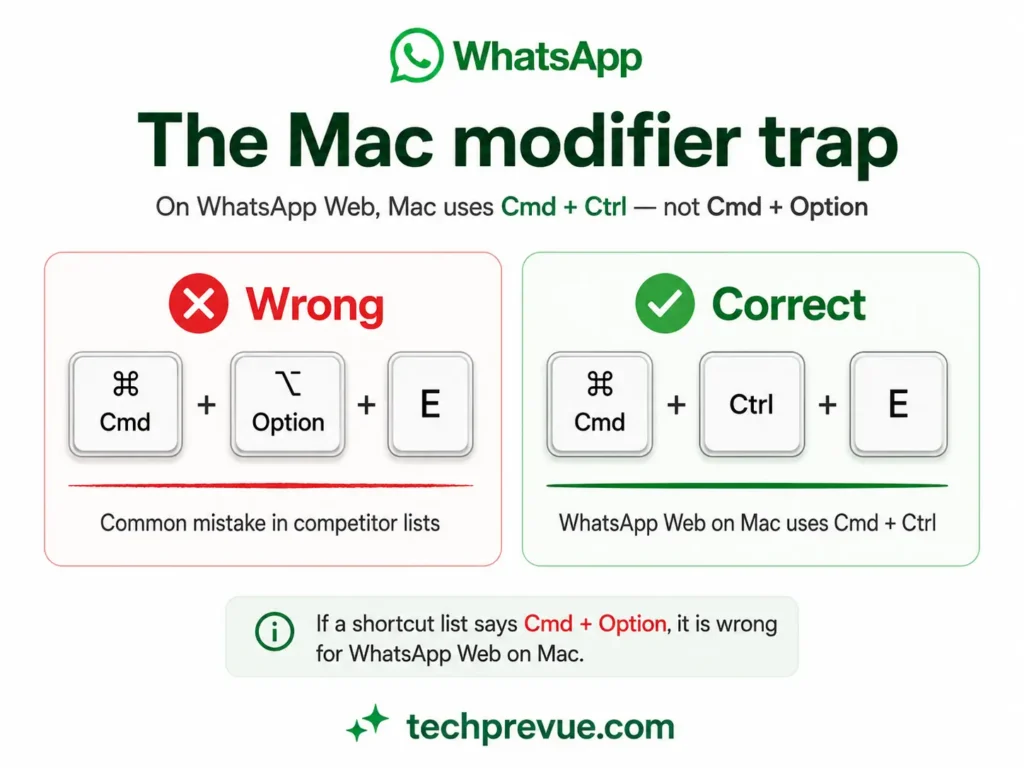
That single detail is wrong in most shortcut lists online, including ones updated this year. If a Mac shortcut has never worked for you, this is almost certainly why.
Two absences worth noting. The official Web list contains no next-chat or previous-chat shortcut, and no send or line-break entry. Line breaks have their own quirk, covered in how to go to the next line in WhatsApp Web.
WhatsApp Keyboard shortcuts for Windows desktop
The desktop app documents 33 shortcuts — more than twice the browser’s list — and most of them are shorter.
Chats and navigation
| Action | Shortcut |
|---|---|
| New chat | Ctrl + Alt + N |
| New group | Ctrl + Shift + N |
| Next chat | Ctrl + ] |
| Previous chat | Ctrl + [ |
| Open chat 1–9 | Ctrl + 1..9 |
| Close chat | Esc |
| Open chat info | Alt + I |
| Search | Ctrl + Alt + / |
| Search chat | Ctrl + Shift + F |
| Extended search | Alt + K |
Managing conversations
| Action | Shortcut |
|---|---|
| Mark as unread | Ctrl + Shift + U |
| Mute | Ctrl + Shift + M |
| Archive chat | Ctrl + Shift + A |
| Pin chat | Ctrl + Alt + Shift + P |
| Block chat | Ctrl + Shift + B |
Messages
| Action | Shortcut |
|---|---|
| Reply | Alt + R |
| Reply privately | Ctrl + Alt + R |
| Forward | Ctrl + Alt + D |
| Star message | Alt + 8 |
| Edit last message | Ctrl + Arrow Up |
| Open attachment dropdown | Alt + A |
| Start push-to-talk | Ctrl + Alt + Shift + R |
| Pause push-to-talk | Ctrl + Enter |
| Increase voice message speed | Shift + . |
Panels, view, and app
| Action | Shortcut |
|---|---|
| Emoji panel | Ctrl + Alt + E |
| GIF panel | Ctrl + Alt + G |
| Sticker panel | Ctrl + Alt + S |
| Settings | Alt + S |
| Lock app | Alt + L |
| Profile and About | Ctrl + Alt + P |
| Zoom in | Ctrl + + |
| Zoom out | Ctrl + – |
| Zoom reset | Ctrl + 0 |
One extra that sits outside the table: if a voice call arrives while WhatsApp for Windows is minimized, press Windows + Shift + V to interact with the notification.
WhatsApp Keyboard shortcuts for Mac desktop
The shortest of the three lists, and the only one with in-call controls.
| Action | Shortcut |
|---|---|
| New chat | Cmd + N |
| New group chat | Cmd + Shift + N |
| Search chats, calls, status | Cmd + Option + F |
| Search messages in chat | Cmd + F |
| Next chat | Cmd + Shift + ] |
| Previous chat | Cmd + Shift + [ |
| Hide chat | Cmd + Shift + W |
| Archived chats | Cmd + Shift + E |
| Settings | Cmd + , |
| Mute or unmute during a call | Cmd + Control + M |
| Toggle camera during a video call | Cmd + Control + V |
| Make chat text larger | Cmd + + |
| Make chat text default size | Cmd + 0 |
| Make chat text smaller | Cmd + – |
The two call shortcuts are unique to this list. Neither the browser nor the Windows app documents an equivalent, which is worth knowing now that calling works in the browser too.
Note also that the Mac desktop app uses Cmd + Option + F for global search, while Mac on the Web uses Cmd + Ctrl + /. Same machine, same action, different keys.
The five worth learning first
Thirty-three shortcuts is a list, not a skill. These five cover most of what a heavy user actually does, and they are the ones to build muscle memory around.
New chat — Ctrl + Alt + N in the browser and on Windows, Cmd + N on the Mac app. Starts a conversation without touching the mouse.
Search chat — Ctrl + Alt + Shift + F on Web, Ctrl + Shift + F on Windows, Cmd + F on Mac. Finding a message inside a long conversation beats scrolling by a wide margin.
Mark as unread — Ctrl + Alt + Shift + U on Web, Ctrl + Shift + U on Windows. The closest thing WhatsApp has to a follow-up flag.
Archive — Ctrl + Alt + Shift + E on Web, Ctrl + Shift + A on Windows. Clears finished conversations out of the list in one keystroke.
Emoji panel — Ctrl + Alt + E almost everywhere. Or type a colon and two letters, which is faster still.
Learn those five and the rest of the keyboard shortcuts for WhatsApp become optional rather than necessary.
A practical way to build the habit: pick one, and force yourself to use it for a week even when reaching for the mouse would be quicker. Shortcuts only pay off once they stop requiring thought, and that threshold arrives faster than most people expect.
Where the three lists differ
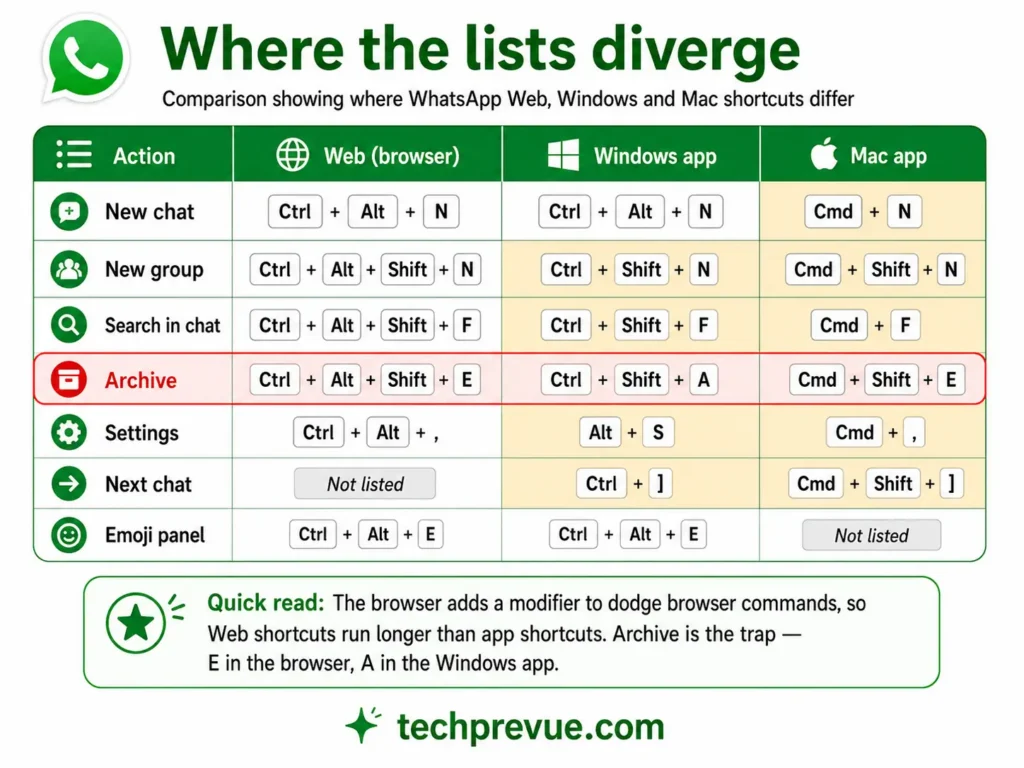
This is the part no other guide covers, and it explains most of the frustration people have with WhatsApp shortcuts.
| Action | Web (Windows) | Windows app | Mac app |
|---|---|---|---|
| New chat | Ctrl + Alt + N | Ctrl + Alt + N | Cmd + N |
| New group | Ctrl + Alt + Shift + N | Ctrl + Shift + N | Cmd + Shift + N |
| Archive | Ctrl + Alt + Shift + E | Ctrl + Shift + A | Cmd + Shift + E |
| Mute | Ctrl + Alt + Shift + M | Ctrl + Shift + M | Not listed |
| Search in chat | Ctrl + Alt + Shift + F | Ctrl + Shift + F | Cmd + F |
| Settings | Ctrl + Alt + , | Alt + S | Cmd + , |
| Next chat | Not listed | Ctrl + ] | Cmd + Shift + ] |
| Emoji panel | Ctrl + Alt + E | Ctrl + Alt + E | Not listed |
Three patterns fall out of that comparison.
The browser adds a modifier. Almost every Web shortcut carries an extra Alt on Windows or Ctrl on Mac compared with the desktop app. That is deliberate, and §9 explains why.
Archive changes letter, not just modifiers. Web and Mac use E; the Windows app uses A. It is the one action where muscle memory transfers badly between the browser and the app on the same computer.
Each list has gaps the others fill. The Web list has no next-chat shortcut. The Mac list has no emoji panel or mute. The Windows app documents both, plus 15 shortcuts neither of the others has.
WhatsApp Keyboard shortcuts for emojis, GIFs, and stickers
Three panels, three shortcuts, and they are among the few that behave consistently.
| Panel | Web (Windows) | Web (Mac) | Windows app |
|---|---|---|---|
| Emoji | Ctrl + Alt + E | Cmd + Ctrl + E | Ctrl + Alt + E |
| GIF | Ctrl + Alt + G | Cmd + Ctrl + G | Ctrl + Alt + G |
| Sticker | Ctrl + Alt + S | Cmd + Ctrl + S | Ctrl + Alt + S |
The Mac desktop app does not document panel shortcuts. Use the toolbar there.
The faster method most people never learn: type a colon followed by two or three letters, and matching emoji appear as suggestions. Typing :sm surfaces smile variants, :fi surfaces fire. Arrow keys select, Enter or Tab inserts.
For anyone sending more than a handful of emoji a day, that beats opening a panel every time. It also works while you are mid-sentence, which the panel does not.
Shortcuts for WhatsApp chatting on your phone
Since there are no keyboard shortcuts on mobile, here is what replaces them.
Swipe to reply. Swipe right on any message to quote it in your reply. Faster than long-pressing and choosing from a menu.
Long-press to select. Hold a message, then tap others to select several at once for forwarding or deleting.
Double-tap to react. Opens the reaction picker without opening the full message menu.
Hold the microphone, swipe up to lock. Records hands-free instead of holding the button through a long message.
Type formatting characters as you go. The asterisks and underscores in §8 work while composing, exactly as they do on a computer.
None of these are documented as shortcuts, but they are the mobile equivalent — the fast path to an action that otherwise takes several taps.
Text formatting shortcuts that work everywhere
These are the only shortcuts identical across every platform, phone included.
| Format | Type this |
|---|---|
| Bold | *text* |
| Italic | _text_ |
| Strikethrough | ~text~ |
| Monospace | ```text``` |
| Inline code | `text` |
| Bulleted list | - before the line |
| Numbered list | 1. before the line |
| Block quote | > before the line |
Symbols must sit directly against the text, with no space between. *bold* works; * bold * does not, and that single spacing rule accounts for most formatting that fails to render.
Bold, italic, and strikethrough stack — *_text_* gives both. Monospace overrides everything inside it, which is also how you display an asterisk without triggering bold.
Why browser shortcuts are longer than app shortcuts
Chrome, Firefox, Edge, and Safari have claimed most simple combinations for themselves.
Ctrl + N opens a browser window. Ctrl + F opens the find bar, and Ctrl + T opens a tab.
A web page cannot reliably override those, and arguably should not try. Hijacking a browser’s own commands is how sites break the back button and lose people’s trust.
So WhatsApp Web adds a modifier to step around them — Alt on Windows, Ctrl on Mac. That is why archiving takes four keys in a browser and three in the desktop app.
The desktop apps have no such constraint. They own their window, so they can use Ctrl + Shift + A without arguing with anything.
This is also why the keyboard shortcuts for WhatsApp Web occasionally stop working after a browser update. A browser that claims a new combination wins the conflict, and the page loses it silently.
The practical consequence: if you use WhatsApp heavily on one computer, the desktop app is meaningfully faster to drive from the keyboard. If you move between machines, the browser is the trade-off you accept.
Find the current list inside WhatsApp
Shortcuts change between versions, which is why so many published lists disagree with each other.
WhatsApp keeps a live list in the app itself. Open Settings → Keyboard Shortcuts to see what your build actually supports.
That screen updates with the app, so it will always beat any article — including this one — on the day WhatsApp changes something. Check it if a combination below does nothing.
Anything that still fails after that is usually a browser extension intercepting the keystroke, which is covered in why WhatsApp Web is not working.
There is a second reason lists disagree, and it is worth knowing when you compare this page against others. Several widely-shared shortcut lists date from 2021 and have been copied forward without rechecking, which is how a five-year-old combination ends up in an article published this year.
The in-app screen has no such problem. It is generated from the build you are running, so it cannot drift.
Frequently asked questions
Are there keyboard shortcuts for WhatsApp on iPhone or Android?
No. WhatsApp documents shortcuts for Web, Windows, and Mac only. Phones use gestures and formatting characters instead, and pairing a Bluetooth keyboard does not add WhatsApp-specific commands.
Why do Mac shortcuts not work on WhatsApp Web?
Most likely because you are using Cmd + Option. On the Web, Windows Ctrl becomes Cmd and Windows Alt becomes Ctrl, so the combination is Cmd + Ctrl.
Are WhatsApp Web and WhatsApp Desktop shortcuts the same?
No. The browser versions add an extra modifier to avoid clashing with browser commands, and archive uses a different letter entirely — E in the browser, A in the Windows app.
What is the shortcut for the emoji panel?
Ctrl + Alt + E on Windows, Cmd + Ctrl + E on Mac in the browser, and Ctrl + Alt + E in the Windows app. Typing a colon and two letters is often faster.
How do I see the shortcut list inside WhatsApp?
Open Settings and choose Keyboard Shortcuts. That list reflects your installed version and updates automatically.
Is there a shortcut to send a message?
Enter sends by default on the desktop and in the browser. Shift + Enter adds a line break instead.
All shortcut tables transcribed from WhatsApp’s Help Center documentation and checked on July 30, 2026. Verified against Chrome Version 151.0.7922.72 on Windows 11 and WhatsApp for Windows Version 2.22.13.77 .
Source: WhatsApp Help Center, “About keyboard shortcuts” — Web, Windows, and Mac platform tabs.
Related: how to use WhatsApp Web
