
Quick answer: To use WhatsApp Web, open web.whatsapp.com in any modern browser, then link it from your phone under Settings → Linked devices → Link a device. Scan the QR code on your screen, or choose the phone-number method and enter the 8-character code. Once linked, your phone does not need to stay online.
Key takeaways
- Your phone no longer has to stay connected. That requirement ended with multi-device support, though most guides still repeat it.
- You can link up to four devices at a time, and your phone must be opened at least once every 14 days to keep them connected.
- Voice and video calls now work in the browser. WhatsApp launched web calling on July 28, 2026.
- A short list of features stays phone-only, and knowing which ones saves you a lot of hunting.
Before you start
| What you need | A phone with WhatsApp already registered, plus a computer with Chrome, Firefox, Edge, Safari, or Opera |
| Time | About two minutes |
| Difficulty | Easy |
| Cost | Free |
This guide covers how to use WhatsApp Web from end to end: both login methods, the browser calling features that arrived in July 2026, the limits that no competing guide documents accurately, and the security checks worth running before you close this tab.
- What is WhatsApp Web?
- How to use WhatsApp Web: step by step
- How to use WhatsApp Web on your phone
- Making calls on WhatsApp Web
- WhatsApp Web keyboard shortcuts
- What WhatsApp Web can't do
- Five things people still get wrong
- Is WhatsApp Web safe?
- Saving photos and videos from chats
- Running two WhatsApp accounts
- How to log out of WhatsApp Web
- When WhatsApp Web stops working
- Frequently asked questions
- Glossary
What is WhatsApp Web?
WhatsApp Web is the browser version of WhatsApp, hosted at web.whatsapp.com. It gives you your full chat list, message history, media, and contacts on a computer screen without installing anything.
It is not a separate account. It is the same account you use on your phone, reached through a different window.
The appeal is simple. A full keyboard is faster than a phone screen, a wide monitor shows more of a long group thread, and dragging a file into a chat beats emailing it to yourself first.
For anyone handling volume — a support agent in Lucknow, a recruiter in Chicago, a shop owner replying to fifty order enquiries a day — the browser is where the work actually gets done.
How WhatsApp Web actually works now
Here is the part most guides get wrong. WhatsApp Web used to mirror your phone, which meant a dead battery killed your browser session too.
That changed with multi-device support. Each linked device now holds its own encrypted connection to WhatsApp’s servers and works on its own.
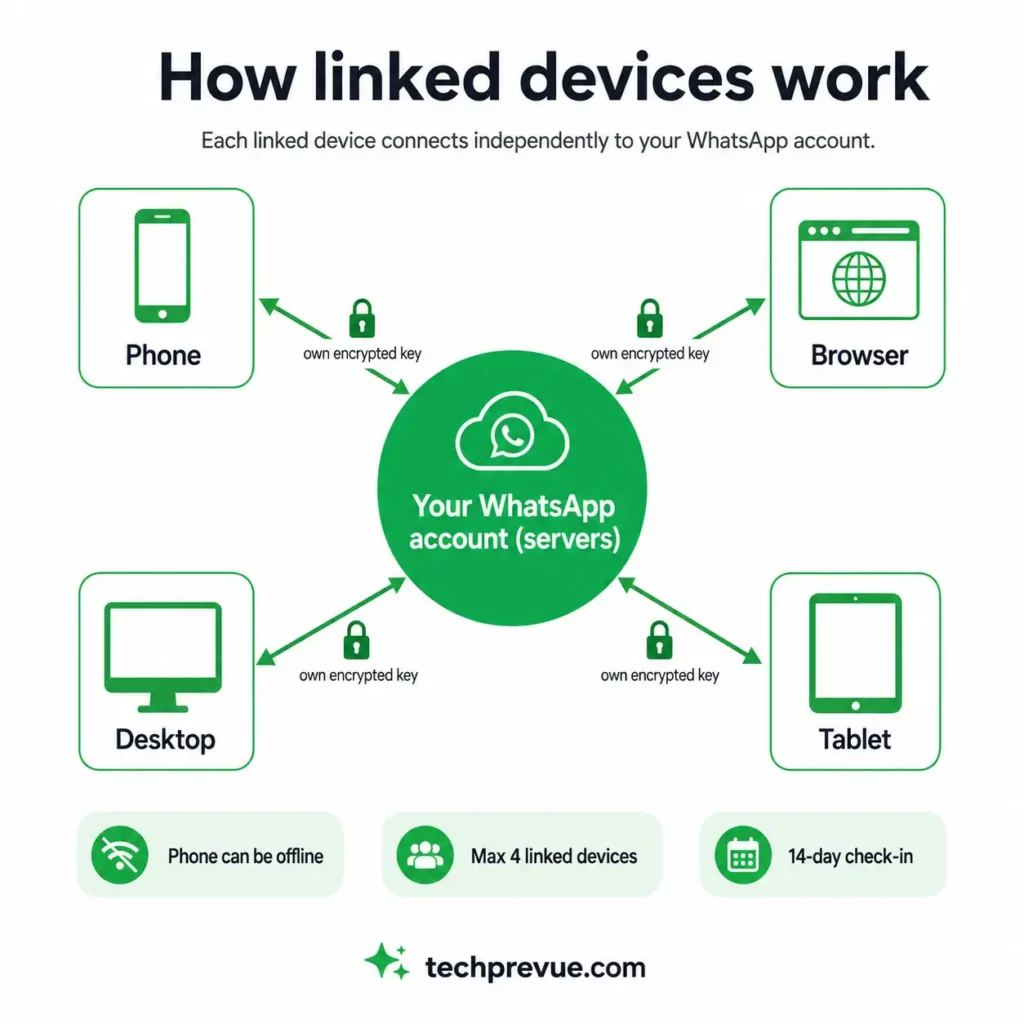
According to WhatsApp’s documentation on linked devices, your phone does not need to stay online to use WhatsApp on linked devices.
Think of it less as a mirror and more as a second key to the same door. The account lives on WhatsApp’s servers, and every device you authorize gets its own key rather than borrowing your phone’s.
That distinction explains behavior people find confusing. Messages arrive in the browser while the phone sits in a drawer, and deleting a chat on one device removes it everywhere, because there is no master copy on the handset.
Two rules still tie you back to your phone:
- The 14-day rule. Linked devices log out if you do not use your phone for over 14 days.
- The 30-day rule. WhatsApp automatically disconnects linked devices after 30 days of inactivity on that device.
Neither triggers in normal use. Both exist so an abandoned session cannot stay open forever on a computer you no longer control.
One more constraint worth knowing early: your primary phone is still required to register your account and to link any new device. Linked devices — Windows, Mac, Web, iPad, and wearables — cannot be used as the primary device on an account.
WhatsApp Web vs WhatsApp Desktop vs the phone app
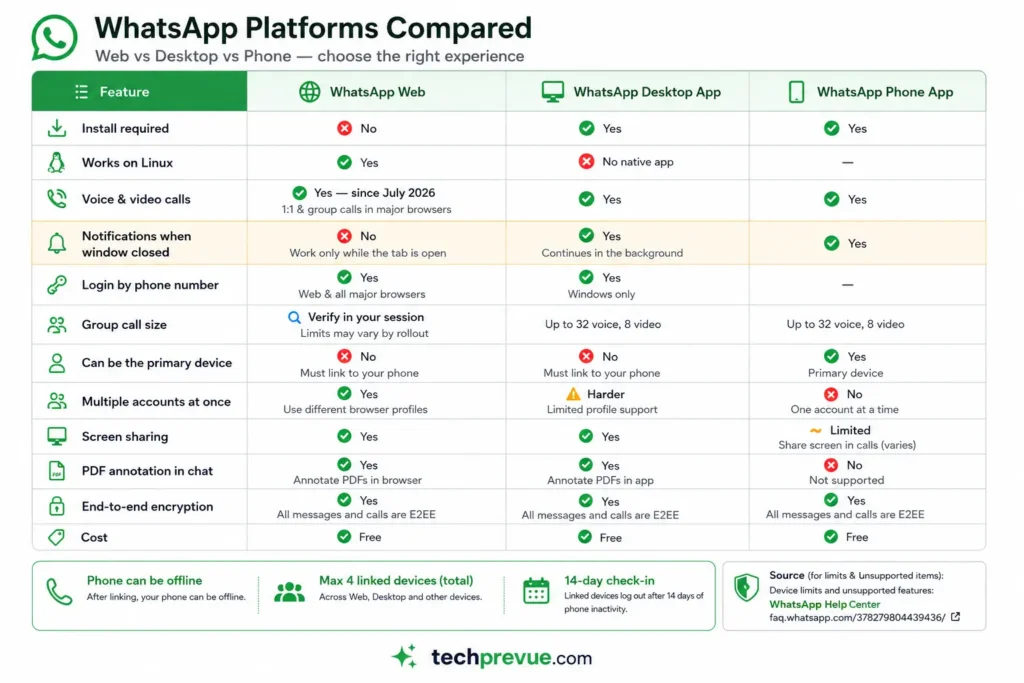
All three run the same account and the same end-to-end encryption. The differences are practical, not architectural.
| WhatsApp Web | Desktop app | Phone app | |
|---|---|---|---|
| Install required | No | Yes | Yes |
| Works on Linux | Yes | No native app | — |
| Notifications when closed | No | Yes | Yes |
| Login by phone number | Yes | Windows only | — |
| Voice and video calls | Yes (since July 2026) | Yes | Yes |
| Group call size | Verify in your session | Up to 32 voice, 8 video | Up to 32 voice, 8 video |
| Can be the primary device | No | No | Yes |
| Multiple accounts at once | Yes, via browser profiles | Harder | No |
Pick the browser if you switch between computers, use a shared or locked-down machine, run two accounts, or work on Linux.
Pick the desktop app if this is your own daily computer and you want notifications that survive closing the browser.
How to use WhatsApp Web: step by step
The whole process is four steps and takes about two minutes. You will need your phone in hand for step two only.
Step 1 — Open web.whatsapp.com on desktop
Type web.whatsapp.com directly into your browser’s address bar. Do not reach it through a search result or a link someone sent you.
That warning is not routine caution. Fake pages that imitate this screen are the entry point for a real account-takeover scam, covered further down.
You will see a QR code and a link reading Log in with phone number.
Step 2 — Link your phone
You have two ways in, and both end at the same place.
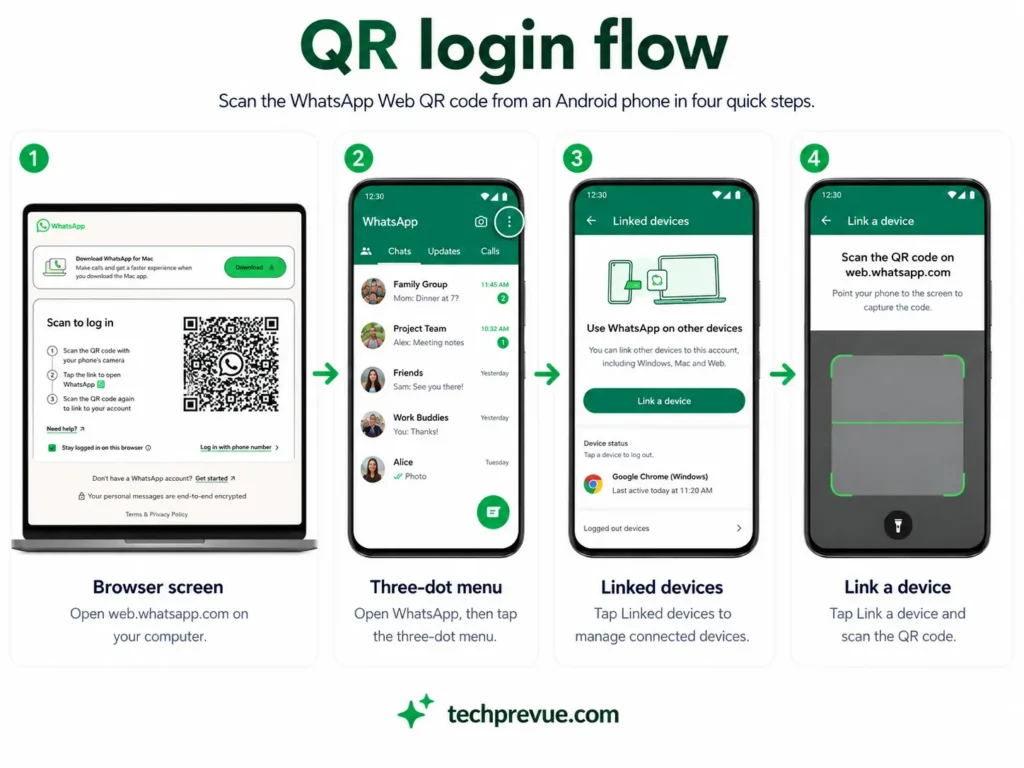
WhatsApp Web Login with QR code:
- On your phone, open WhatsApp.
- Android: tap the three-dot menu.
iPhone: tap You or Settings. (You – WhatsApp | Settings – WhatsApp Business) - Tap Linked devices, then Link a device.
- Unlock your phone if prompted, then point the camera at the QR code on your computer.
WhatsApp Web Login with Phone Number:
No camera, or the scan keeps failing?
- Click Log in with phone number on the login screen.
- Select your country code and enter your phone number.
- WhatsApp issues an 8-character code — letters included, not just digits — which you enter on your phone under Linked devices.
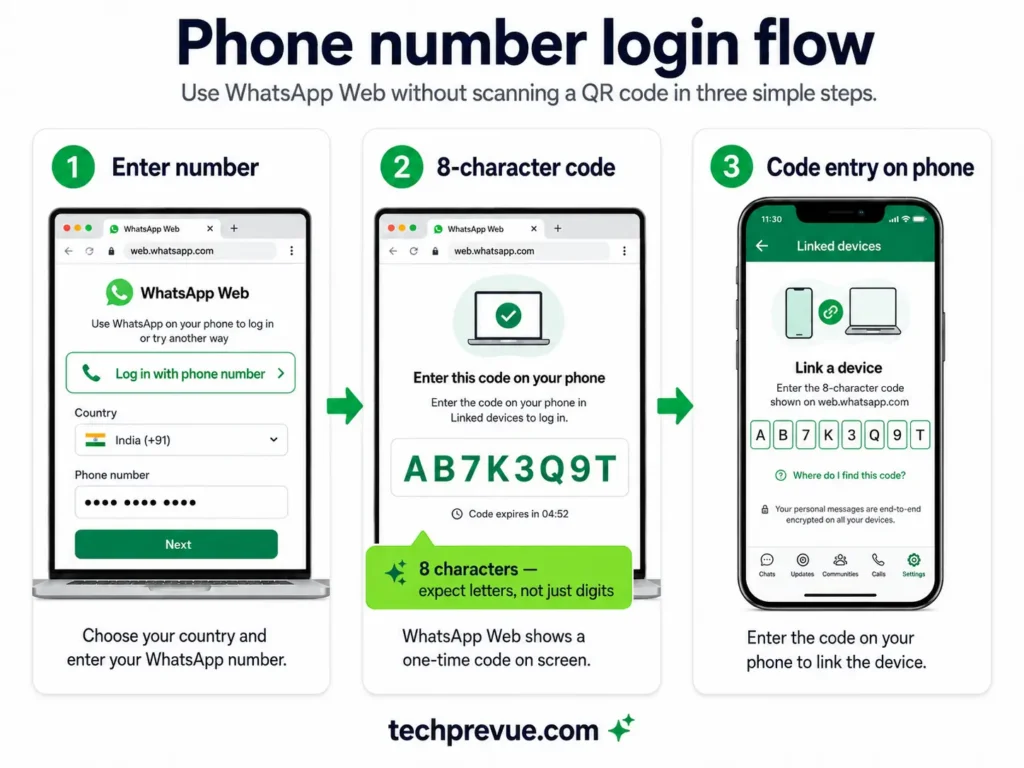
Per WhatsApp’s official linking instructions, that method works in the browser and in WhatsApp for Windows, but not in the Mac app.
For the full walkthrough of both routes, including what to do when a code is rejected, read both WhatsApp Web login methods compared.
Step 3 — Send your first message
Your chats load on the left. Click any conversation to open it on the right.
To start a new one, click the New chat icon and pick a contact. Press Enter to send.
To add a line break instead of sending, press Shift + Enter. This single shortcut is the most common frustration new users hit, because Enter sends by default.
Step 4 — Attach files, photos, and voice notes
Click the + icon beside the message box for documents, photos and videos, audio, contacts, polls, and events. Or skip the menu entirely.
Drag a file from your desktop straight into the chat window and it attaches. You can also paste a screenshot directly from your clipboard, which is faster than saving it first.
The microphone icon records and sends a voice message from your computer’s mic. The sticker icon opens emoji, GIF, and sticker tabs.
One recent addition worth knowing: you can now open PDFs inside a chat without downloading them, and highlight or annotate them in place. Meta announced this on July 22, 2026, powered by Adobe Acrobat, and it works on web and desktop only — not on your phone.
That inversion is worth pausing on. It is one of the first cases where the browser does something the mobile app cannot, rather than the other way round.
How to use WhatsApp Web on your phone
This is the question with the least honest coverage online, so here is the direct answer: you cannot log into web.whatsapp.com from your phone’s browser to reach your own account. WhatsApp blocks it, and requesting the desktop site does not defeat that.
The reason is structural rather than arbitrary. Your phone is already the primary device on the account, and an account cannot pair with itself.
What you can do instead:
- Link a second phone. Install WhatsApp on the other handset, choose Link as companion device at the registration screen, and scan the code from your primary phone.
- Link a tablet. Android tablets and iPad both work as companion devices. Meta has also added the ability to register a WhatsApp account directly on an iPad, without linking to a phone.
- Use a second phone as a screen, not an account. Some people open the browser version on a laptop and simply keep the phone nearby. That is not a workaround, but it is what most searchers actually need.
If you are trying to read one account on two phones, companion mode is the supported path. If you are trying to run two accounts on one phone, that is a dual-app or dual-SIM question, not a browser one.
Making calls on WhatsApp Web
You can now make and receive voice and video calls directly in the browser. WhatsApp announced this on July 28, 2026, and it removes the single biggest reason people used to install the desktop app.
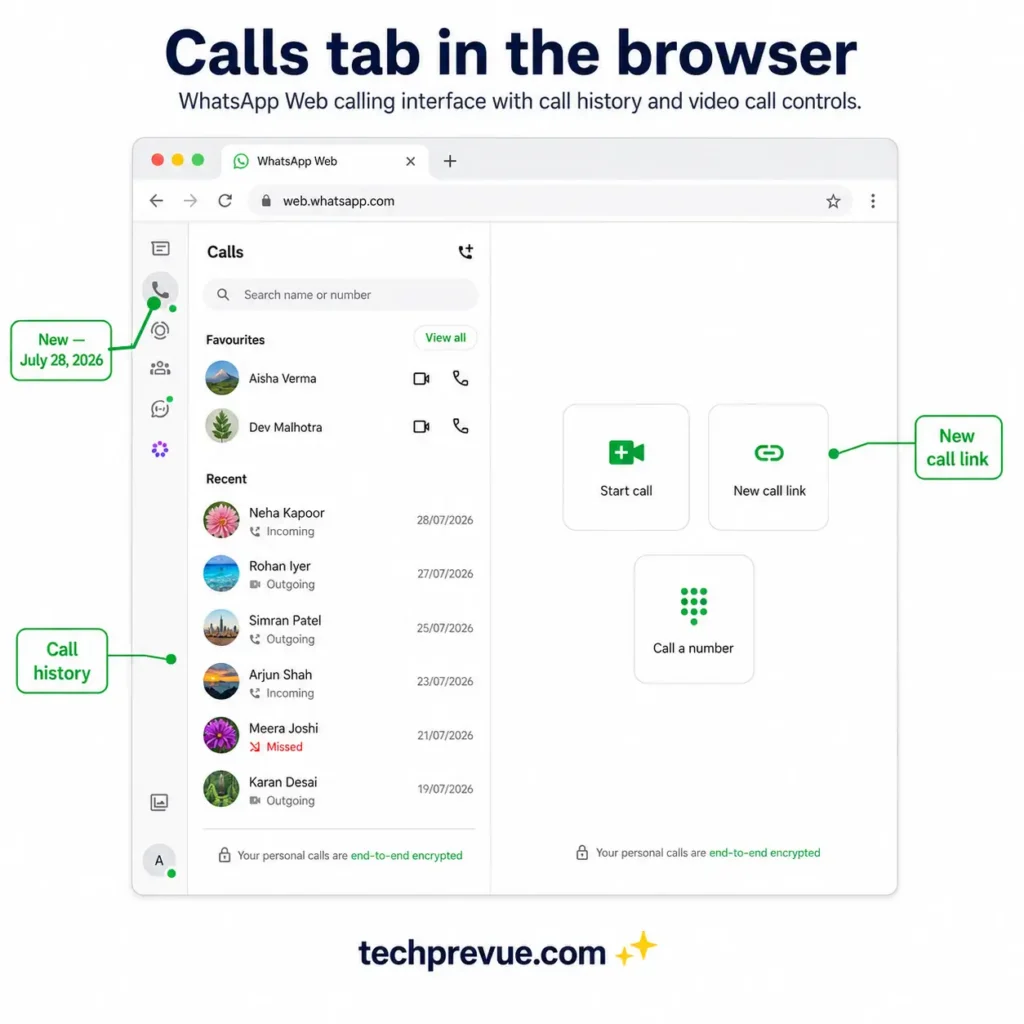
Both one-on-one and group calls work, with no app download required. According to Meta’s announcement, calls on the web are end-to-end encrypted, with no time limits and at no cost.
This lands differently depending on where you sit. In India, where WhatsApp is the default channel for client conversations, it removes the awkward switch to a separate meeting tool mid-conversation.
In the US, the bigger win is the locked-down work laptop. Plenty of corporate machines block software installation outright, which used to mean no calling at all — the announcement calls out shared computers and restricted laptops directly.
The browser call experience includes screen sharing, reactions, and a dedicated Calls tab holding your full call history and favorites.
Four related features shipped alongside it:
- Call Transfer moves an active group call between devices without hanging up. Start on your phone during a commute, move it to the browser when you sit down.
- Waiting Room holds participants until you admit them, available when you create a call link with “Require approval to join” enabled.
- QuickHD delivers high-definition video in the first seconds of a call rather than after it settles.
- Noise suppression strips background sound so your voice carries in a loud room, and can be toggled during the call.
One caveat that matters. Meta states these features are rolling out gradually, so a colleague may have the Calls tab before you do.
If the tab has not appeared, check whether your browser has camera and microphone permission before assuming the feature is missing. On a managed work laptop, device policy can block the hardware even when the interface loads.
For the complete walkthrough, see our full WhatsApp Web video call guide.
WhatsApp Web keyboard shortcuts
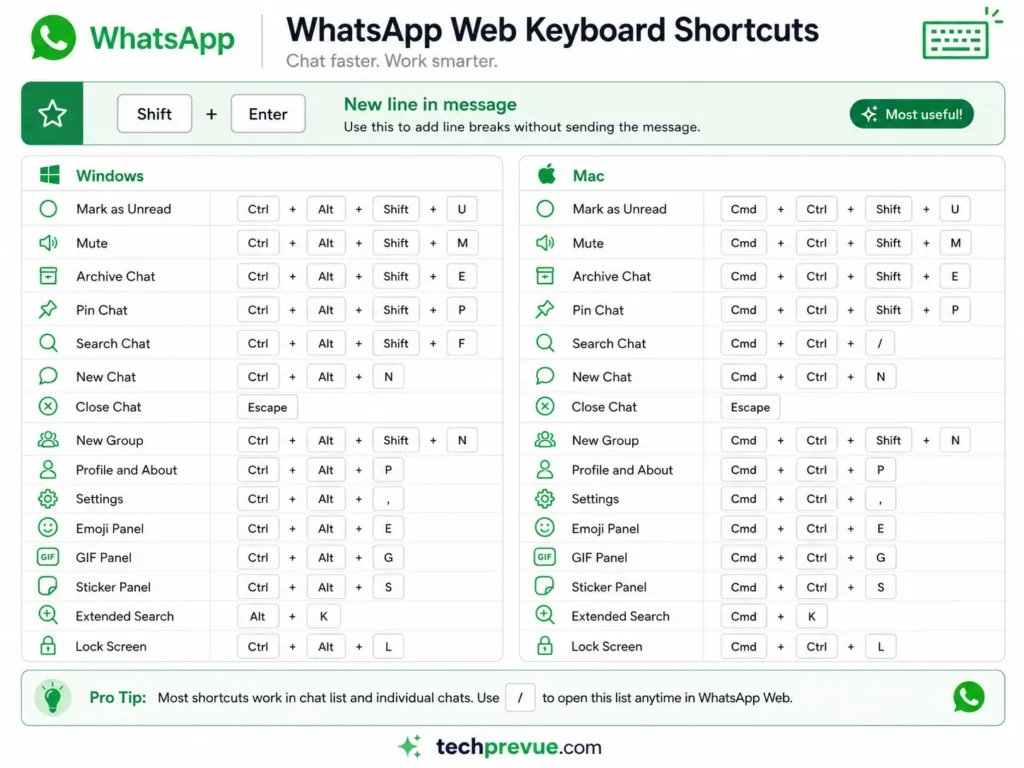
Shortcuts are where the browser genuinely beats the phone. These are the ones worth memorizing.
| Action | Windows and Linux | Mac |
|---|---|---|
| New line in a message | Shift + Enter | Shift + Return |
| Send message | Enter | Return |
| New chat | Ctrl + Alt + N | Cmd + Ctrl + N |
| Search within a chat | Ctrl + Alt + Shift + F | Cmd + Ctrl + / |
| Archive chat | Ctrl + Alt + Shift + E | Cmd + Ctrl + Shift + E |
| Mute chat | Ctrl + Alt + Shift + M | Cmd + Ctrl + Shift + M |
| Mark as unread | Ctrl + Alt + Shift + U | Cmd + Ctrl + Shift + U |
| Pin chat | Ctrl + Alt + Shift + P | Cmd + Ctrl + Shift + P |
| Emoji panel | Ctrl + Alt + E | Cmd + Ctrl + E |
On Mac the substitution is not the obvious one: Windows Ctrl becomes Cmd, and Windows Alt becomes Ctrl. Cmd + Option combinations will not work. The one people hunt for most is covered in full in how to go to the next line in WhatsApp Web.
What WhatsApp Web can’t do
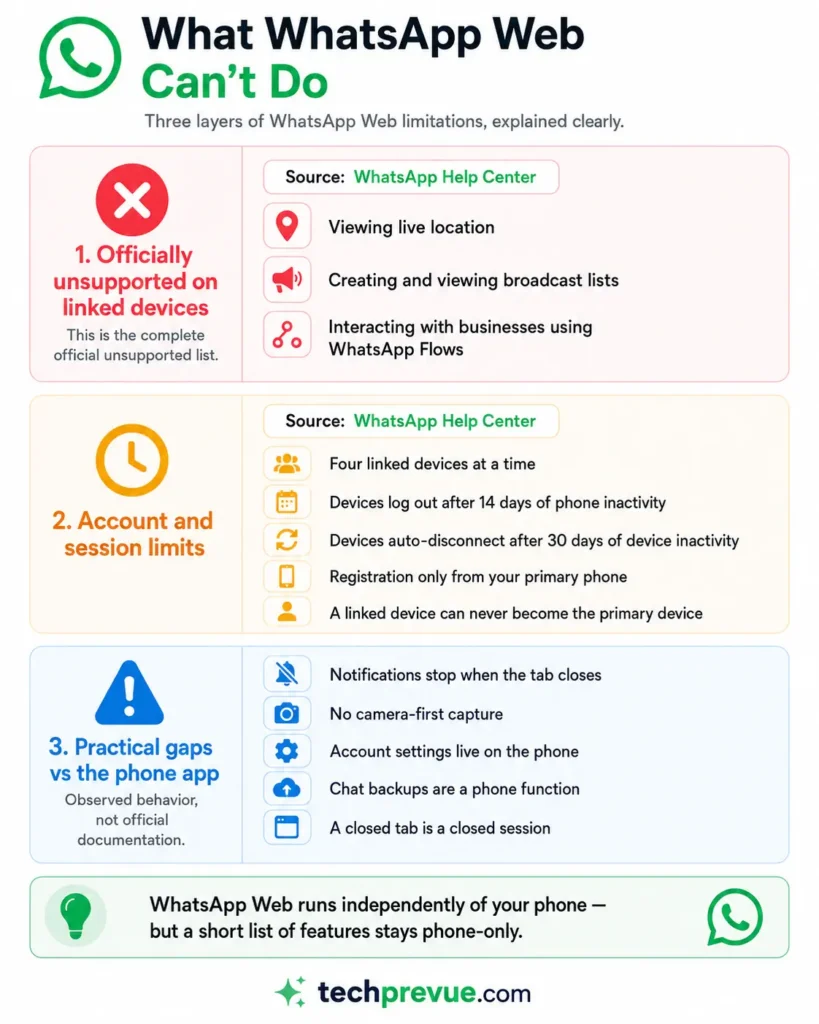
Most articles answer this with a vague list. Here is the sourced version, split into three layers, because readers usually confuse them.
Officially unsupported on linked devices
WhatsApp’s Help Center names three features that are not supported on any linked device, browser or otherwise:
- Viewing live location
- Creating and viewing broadcast lists
- Interacting with businesses using WhatsApp Flows
That list is shorter than most people expect, and it is the authoritative one.
Account and session limits
These are not missing features so much as guardrails, and they explain most confused support questions.
| Limit | Detail |
|---|---|
| Linked devices | Four at a time |
| Phone inactivity | Devices log out after 14 days |
| Device inactivity | Auto-disconnected after 30 days |
| Registration | Only from your primary phone |
| Primary device | A linked device can never become one |
Practical gaps vs the phone app
The browser is not a clone. None of these appear on any official unsupported list, but they are what people actually run into, and they are the reason some readers conclude the product is broken when it is working exactly as designed.
- Notifications stop when the tab closes. The desktop app keeps them running; the browser does not.
- No camera-first capture. You attach files that already exist rather than shooting them in the moment.
- Account-level settings live on the phone. Changing your number, deleting your account, and managing backups all happen there.
- Chat backups are a phone function. The browser holds no local archive you can restore from.
- A closed tab is a closed session. Nothing arrives until you reopen it.
Five things people still get wrong
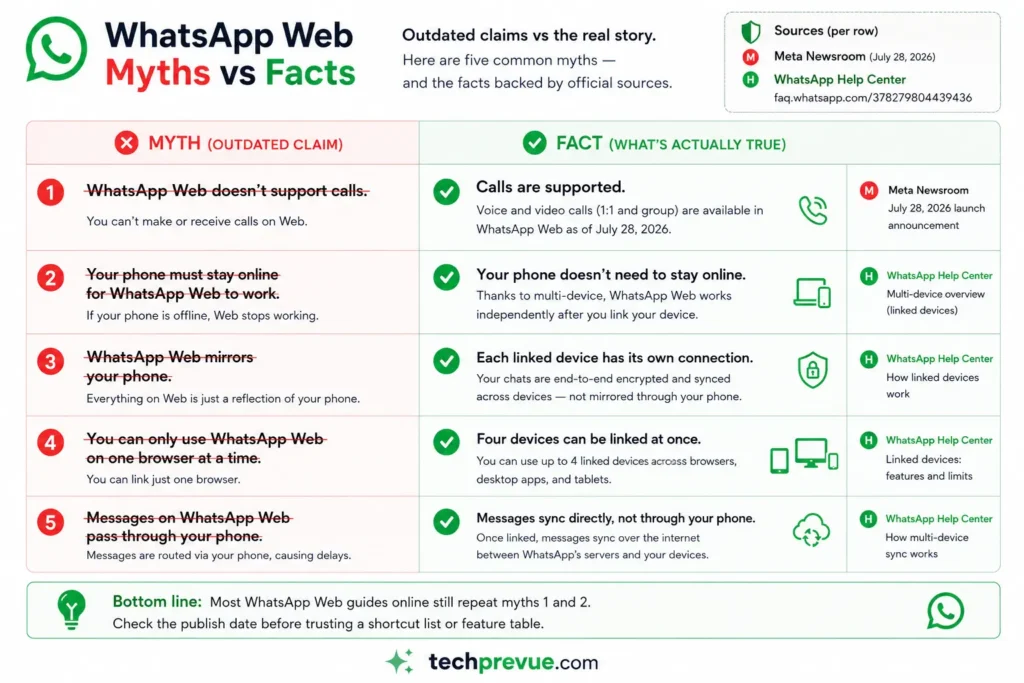
The product changed faster than the articles describing it. These five claims are still repeated on high-ranking pages and all five are wrong.
| Common claim | Reality |
|---|---|
| “Your phone must stay online” | False since multi-device support. Only the 14-day rule applies |
| “Your phone must be near your computer” | Only true for the seconds you spend scanning the QR code |
| “You can’t make calls on WhatsApp Web” | False since July 28, 2026 |
| “You can only use one browser at a time” | False. Four linked devices can run at once |
| “Web and Desktop are identical” | False. Phone-number login is Windows and Web only, and notification behavior differs |
If you read a WhatsApp Web guide that still says your phone must be connected, treat the rest of that page with the same suspicion.
Is WhatsApp Web safe?
Yes, with one qualification. Your messages and calls in the browser carry the same end-to-end encryption as the phone app, so the encryption is not the weak point.
The weak point is session control. Anyone who gets a device linked to your account can read and send messages as you, and they do not need your password, because there is no password.
That reframes safety here as a housekeeping problem rather than a cryptography problem.
Auditing your linked devices
Do this now, and then every month or so.
- Open WhatsApp on your phone.
- Go to Linked devices.
- Read the list. Each entry shows the device type and when it was last active.
- Tap anything you do not recognize, then tap Log out.
WhatsApp recommends keeping push notifications enabled on your phone specifically so you are alerted when a new device links, and can remove it immediately if it is not yours.
Two-step verification is worth turning on at the same time, under Settings → Account → Two-step verification. It does not protect the linked-device flow directly, but it blocks the re-registration attack that usually follows a compromise.
The QR code scam you should know about
This one deserves its own section because it targets the browser login specifically, and because the victim usually scans the code themselves.
The setup is an offer: a small online task, a part-time job, a quick payment for scanning a code. The code is a live login screen sitting on a page the scammer controls.
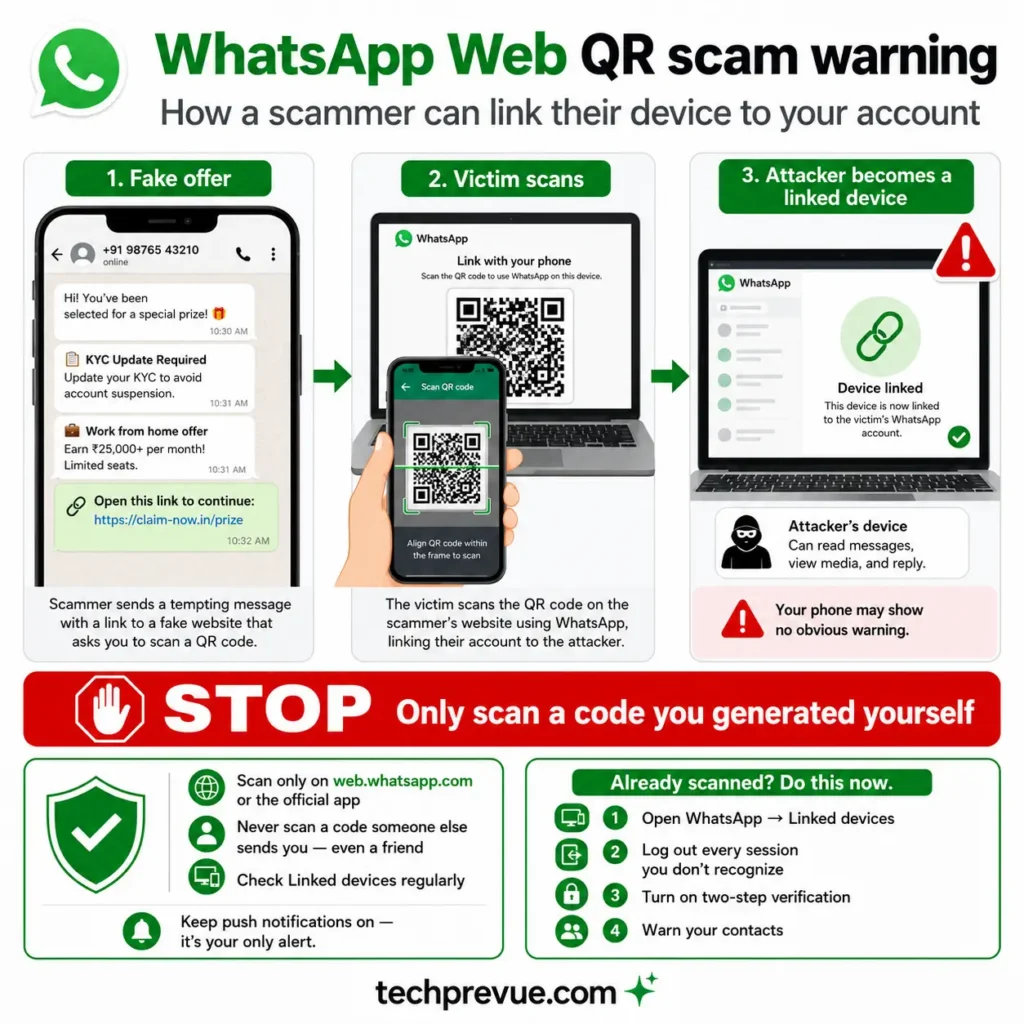
Scan it and their browser becomes an authorized device on your account. They can then read your messages, message your contacts as you, and see who you talk to — quietly, because nothing on your phone looks broken.
India’s Cybercrime Coordination Centre, which operates under the Ministry of Home Affairs, has issued an advisory describing compromised accounts being effectively rented out and used for fraud, with operators outside India using them to mask their identity.
The defense is a single habit. Only ever scan a QR code that you generated yourself, on a page you typed into the address bar. No legitimate job, payment, prize, or verification process requires you to scan a WhatsApp Web code.
If you think you scanned one, open Linked devices and log out every session you do not recognize, then turn on two-step verification.
Using WhatsApp Web on a shared computer
Cyber cafés, library terminals, hotel business centers, and a colleague’s laptop all carry the same risk: you walk away and the session does not.
- Leave Keep me signed in unchecked on the login screen.
- Use a private or incognito window so the browser stores less.
- Log out from the computer before you leave, not after.
- Check Linked devices from your phone once you are home, and log out anything still listed.
- Turn on App lock under Settings → Privacy if you step away mid-session on your own machine.
That last one is a genuine feature that a surprising number of guides miss. It sets a password on the session and can auto-lock after a period of inactivity.
One question comes up constantly and deserves a straight answer: can your employer read your chats on a work laptop? Not through the network, because the encryption holds regardless of whose Wi-Fi you use.
But encryption protects data in transit, not your screen. Managed devices can run monitoring software that captures what is displayed or typed, and that sits outside WhatsApp’s control entirely. If the conversation would embarrass you in a review meeting, have it on your own phone.
Saving photos and videos from chats
Hover over any image or video and use the download arrow, or open it and choose Download from the menu. Files land in your browser’s default download folder.
Two things trip people up. Media that has aged out of WhatsApp’s servers may not re-download on a device that never received it, and view-once or disappearing messages cannot be saved at all.
Bulk saving from a long chat is a different job with its own steps, covered in how to download video from WhatsApp Web.
Running two WhatsApp accounts
A business number and a personal number can both be open on the same computer at the same time. The browser makes this easier than the desktop app does.
Open one account in your normal Chrome window and the second in a separate browser profile, or in a different browser entirely. Each profile keeps its own cookies, so each holds its own WhatsApp session.
Remember that both sessions count toward your four-device limit — but they count against different accounts, so in practice you have four devices per number.
For sellers running the WhatsApp Business app, the same browser flow applies, and the catalogue, labels, and quick replies you set up on the phone appear in the browser too. You need the Business app installed on the phone first, or you will get the standard interface without them.
Two habits make this setup survivable at volume. Name your browser profiles after the numbers rather than “Profile 1” and “Profile 2”, because the sessions look identical once loaded and sending a personal reply to a customer is a mistake you make exactly once.
And check Linked devices on both numbers monthly. Running two accounts doubles the number of stale sessions you accumulate, and doubles the chance of leaving one open on a machine you no longer use.
How to log out of WhatsApp Web
There are two ways, and the second one is the one people forget.
From the computer you are using: click the settings gear at the bottom left, choose Log out, and confirm.
From your phone, remotely: open WhatsApp, go to Linked devices, tap the session you want to end, and tap Log out. This works from anywhere, which matters when you have already left the building.
Logging out does not delete your chat history. Your messages live on your account and reappear the next time you link.
If you need the platform-specific steps, or you are locked out of the computer entirely, see every way to log out, including remotely from your phone.
When WhatsApp Web stops working
Most failures fall into five buckets. Work down this table before assuming there is an outage.
| Symptom | Most likely cause | First fix |
|---|---|---|
| QR code will not load | Browser cache or an extension | Hard refresh, then try incognito |
| Stuck on “Downloading messages” | Sync interrupted | Keep the phone unlocked and on WhatsApp while it finishes |
| Logged out unexpectedly | 14-day or 30-day rule triggered | Open WhatsApp on your phone, then relink |
| Cannot link a new device | Four-device limit reached | Remove an old session under Linked devices |
| No notifications | Browser permission blocked | Allow notifications for the site in browser settings |
Check whether the problem is yours or WhatsApp’s before troubleshooting for an hour. If friends on their phones are also affected, it is not your browser.
The deeper diagnostic path is in why WhatsApp Web is not working.
Frequently asked questions
Does WhatsApp Web work without my phone?
Yes. Once a device is linked, your phone can be off, out of battery, or in another country. You only need to open WhatsApp on your phone once every 14 days to keep linked devices connected.
How many devices can I link?
Four at a time, plus your primary phone. Browsers, desktop apps, tablets, and wearables all count toward that four.
Can I make video calls on WhatsApp Web?
Yes. WhatsApp launched voice and video calling on the web on July 28, 2026, for both one-on-one and group calls. The rollout is gradual, so it may not have reached your account yet.
Is there a WhatsApp Web app to download?
Not for the browser version — it runs at web.whatsapp.com with nothing to install. There are official desktop apps for Windows and Mac, downloadable from WhatsApp’s website, which are a different product from WhatsApp Web.
Why does WhatsApp Web keep logging me out?
Usually one of three reasons: you have not opened WhatsApp on your phone in over 14 days, that browser session has been idle for 30 days, or someone logged the session out from the phone.
Can someone else see my messages if I forget to log out?
Yes. Anyone with access to that computer can read and send messages until the session ends. Log out remotely from your phone under Linked devices.
Does WhatsApp Web work on a phone browser?
No. Your phone is already the primary device on your account, so it cannot pair with itself. Use companion mode on a second phone or tablet instead.
Are WhatsApp Web messages encrypted?
Yes. Each linked device holds its own end-to-end encrypted connection, so browser messages and calls carry the same protection as the phone app.
Glossary
Primary device — The phone where your WhatsApp account is registered. Only this device can add new linked devices.
Linked device — Any browser, desktop app, tablet, or wearable connected to your account. Limited to four at a time.
Companion mode — Linking a second phone or tablet to an existing account rather than registering a new one.
QR pairing — The login method where your phone’s camera reads a code on screen to authorize a device.
Link with phone number — The alternative login that issues an 8-character code instead of a QR code.
End-to-end encryption — Message protection where only sender and recipient can read the contents, applied per linked device.
Tested on July 29, 2026 using Chrome Version 151.0.7922.71 on Windows 11 and Safari Version 26 on macOS, with WhatsApp Version 2.22.13.77 on Android and iOS. Feature availability varies during staged rollouts; where your screen differs from ours, your version is the current one.
Sources: WhatsApp Help Center, Meta Newsroom.
