
Quick answer: Open a chat in web.whatsapp.com and click the video camera icon at the top of the conversation. WhatsApp launched browser calling on July 28, 2026, so one-to-one and group video calls now run inside Chrome, Firefox, Edge, Safari, and Opera with no app to install. Allow camera and microphone access when your browser asks.
Key takeaways
- Browser calling is new. Almost every guide published before late July 2026 says it is impossible, and those pages are now wrong.
- The rollout is staged, so a missing call button is usually a waiting game rather than a fault.
- Screen sharing works on video calls only. It does nothing during a voice call.
- Call links let anyone holding the URL join, which is convenient and worth thinking about before you share one.
Before you start
| What you need | A linked browser session, a webcam, and a microphone |
| Browsers | Chrome, Firefox, Edge, Safari, Opera |
| Cost | Free, with no call time limit |
| Install required | None |
This guide covers how to video call on WhatsApp Web from end to end: one-to-one and group calls, screen sharing, call links, call history, and what to do when the call button has not reached your account yet.
- Can you video call on WhatsApp Web?
- What you need before your first call
- How to video call on WhatsApp Web
- How to make a group video call on WhatsApp Web
- How to share your screen on a WhatsApp Web video call
- WhatsApp Web video call history
- Call Transfer, QuickHD, and noise suppression
- Browser vs desktop app vs phone for video calls
- How safe is video call on WhatsApp Web?
- When video calling won't work in your browser
- Frequently asked questions
Can you video call on WhatsApp Web?
Yes. As of July 28, 2026, you can make video calls on WhatsApp Web directly in a browser, and receive them there too.
This is genuinely new. For years the browser handled messages while calling stayed locked to the phone and the desktop apps, and most guides online still describe that older arrangement.
According to Meta’s announcement, calls on the web are end-to-end encrypted, carry no time limits, and cost nothing. Both one-to-one and group calls are supported, along with screen sharing, in-call reactions, and a dedicated Calls tab.
The change matters most to three groups. Linux users have never had an official desktop app, so the browser was always their only option.
Anyone on a managed work laptop benefits too, since installing software is often blocked outright. So does anyone moving between shared computers who would rather not sign into an app on each one.
For all three, a WhatsApp Web video call replaces a workflow that previously meant reaching for a phone.
Why you might not have it yet
Meta describes the rollout as gradual, which means feature availability is staggered across accounts rather than switched on globally.
If a colleague has the Calls tab and you do not, nothing is broken. You are in a later rollout group, and no amount of clearing cache or relinking will move you forward.
Before you accept that, rule out the two things that look identical from the outside:
- Browser permissions. If camera or microphone access is blocked for the site, the interface can load while calling stays unavailable.
- Device policy. Managed laptops sometimes block camera and mic at the operating system level, which the browser cannot override.
Check both, then wait. Meanwhile, the desktop app or your phone still works.
What you need before your first call
Four things, and most people already have three of them.
A browser session that is already linked to your account. If you have not set one up, work through how to complete your WhatsApp Web login first — calling requires an authorized session like everything else.
A working webcam and microphone, either built in or connected. Then browser permission for both, which you grant once when prompted.
Finally, a stable connection. Video is far less forgiving than messaging, and a link that handles chat fine can still produce a call that stutters.
One note for anyone testing this on a second screen. A WhatsApp Web video call opens in a window that can be moved and resized, so you can keep the conversation visible while you work in another tab.
Headphones are worth using from the start. Laptop speakers and a built-in mic sitting inches apart produce echo that noise suppression will not fully solve.
How to video call on WhatsApp Web
Starting a WhatsApp Web video call takes two clicks: open the chat, then click the video camera icon. The flow deliberately mirrors the phone app, so if you can call from your phone, nothing here will surprise you.
Start a one-to-one video call
- Open web.whatsapp.com and click the contact you want to call.
- Look at the top-right of the conversation window for the video camera and phone icons.
- Click the video camera icon.
- Allow camera and microphone access if your browser asks.
- Wait for the other person to answer.
The call opens in its own window with your video in a small tile and theirs filling the frame.
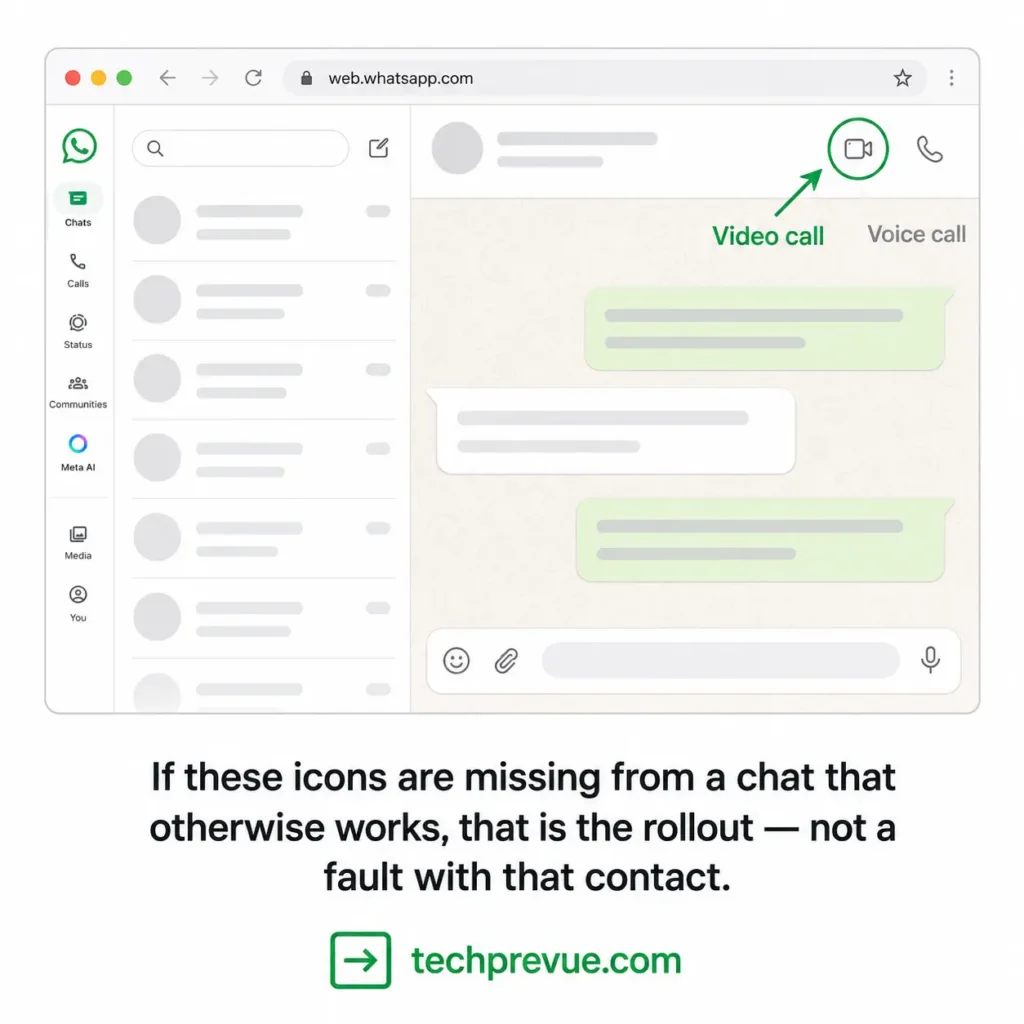
If the icons are missing from a chat that otherwise works normally, that is the rollout rather than a problem with that contact.
How to receive a video call on WhatsApp Web
Incoming calls appear as a notification inside the browser, with Accept and Decline buttons.
Two things determine whether you actually see it. The tab needs to be open, and browser notifications need to be allowed for the site.
Close the tab and you will not receive calls there at all. This is the practical difference between the browser and the desktop app — the app keeps listening after you close its window, and the browser does not.
If you miss a call, it still lands in your call history and on your phone, so nothing disappears.
In-call controls: mute, camera, reactions
The control bar sits at the bottom of the call window and holds everything you need mid-conversation.
- Microphone toggles mute
- Camera turns your video off while keeping audio running
- Screen share opens the sharing picker, covered below
- Reactions sends an emoji that floats over the call
- End call hangs up
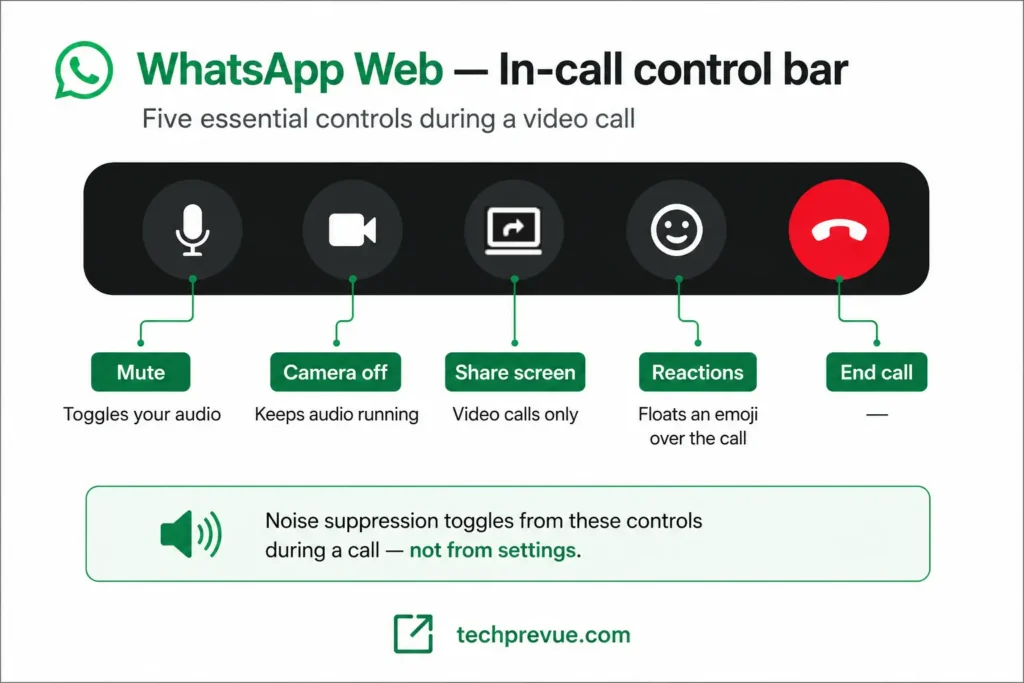
Noise suppression is also toggled from the call controls rather than buried in settings. Turning it on filters ambient sound, which is the difference between a usable call and an unusable one in a busy office or a room with a fan running.
How to make a group video call on WhatsApp Web
You do a group video call on WhatsApp Web the same way you start a one-to-one call, using the call button at the top of a group chat.
- Open the group chat in your browser.
- Click the call button at the top of the conversation.
- Choose video call.
- Select which members to include.
- Start the call.
That fourth step is more useful than it sounds, and it is covered next.
On participant limits: reporting on the rollout puts group calls on the web at up to 32 participants, matching mobile. WhatsApp’s own documentation, however, states that the Mac and Windows desktop apps cap group video at 8 while voice reaches 32. Confirm the ceiling in your own session before planning anything large, because these two figures cannot both describe the same product.
Calling only some people in a group
You are not obliged to ring everyone. Before the call connects, you can pick a subset of the group and leave the rest undisturbed.
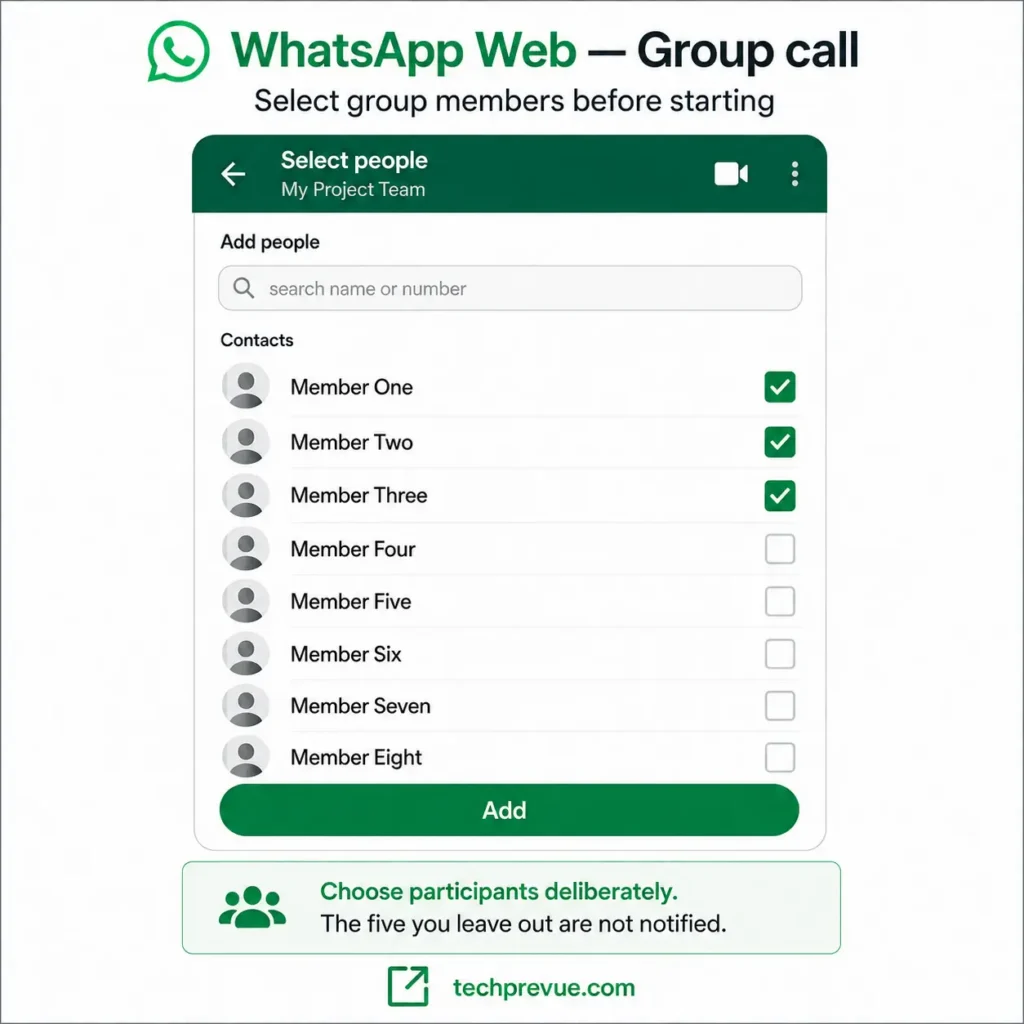
This solves a real annoyance in large groups, where a quick call between three people would otherwise buzz forty phones.
Choose participants deliberately rather than accepting the default. It is the difference between a focused conversation and a group thread full of complaints about the notification.
Call links and the waiting room
Call links let you invite people without starting a call first. WhatsApp generates a unique URL you can share, and recipients join by clicking it.
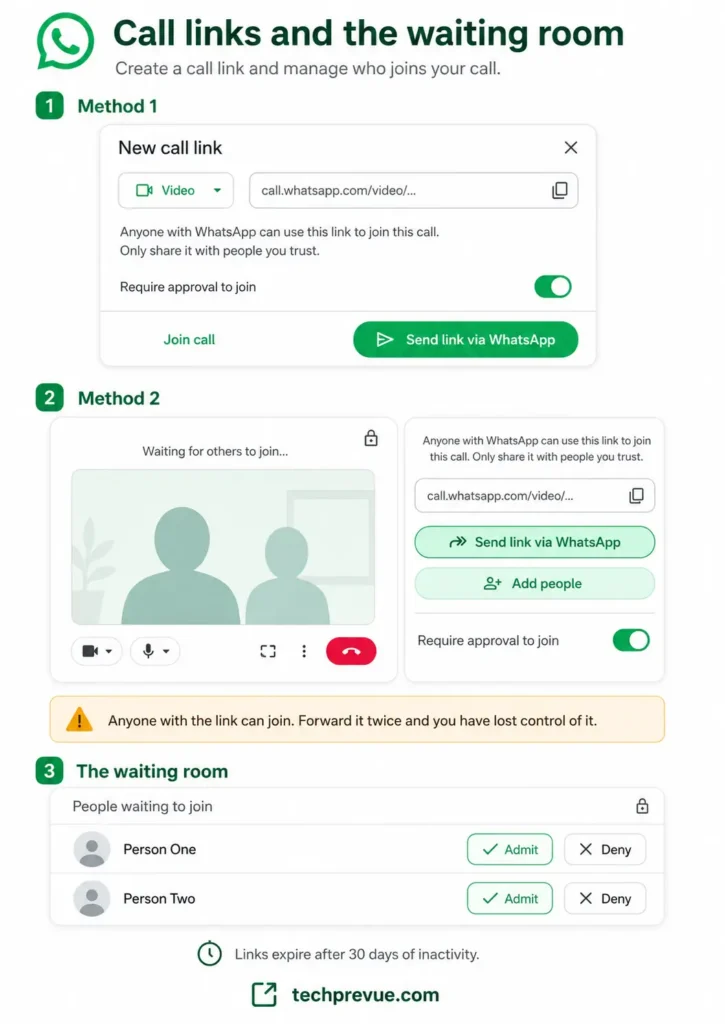
Two properties matter. Each link has its own secure URL that cannot be guessed, and links expire automatically after 30 days of inactivity.
The third property is the one to think about: anyone holding the link can join. Forward it into a group chat and everyone in that chat has access, whether you intended it or not.
For anything sensitive, enable Require approval to join when you create the link. That activates the Waiting Room, which holds arrivals until you admit them individually.
Treat a call link like a door key rather than an invitation. Share it narrowly, and use the Waiting Room when you cannot control where it travels.
There is also a housekeeping habit worth adopting. Links expire on their own after a month of disuse, but a link you created for a one-off conversation stays live long after that conversation ended, so create a fresh one for each meeting rather than reusing an old favorite.
How to share your screen on a WhatsApp Web video call
Click the screen share icon in the call controls, then choose what to share.
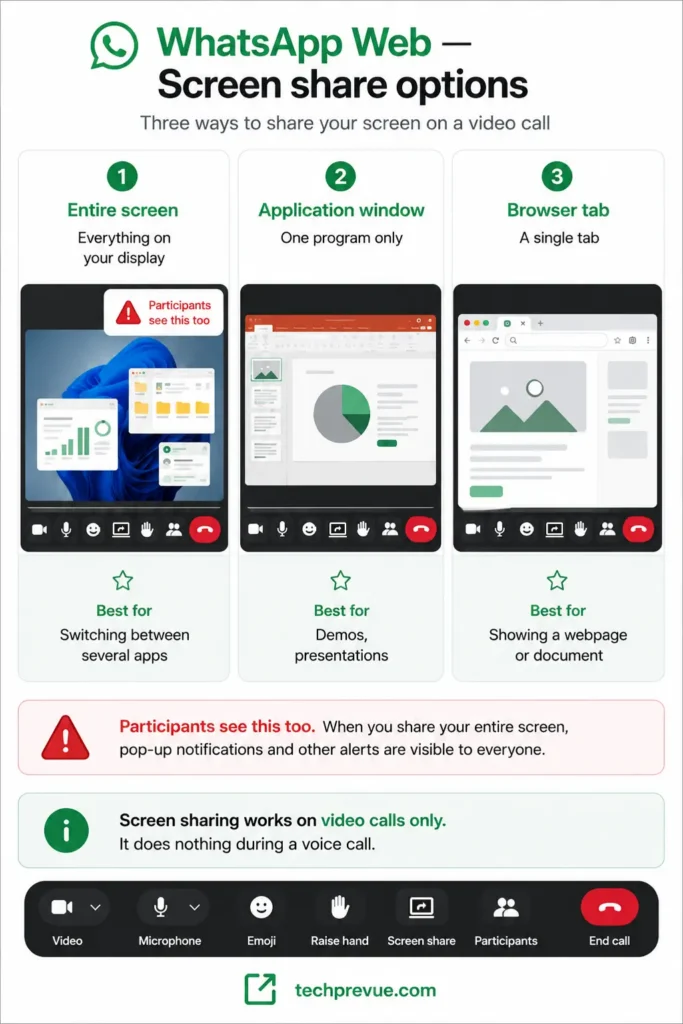
Your browser offers three options, and picking the right one is the whole skill:
| Option | Shares | Best for |
|---|---|---|
| Entire screen | Everything on your display | Switching between several apps |
| Application window | One program only | Demos, presentations |
| Browser tab | A single tab | Showing a webpage or document |
Screen sharing works during video calls only. It is unavailable on voice calls, which catches people out when they start a call as audio-only and then need to show something. Start as a video call if there is any chance you will need to share.
Here is the practitioner warning nobody prints. When you share your entire screen, participants see every notification that arrives — messages, email previews, calendar alerts, the lot.
Share a single window or tab instead whenever you can. If you must share the full display, turn on do-not-disturb first and close anything you would not read aloud.
Click Stop sharing to end it. Your WhatsApp Web video call continues normally afterward, with your camera returning to the frame.
WhatsApp Web video call history
Every call appears in the Calls tab, which sits in the left sidebar alongside chats and status.
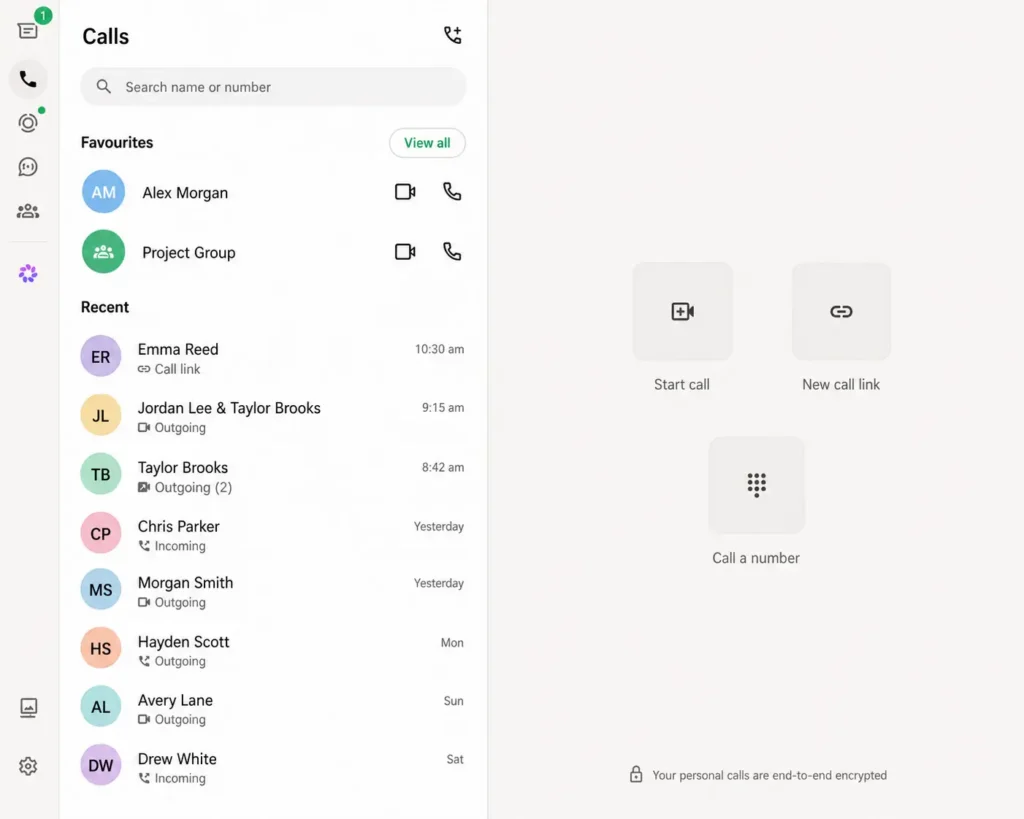
The tab holds your full history — incoming, outgoing, and missed — along with favorites for people you call often. You can start a new call directly from it rather than hunting through your chat list.
History syncs with your account rather than living in the browser. A call placed from your phone this morning appears in your WhatsApp Web video call history this afternoon, and clearing your browser cache does not erase it.
Missed calls show there too, which is worth knowing if you keep the tab closed during the day. Nothing is lost while you are away; it simply waits.
Call Transfer, QuickHD, and noise suppression
Three features shipped alongside browser calling, and each solves a specific irritation.
Call Transfer moves an active group call between your phone, the browser, and the desktop app without hanging up. Start on your phone during a commute, sit down at your desk, and continue in the browser with no reconnection and no apology to the other participants.
QuickHD delivers high-definition video within the first seconds of a call instead of after it settles. The blurry opening ten seconds most video calls begin with is what this targets.
Background noise suppression filters ambient sound and toggles from the call controls during a call. Useful in an open-plan office, a café, or any room with traffic outside.
All three are subject to the same staged rollout as calling itself.
Browser vs desktop app vs phone for video calls
All three carry the same encryption, so this is a practicality decision rather than a security one.
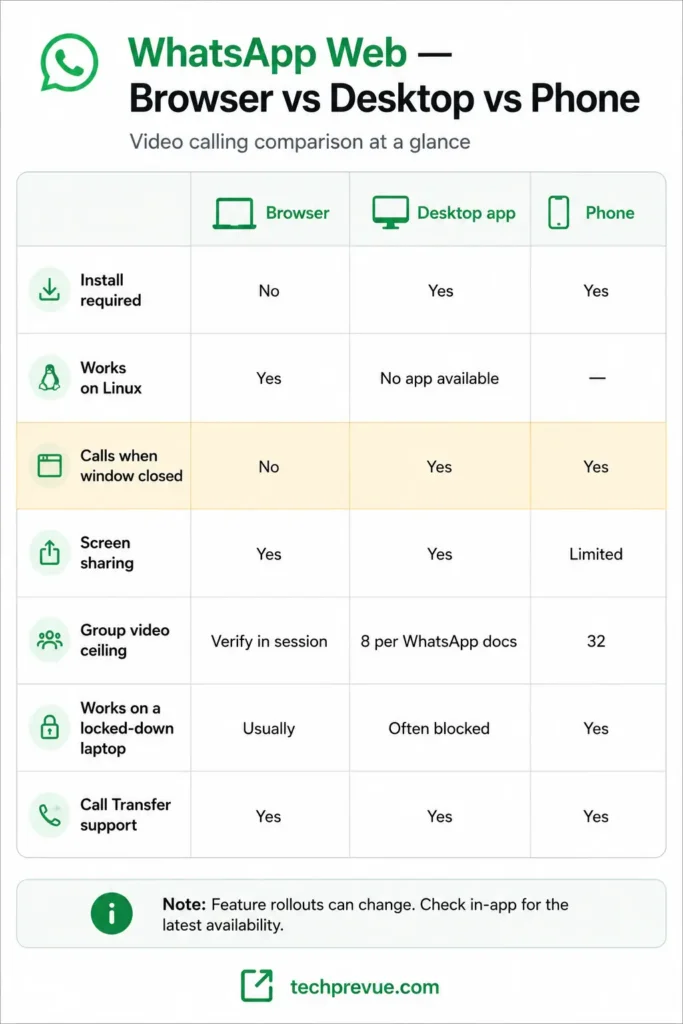
A WhatsApp Web video call wins on access and loses on persistence. It needs no install and works anywhere you can open a browser, but it stops listening the moment the tab closes.
| Browser | Desktop app | Phone | |
|---|---|---|---|
| Install required | No | Yes | Yes |
| Works on Linux | Yes | No app available | — |
| Calls when window closed | No | Yes | Yes |
| Screen sharing | Yes | Yes | Limited |
| Group video ceiling | Verify in session | 8 per WhatsApp docs | 32 |
| Works on a locked-down laptop | Usually | Often blocked | Yes |
| Call Transfer support | Yes | Yes | Yes |
Use the browser on Linux, on managed machines, or on computers that are not yours. Use the desktop app on your own daily computer, where background calling is worth the install. Use your phone when the call matters and you cannot risk a browser tab being closed.
How safe is video call on WhatsApp Web?
A WhatsApp Web video call carries the same end-to-end encryption as a call placed from your phone, built on the Signal protocol. Neither WhatsApp nor Meta can access the contents.
So the encryption is not the weak point. Three other things are, and none of them are technical.
What your screen share exposes. Encryption protects the transmission, not your judgment about what to display. Anything visible on a shared screen reaches every participant, including notifications that arrive mid-call.
Who holds your call link. Anyone with the URL can join. A link forwarded twice has left your control entirely, which is what the Waiting Room exists to fix.
Who else is linked to your account. A browser session someone else authorized can receive your calls. Open Linked devices on your phone, read the list, and log out anything you do not recognize.
Two habits cover most of the risk. Share a single window rather than your whole screen, and audit your linked devices monthly.
On a shared or public computer, log out deliberately when you finish rather than closing the tab and walking away.
When video calling won’t work in your browser
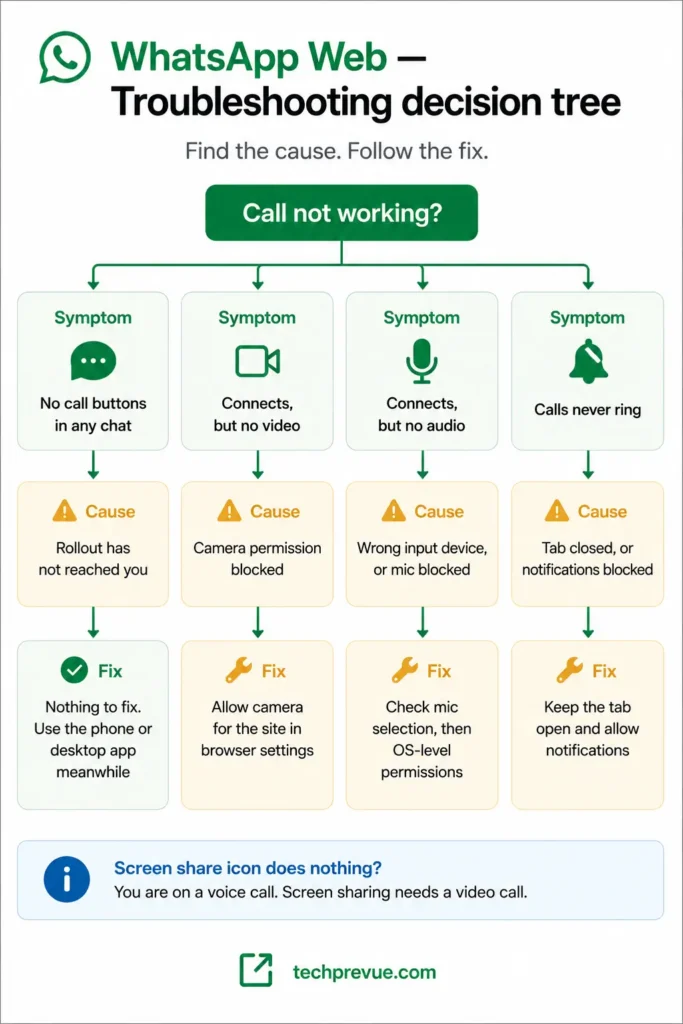
Most failures come down to permissions, hardware, or the rollout. Work through these before assuming a bug.
| Symptom | Likely cause | Fix |
|---|---|---|
| No call icons in any chat | Rollout has not reached you | Wait; use the phone or desktop app meanwhile |
| Call connects, no video | Camera permission blocked | Allow camera for the site in browser settings |
| Call connects, no audio | Wrong input device selected | Check the mic selection in your system sound settings |
| Nobody can hear you | Muted, or mic blocked by device policy | Check the mute toggle, then OS-level permissions |
| Calls never ring | Tab closed or notifications blocked | Keep the tab open and allow notifications |
| Video freezes or stutters | Bandwidth | Turn off your camera to keep audio stable |
| Screen share icon does nothing | You are on a voice call | Screen sharing needs a video call |
On a work or campus machine, device policy can block camera and microphone at a level the browser cannot override. If permissions look correct and hardware still fails, that is usually why.
Test your hardware outside WhatsApp before digging further. If your camera works in another site’s test page but not here, the problem is the site permission. If it fails everywhere, the problem is the device.
For problems that are not call-specific, see why WhatsApp Web is not working.
Frequently asked questions
Do I need the desktop app to make video calls?
No. Since July 28, 2026, calling runs in the browser with nothing to install. The desktop app remains useful mainly because it keeps receiving calls after you close its window.
Can I use video call on WhatsApp Web without my phone nearby?
Yes. Once a browser is linked, your phone can be off or elsewhere. You only need it to authorize new sessions, not to run existing ones.
Why can’t I see the call button?
The feature is rolling out gradually, so accounts receive it at different times. Confirm your camera and microphone permissions are allowed, then wait rather than troubleshooting further.
Does screen sharing work on voice calls?
No. It is available during video calls only. Start the call as a video call if you expect to share anything.
How many people can join a group video call?
Rollout reporting says up to 32, matching mobile. WhatsApp’s documentation lists a lower ceiling for group video on the desktop apps, so verify the number before planning a large call.
Are browser calls encrypted?
Yes. Meta states that calls on the web are end-to-end encrypted, using the same protection as calls placed from the phone app.
Can I move a call from my phone to my browser?
Yes. Call Transfer moves an active group call between devices without dropping it or requiring anyone to rejoin.
Tested on July 31, 2026 in Chrome Version 151.0.7922.72 on Windows 11 and Safari Version 26.0 on macOS, with WhatsApp Version 2.22.13.77 on Android.
New to the browser version? Start with how to use WhatsApp Web.
Sources: Meta Newsroom, WhatsApp Help Center on linked devices.
