
Quick answer: Complete your WhatsApp Web login by opening web.whatsapp.com, then authorizing the browser from your phone under Linked devices → Link a device. Scan the QR code on screen, or pick the phone-number option and enter the 8-character code. Authorization always comes from the phone where your account is registered.
Key takeaways
- There are two ways in, and they produce identical results. Neither is more secure than the other.
- There is no password. A device is either authorized or it is not, which changes how you think about security here.
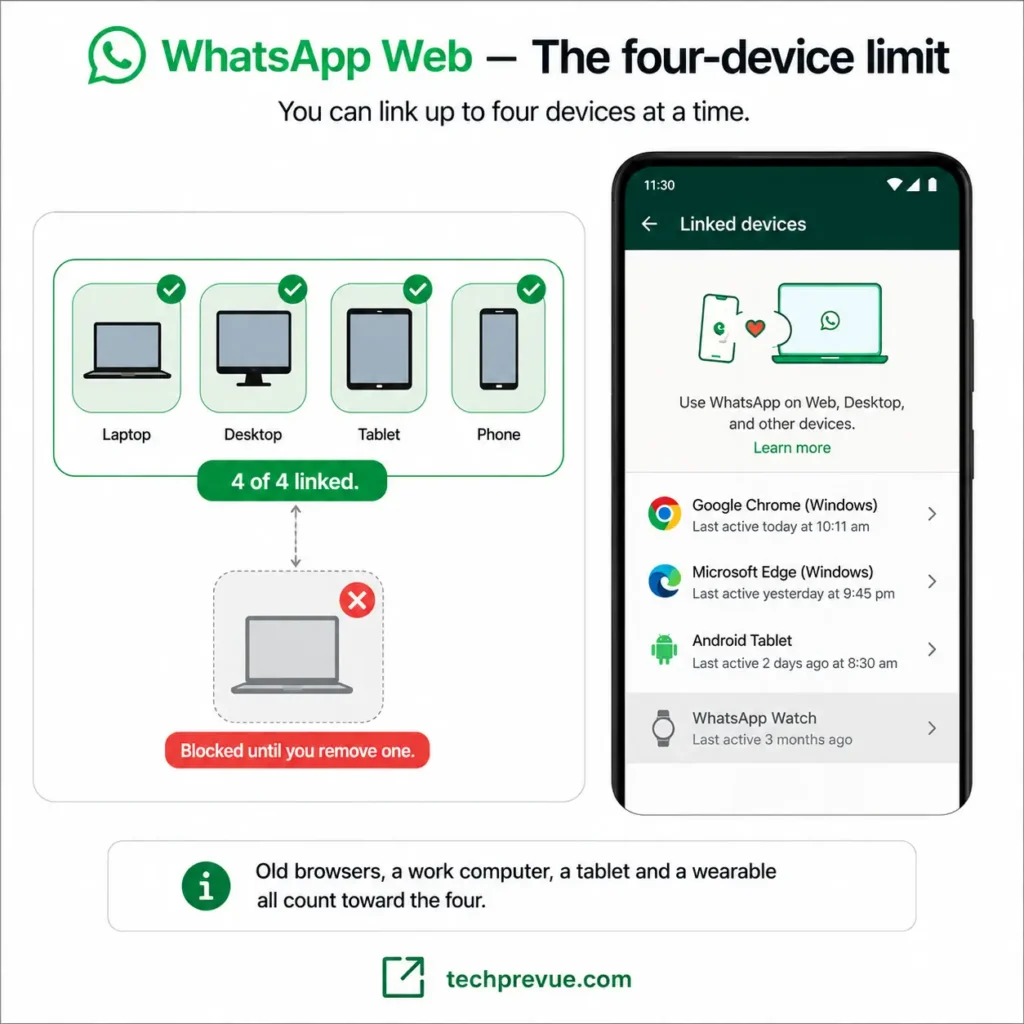
- You can have four devices linked at once. A full list is the quietest cause of login failure.
- Most failures are not the code. They are permissions, a VPN, a stale browser cache, or a phone clock that has drifted.
Before you start
| What you need | The phone your WhatsApp account is registered on, plus a computer with a current browser |
| Time | Under two minutes |
| Difficulty | Easy |
| Works on | Chrome, Firefox, Edge, Safari, Opera |
This guide covers both methods in full, then the failure cases — which is where most people actually land.
- What you need before you start
- WhatsApp Web login with QR code
- WhatsApp Web login with phone number
- QR code or phone number: which should you use?
- Logging in on a work laptop, Chromebook, or shared PC
- Why WhatsApp Web login fails
- WhatsApp Web login without phone: is it possible?
- The QR code you should never scan
- How to log out after you're done
- Frequently asked questions
What you need before you start
Two things, and one of them catches people out.
You need your phone in hand, unlocked, with WhatsApp installed and your account already registered on it. You also need both devices online during the linking process itself.
That second point matters more than it sounds. Once you are linked, your phone can go offline and the browser keeps working — but the authorization handshake needs both ends connected at the same moment.
The requirement that blocks most people
You cannot link a new device from a device that is itself linked.
Your primary phone is the only device that can authorize a new session. WhatsApp’s documentation is explicit that your phone is required to register your account and link new devices, and that linked devices — Windows, Mac, browser, iPad, wearables — cannot act as the primary device on an account.
So if you are holding a second phone that you set up in companion mode, the Link a device option will either be missing or will fail. Pick up the phone with the SIM your account is registered to.
This single constraint produces a large share of the failure reports online, and almost no guide mentions it.
WhatsApp Web login with QR code
This is the default method and the faster of the two when your camera works.
The browser generates a code, your phone reads it, and the session is authorized. A WhatsApp Web scan takes a few seconds and does not require you to type anything.
Where to find the WhatsApp Web QR code
Type web.whatsapp.com into your address bar directly. The WhatsApp Web QR code appears in the center of the page, with Log in with phone number shown as an alternative below or beside it.
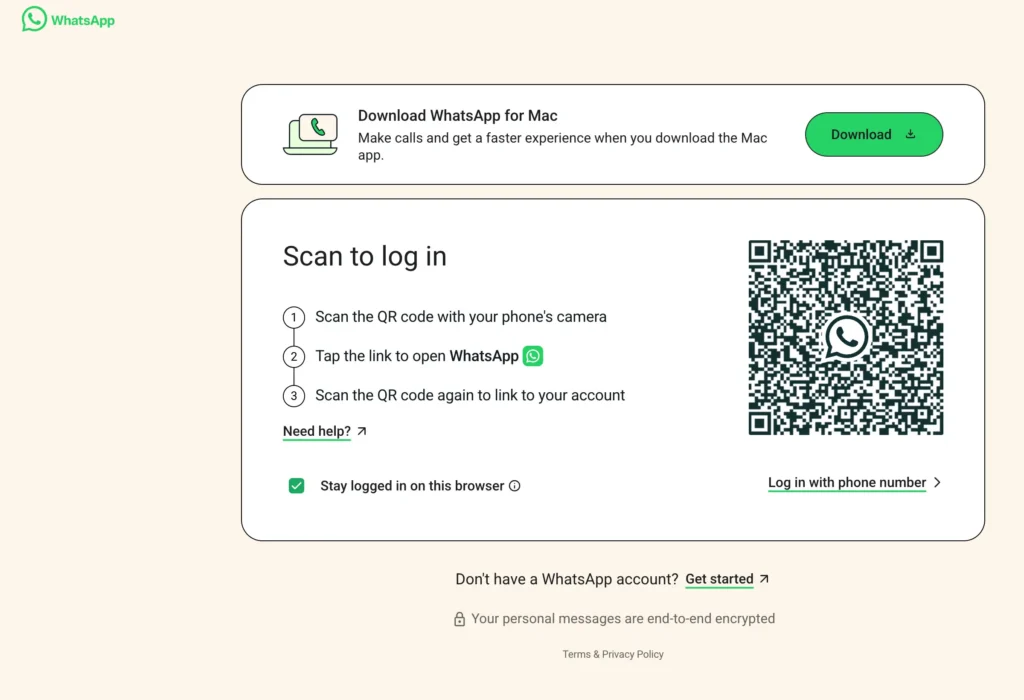
Do not reach this page through a search result, an ad, or a link someone sent you. Fake pages that copy this screen exist, and the reason they work is covered further down.
The code refreshes on a timer. If it has gone hazy or stopped responding, click it or reload the page to generate a fresh one.
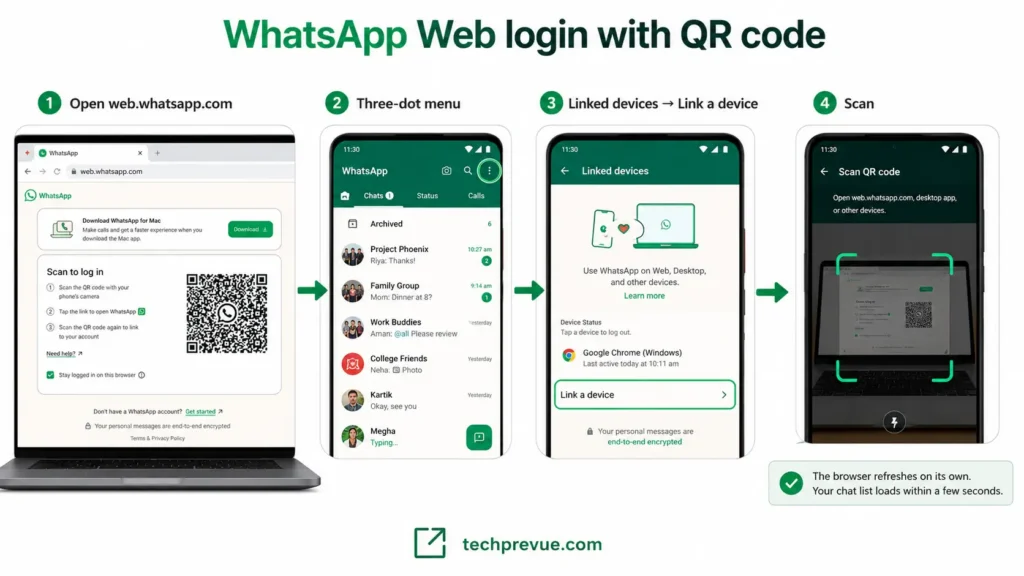
On Android
- Open WhatsApp on your phone.
- Tap the three-dot menu at the top right.
- Tap Linked devices, then Link a device.
- Unlock with your fingerprint, face, or PIN if prompted.
- Hold the camera up to the code on your monitor.
The browser refreshes on its own once the handshake completes. Your chat list loads within a few seconds.
On iPhone
- Open WhatsApp and tap You (WhatsApp) or Settings (WhatsApp Business) in the bottom bar.
- Tap Linked devices, then Link a device.
- Authenticate with Face ID or Touch ID.
- Point the camera at the code.
The steps differ only in where the menu lives. Everything after the scan is identical across both platforms.
What “Stay logged in on this browser” actually does
The checkbox on the login screen is ticked by default, and most people never read it.
Leave it ticked and the browser stays authorized after you close the tab, so you return straight to your chats. Untick it and the session ends when the browser session does.
On your own computer, leave it alone. On anything shared — an office machine, a library terminal, a friend’s laptop — untick it before you scan, not after.
WhatsApp Web login with phone number
The second method skips the camera entirely. Instead of your phone reading a code, you read a code and type it into your phone.
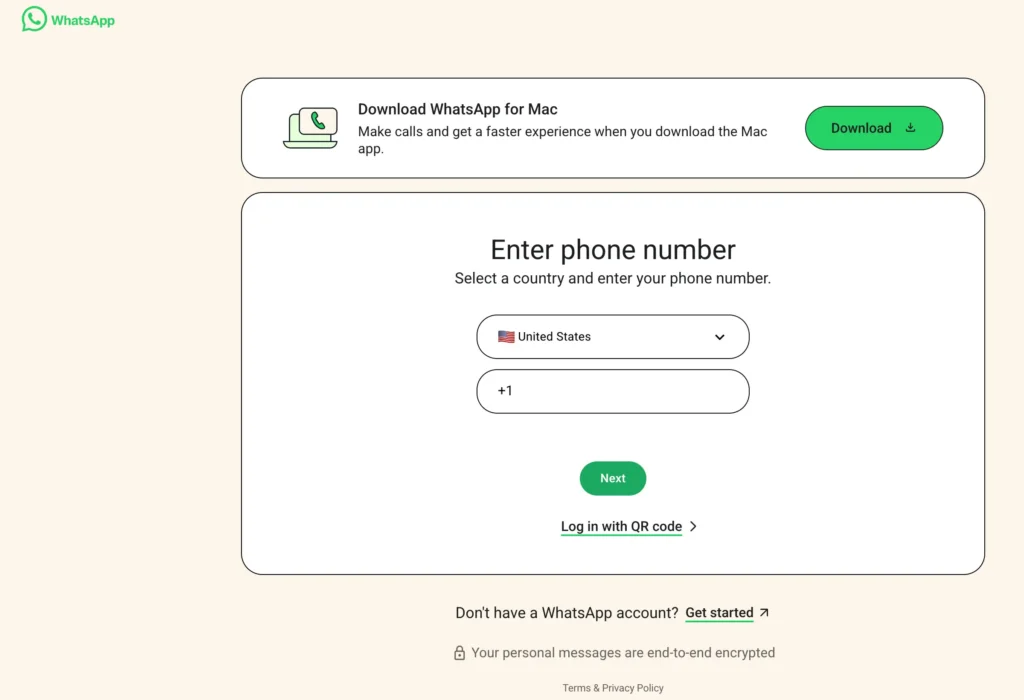
Step 1: On the login screen, click Log in with phone number.
Step 2: Select your country, enter the number linked to your WhatsApp account, and click Next.
Step 3: An 8-character code appears where the QR code was.
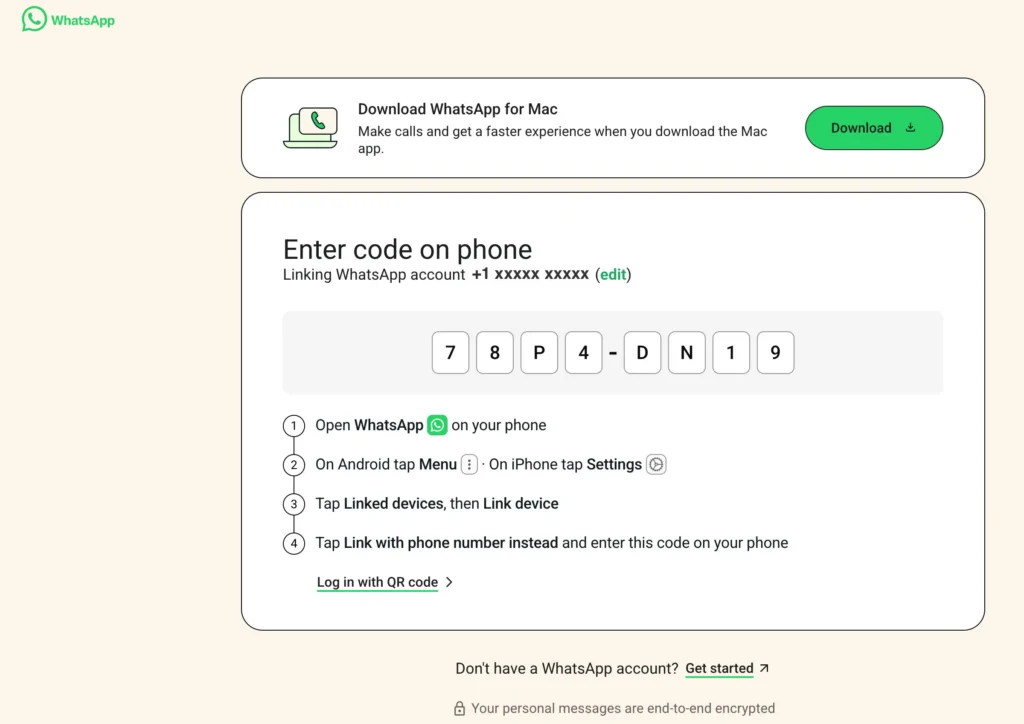
Step 4: On your phone, open Linked devices → Link a device → Link with phone number instead.
Step 5: Authenticate, then type the code in.
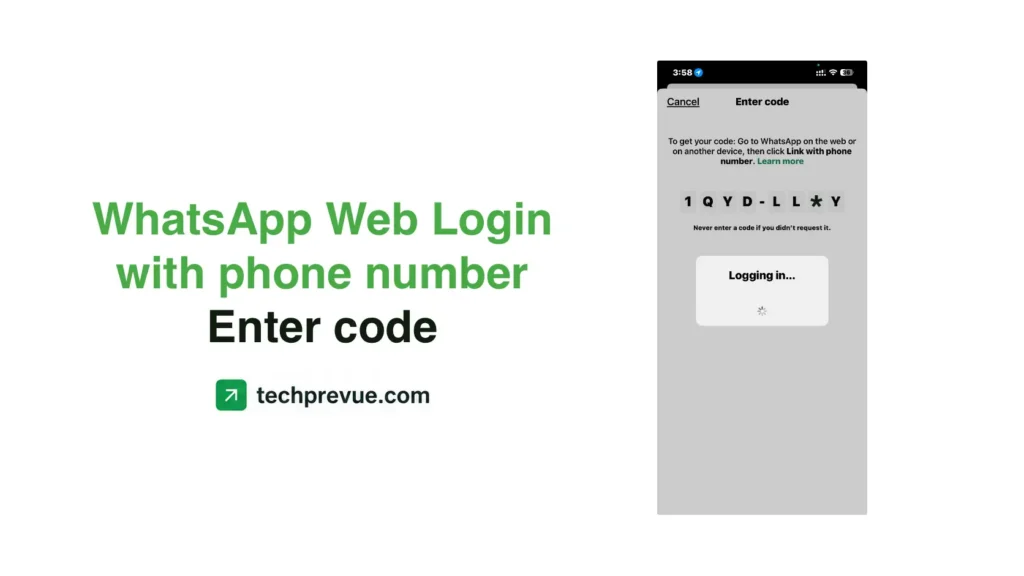
According to WhatsApp’s official linking instructions, this method is currently available in the browser and in WhatsApp for Windows. It is not offered in the Mac app, which trips up Mac users who read about it and go looking for the option.
This route is the answer when your camera lens is cracked, your monitor has heavy glare, or you are working somewhere that makes holding a phone up to a screen impractical.
Why the code is 8 characters, not 8 digits
Nearly every guide online calls this an eight-digit code. It is not, and the distinction matters when you are squinting at it.
WhatsApp issues an 8-character code, which means letters appear alongside numbers. If you are waiting for a numeric PIN, you will second-guess a code that is perfectly valid.
Type it exactly as shown. If your phone rejects it, the cause is usually elapsed time rather than a typo — these codes expire quickly.
QR code or phone number: which should you use?
Both authorize the same session with the same encryption. Choose on practicality, not security.
| QR code | Phone number | |
|---|---|---|
| Speed | Faster | Slower |
| Needs a working camera | Yes | No |
| Affected by screen glare or dust | Yes | No |
| Available on Mac app | Yes | No |
| Available in browser | Yes | Yes |
| Typing required | None | 8 characters |
| Security level | Identical | Identical |
Use the QR code by default. Switch to the phone number when the camera is the problem, or when repeated scans keep failing for reasons you cannot pin down.
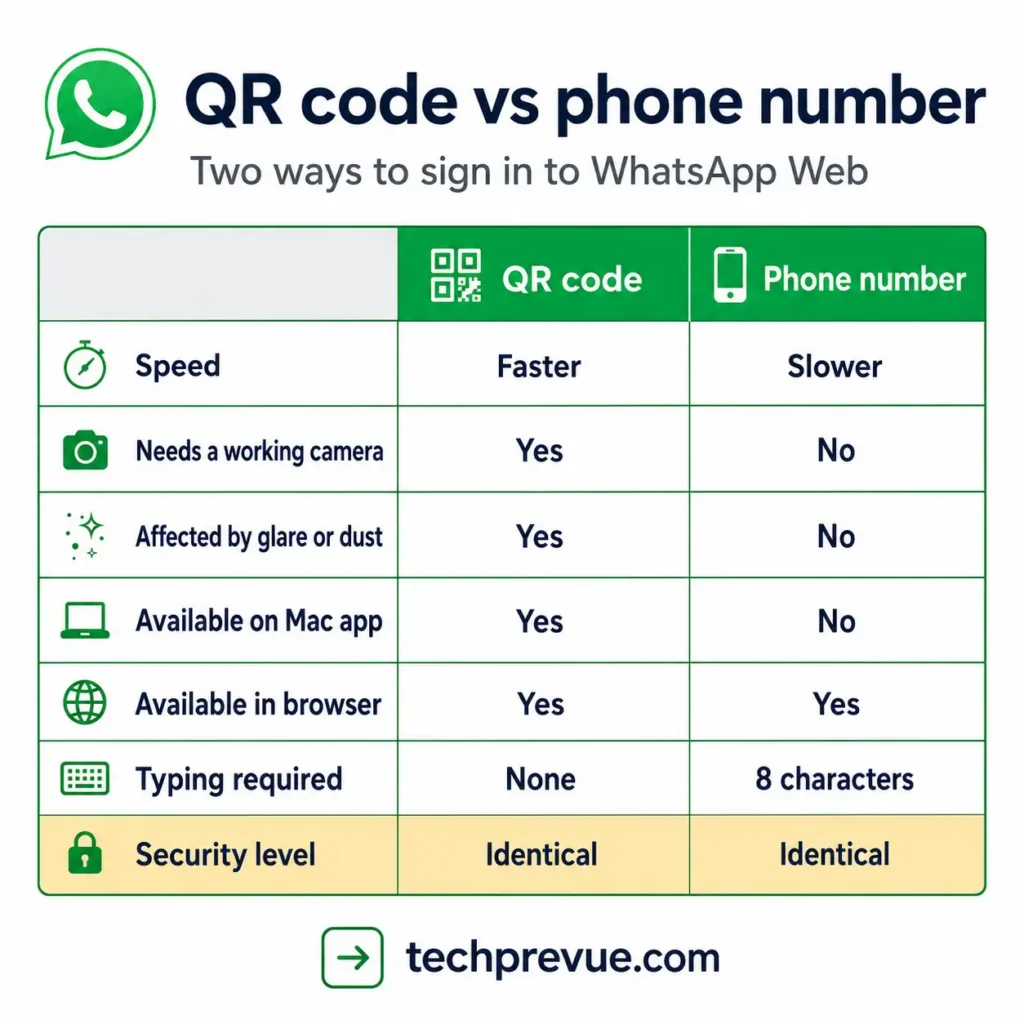
Neither method bypasses account security. Both require physical access to your registered phone and a successful unlock.
One practical note for anyone switching between the two. If a scan has just failed, reload the login page before trying the phone-number route, since the browser can otherwise hold on to the previous attempt and reject a valid code.
Logging in on a work laptop, Chromebook, or shared PC
The browser is often the only option on a managed machine, since corporate policy blocks software installation. That is a genuine advantage here.
A few things behave differently on these computers:
- Network filtering can break the handshake. Some corporate and campus networks block or inspect the traffic the linking process depends on. If the code scans but nothing happens, try a phone hotspot to confirm.
- Sessions may be killed on a schedule. Security software on managed devices sometimes clears cookies overnight, which logs you out daily through no fault of the app.
- Chromebooks work normally in the browser, and there is no app to install.
- Linux users have no official desktop app at all, so the browser is the supported path rather than a workaround.
On any machine you do not own, untick Keep me signed in, use a private window, and log out deliberately when you finish. Then check Linked devices from your phone later and remove anything still listed.
Why WhatsApp Web login fails
Almost every failure falls into four patterns. Work through them in this order rather than reinstalling anything.
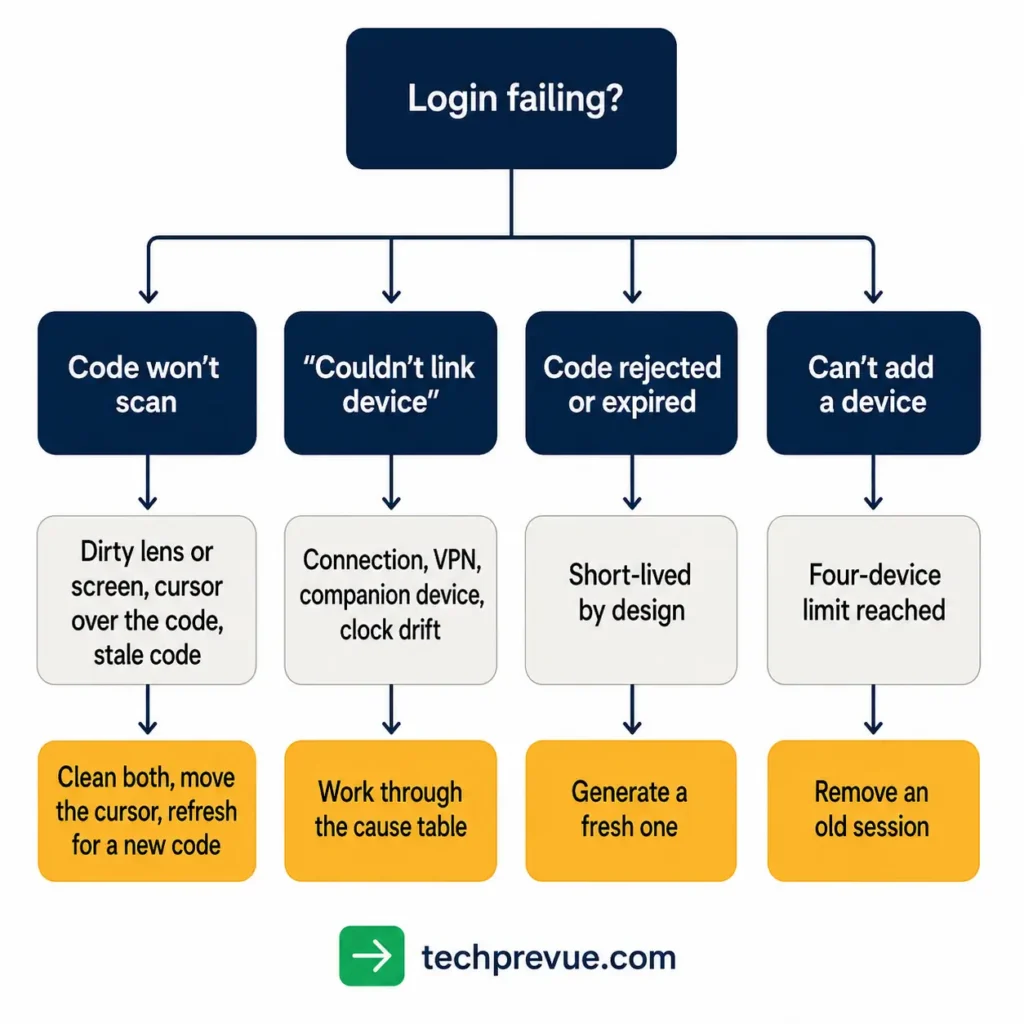
WhatsApp Web login QR code not scanning
Start with the physical causes, because they are the most common and the least suspected.
- Clean the monitor. Dust sitting across the code breaks the pattern your camera needs to read.
- Clean the camera lens. A smudged rear lens is the single most frequent cause.
- Move your cursor off the code. A mouse pointer parked in the middle of the pattern is enough to prevent a read.
- Adjust brightness. Heavy glare or a very dim screen both defeat the scan.
- Refresh for a new code. Codes expire, and a stale one will never scan no matter how steady your hand is.
If the camera opens but never focuses, check that WhatsApp actually has camera permission in your phone’s app settings. A denied permission produces a black or frozen viewfinder rather than an error message.
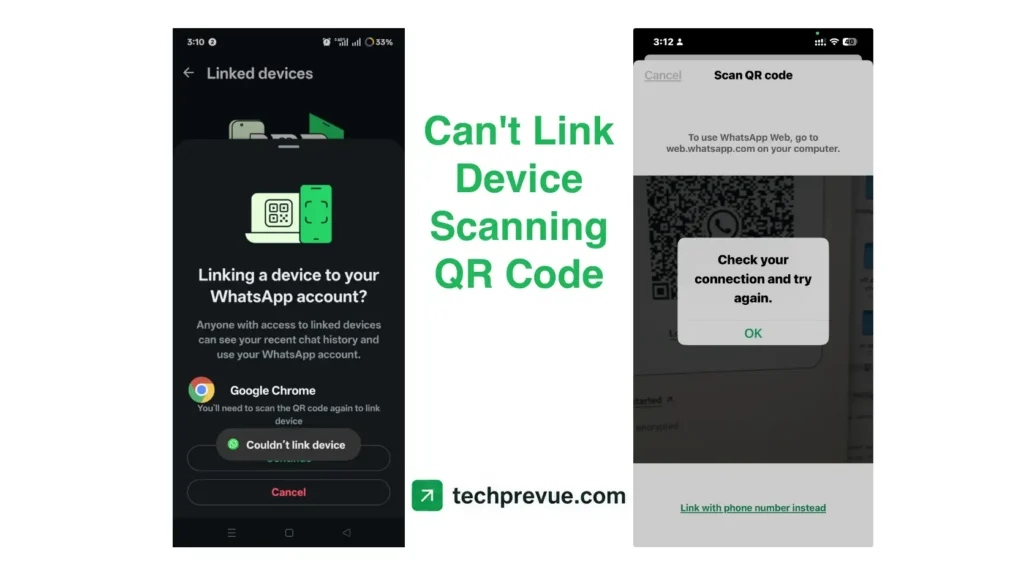
“Couldn’t link device. Try again later.”
This message is generic and covers several unrelated causes. Test them in this order.
| Cause | How to confirm | Fix |
|---|---|---|
| Unstable connection | Either device drops mid-handshake | Switch to a stable network on both ends |
| VPN or proxy | Active on phone or computer | Disconnect and retry |
| Linking from a companion device | Your phone is itself a linked device | Use the phone with the registered SIM |
| Outdated app | WhatsApp not updated in months | Update from the App Store or Play Store |
| Phone clock drift | Date and time set manually | Turn on automatic date, time, and time zone |
| Browser cache or blocked cookies | Code loads but never completes | Clear cache, allow cookies for the site |
| Browser extension interference | Works in incognito but not normally | Disable extensions, especially privacy tools |
The clock one deserves attention. Authorization is time-sensitive, so a phone whose clock has drifted will fail repeatedly while everything else looks fine.
The code is rejected or expires
Both the QR code and the 8-character code are short-lived by design.
Generate a fresh one rather than retyping the old one. If you are switching between the two methods, close and reopen the login page first so the browser is not holding a stale session.
Repeated rejection with a fresh code and a correct clock usually points back to the companion-device problem above.
You’ve hit the four-device limit
WhatsApp allows four linked devices at a time. The limit is easy to reach without noticing, because old browsers, a work computer, a tablet, and a wearable all count.
Open Linked devices on your phone and read the list. Log out anything you do not recognize or no longer use, then try again.
There is a quiet upside to this housekeeping. Clearing the list is also how you find a session that should not be there.
Each entry shows the device type and when it was last active. A browser you do not remember authorizing, or one last used from a place you have never been, is worth logging out immediately rather than investigating.
WhatsApp Web login without phone: is it possible?
No, and the reason is structural rather than a missing feature.
Your account is tied to a phone number and registered on one primary device. Authorization for any new session has to come from that device, so a WhatsApp Web login without phone access is not available through any supported route.
What you can do depends on why the phone is unavailable:
- Phone is dead or out of battery. If the browser was linked earlier, it keeps working. You only need the phone to create new sessions, not maintain existing ones.
- Phone is lost or stolen. Get your SIM replaced and re-register WhatsApp on a new handset. Re-registering ends every session on the old one.
- Phone is broken but powers on. Use the phone-number method — it needs a working screen and keypad, not a working camera.
- Phone is in another country. Not a problem. Linked devices keep working regardless of where the phone is, as long as you open WhatsApp on it once every 14 days.
Any site or tool promising login without your phone is either collecting your number or running the scam described next.
The QR code you should never scan
If you searched for a WhatsApp Web scanner hoping to find a tool that reads someone else’s code remotely, there is no legitimate one. No WhatsApp Web scanner app, extension, or website can authorize a session you did not approve on your own phone — and the demand for one is exactly what the following scam exploits.
A WhatsApp Web scan is not like scanning a payment code or a restaurant menu. It hands the scanned page an authorized session on your account — permanently, until you revoke it.
The attack is simple. Someone offers a small paid task, a job application step, or a verification check, and asks you to scan a code. The code is a live login screen on a page they control.
The moment you scan, their browser becomes one of your four linked devices. They can read your conversations, message your contacts as you, and see who you talk to. Nothing on your phone looks broken.
India’s Cybercrime Coordination Centre, which operates under the Ministry of Home Affairs, has issued an advisory describing compromised accounts being effectively rented out and used for fraud, with operators outside India using them to mask their identity.
The rule is one sentence. Only scan a code you generated yourself, on a page you typed into the address bar.
No employer, payment platform, delivery service, prize, or government process requires it. If you think you scanned one, open Linked devices, log out every session you do not recognize, and turn on two-step verification under Settings → Account.
For the same reason, keep push notifications enabled on your phone. WhatsApp alerts you when a new device links, and that alert is your only warning.
How to log out after you’re done
Two routes for logging out of WhatsApp Web:
Web browser:
- Open WhatsApp Web: https://web.whatsapp.com.
- Click Chats on the left sidebar.
- Click three dots next to new chat icon.
- Choose Log out.
Alternatively, click You or Settings → choose Log out.
Android phone:
- Open WhatsApp.
- Tap three dots on the top right corner.
- Choose Linked devices from the menu.
- Tap a device to Log out.
iPhone:
- Open WhatsApp.
- Tap You (WhatsApp) or Settings (WhatsApp Business).
- Open Linked devices.
- Tap a device to Log out.
The second works from anywhere, which is what you need when you have already left the building.
Logging out does not delete anything. Your chats live on your account and reappear next time you link. The full breakdown is in every way to log out, including remotely.
Frequently asked questions
Do I need a password for WhatsApp Web login?
No. There is no password anywhere in the process. A browser is either an authorized device or it is not, which is why controlling your linked device list matters more than any credential would.
Is the phone number method less secure than scanning?
No. Both require physical access to your registered phone and a successful unlock. The encryption on the resulting session is identical.
Why does the option to link with a phone number not appear?
It is available in the browser and in WhatsApp for Windows, but not in the Mac app. If you are on a Mac and want it, use the browser instead of the desktop app.
How many devices can I link at once?
Four, alongside your primary phone. Browsers, desktop apps, tablets, and wearables all count toward that total.
Can two people log in to the same account?
Technically yes, since four devices can be linked. Both parties see the same messages and can send as you, so treat any session you did not create as a compromise.
Why do I keep getting logged out?
Usually one of three reasons: you have not opened WhatsApp on your phone in over 14 days, that browser session has been idle for 30 days, or security software on a managed computer is clearing cookies.
Does logging in on a computer show up on my phone?
Yes. New links appear in Linked devices with the device type and last-active time, and WhatsApp sends a notification when a device is added.
Tested on July 31, 2026 in Chrome Version 151.0.7922.72 on Windows 11 and Safari Version 26.0 on macOS, with WhatsApp Version 2.22.13.77 on Android.
New here? Start with our guide on how to use WhatsApp Web. If your session works but misbehaves after login, see why WhatsApp Web is not working.
Sources: WhatsApp Help Center on linked devices, WhatsApp Help Center on device linking.
