
Quick answer: On your computer, open WhatsApp Web, click the three-dot menu above the chat list next to the New chat icon, and select Log out. From your phone, open WhatsApp → Linked devices, tap the session, and tap Log out. The second method works from anywhere, which is what you need when you have already left the computer behind.
Key takeaways
- Closing the tab does not log you out. The session stays authorized until you end it.
- You can log out remotely from your phone, even from another country.
- Logging out never deletes messages. They live on your account, not in the browser.
- A session you do not recognize is a security problem, not a housekeeping one.
Which method do you need?
| Your situation | Use this |
|---|---|
| You are sitting at the computer | §2 — log out on the machine itself |
| You have already left, or the computer is not yours | §3 — log out remotely from your phone |
Below is how to log out of WhatsApp Web on every device, including remotely, from all sessions at once, and when your phone is not available.
- Log out, unlink, or just close the tab?
- How to log Out of WhatsApp Web from PC
- How to log Out of WhatsApp Web from phone
- How to log Out of WhatsApp Web from all devices
- How to log Out of WhatsApp Web from other devices you don't recognize
- What happens to your chats when you log out
- How to log Out from WhatsApp Web when you've already left
- How to log Out of WhatsApp Web without your phone
- Why you were logged out without doing anything
- When you can't log out
- Frequently asked questions
Log out, unlink, or just close the tab?
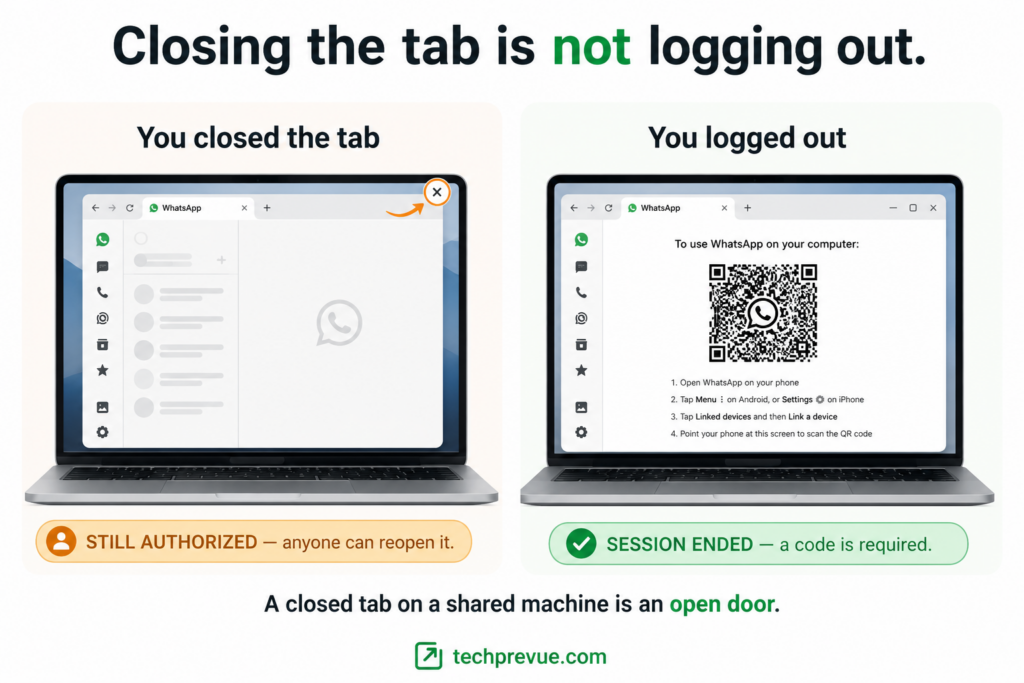
These are three different things, and the difference matters more than most people realize.
Closing the tab ends nothing. Your browser stays an authorized device, and anyone who reopens it walks straight into your conversations without a password, because there is no password.
Logging out removes that browser’s authorization. The next person who opens the page sees a QR code instead of your chats.
Unlinking from your phone does the same thing, done remotely. The terminology differs but the result is identical — the session ends and the device disappears from your list.
If you take one thing from this page, take that first point. A closed tab on a shared machine is an open door.
There is a middle option worth knowing. If you are only stepping away from your own computer, App lock under Settings → Privacy puts a password on the session without ending it. Full detail on the browser version is in how to use WhatsApp Web.
How to log Out of WhatsApp Web from PC
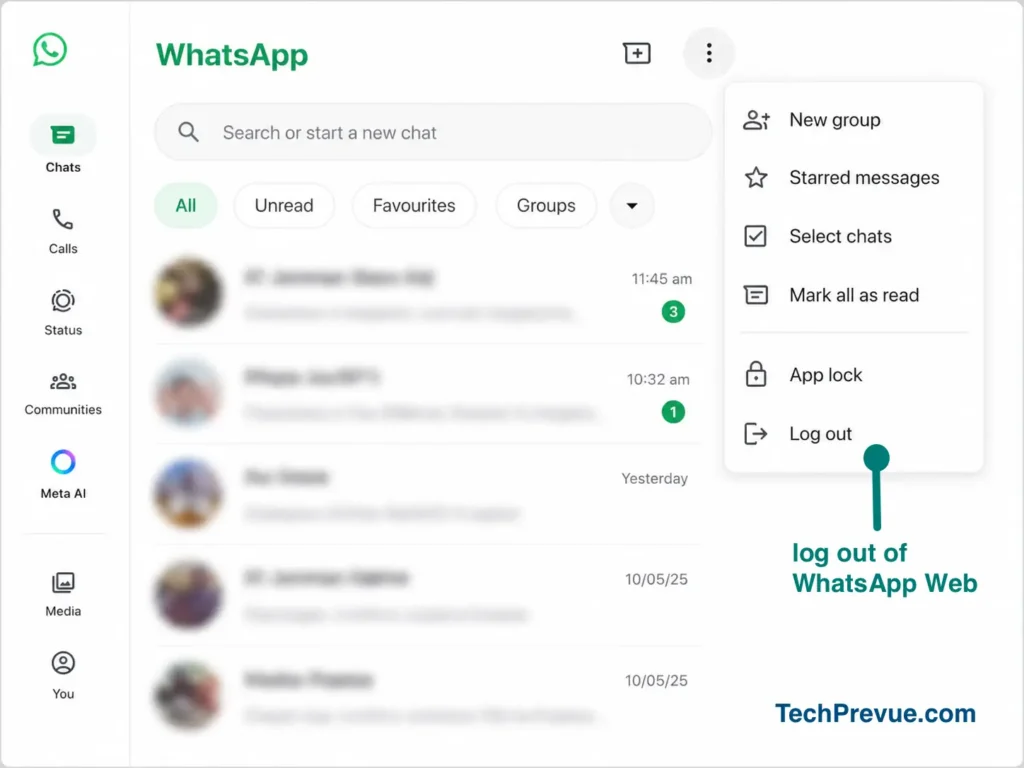
Five clicks, and you should be sitting at the machine.
- Open the browser tab where you are signed in.
- Click the Chats → three dot menu.
- Choose Log out.
- Confirm in the prompt that appears.
The page returns to the QR code screen. That screen is your confirmation — if you can see it, the session is gone.
The same steps apply whether you are on Windows, macOS, or Linux, and whichever browser you use. There is no separate procedure to log out WhatsApp Web from a computer running one operating system versus another.
If you are on a machine that is not yours, do two more things after logging out. Clear the site data from your browser, and close the window rather than leaving the login page sitting there.
How to log Out of WhatsApp Web from phone
This is the method that matters when you cannot reach the computer.
Everything happens in the Linked devices screen, which lists every browser, desktop app, tablet, and wearable currently authorized on your account. Each entry shows the device type and when it was last active.
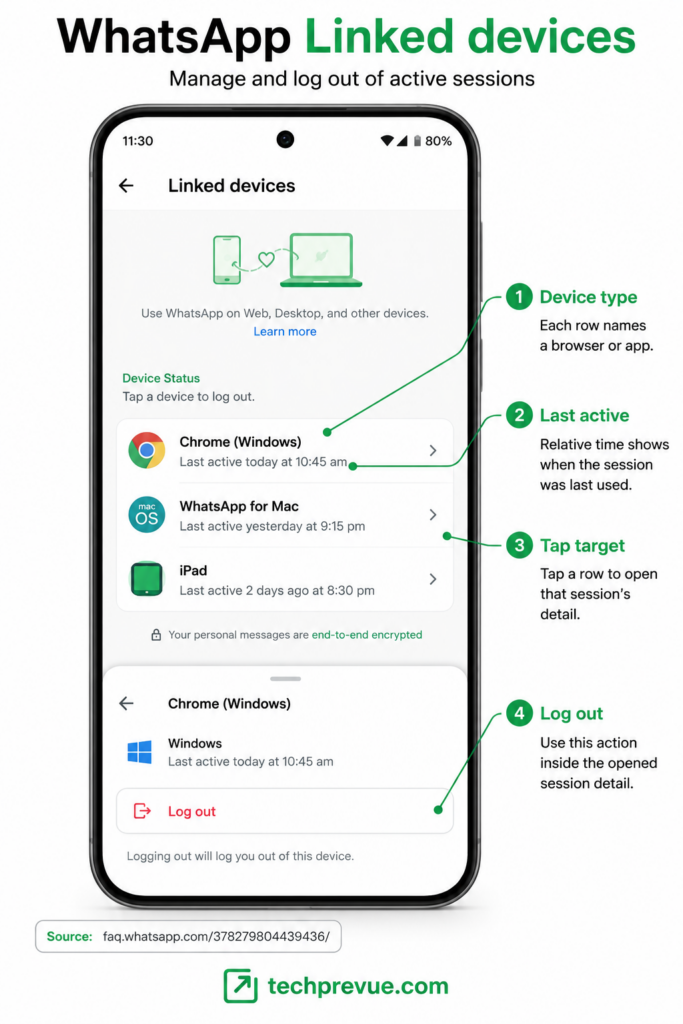
The steps differ slightly between Android and iPhone, so both are below.
How to log out of WhatsApp Web from mobile: the process is the same on any handset, and nearly the same on a tablet. Anywhere you can open WhatsApp, you can end a session.
How to log out from WhatsApp Web on Android phone
- Open WhatsApp.
- Tap the three-dot menu at the top right.
- Tap Linked devices.
- Tap the session you want to end. Browsers appear by name, so “Chrome” or “Firefox” will be listed rather than the computer’s name.
- Tap Log out.
The device disappears from the list immediately. If the browser is open on that computer, it drops back to the QR screen within a few seconds.
How to log Out of WhatsApp Web from a tablet
An iPad or Android tablet linked in companion mode shows the same Linked devices screen, but it cannot end other sessions.
Companion devices can log themselves out and nothing else. Tap the “you” or “settings” icon inside WhatsApp on the tablet and choose Log out to end that device’s own session.
To remove any other device, you need the phone your account is registered on. This catches out people who reach for the nearest screen rather than the right one.
How to log Out of WhatsApp Web from iPhone
- Open WhatsApp.
- Tap You or Settings in the bottom bar. (WhatsApp – You; WhatsApp Business – Settings)
- Tap Linked devices.
- Tap the session you want to end.
- Tap Log out.
The only difference from Android is where the menu lives. Everything after that point is the same.
How to log Out of WhatsApp Web from all devices
If you want a clean slate — after losing a laptop, selling a computer, or simply not remembering what you have authorized — clear the whole list.
Open Linked devices and log out each session in turn. It takes a few seconds per device, and with a maximum of four linked at any time, the whole job is under a minute.
Some versions of WhatsApp show a single option to log out WhatsApp Web from all devices at once. If yours does, use it. If not, the one-by-one method achieves exactly the same result.
There is no way to do this from a computer. Bulk logout is a phone function, because your phone is the only device with authority over the others.
Once the list is empty, every browser and desktop app on your account is signed out. You will need your phone again to link anything new.
How to log Out of WhatsApp Web from other devices you don’t recognize
Sometimes people arrive at this page having seen something unexpected in their linked device list.
Log the session out first, then think about it. There is nothing to gain from leaving it running while you investigate, and every minute it stays is a minute someone can read your messages.
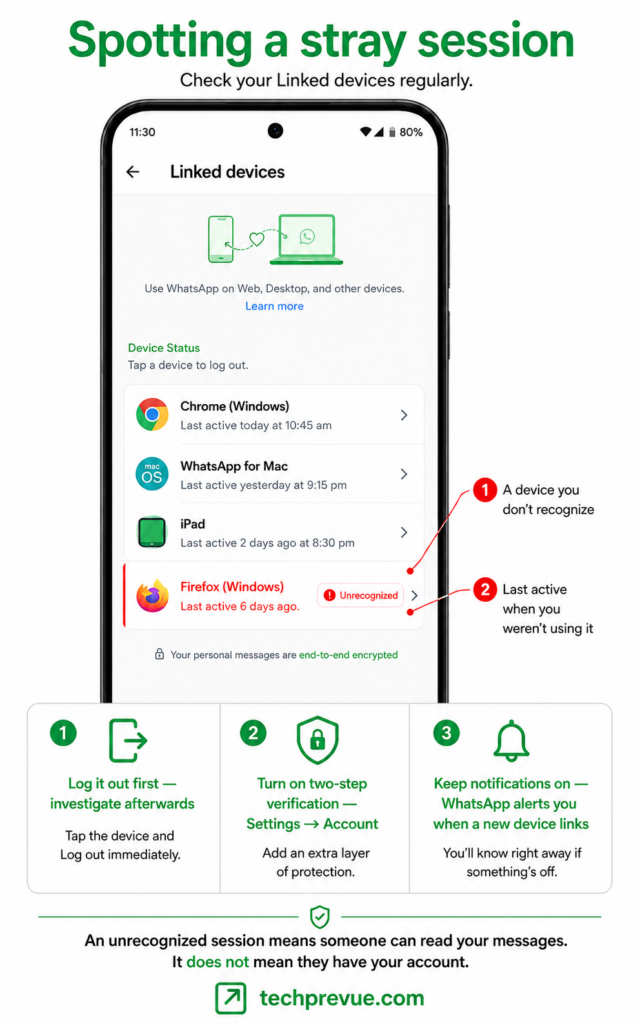
After that, three steps:
Turn on two-step verification. Settings → Account → Two-step verification. It does not protect the linking flow directly, but it blocks the re-registration attack that usually follows a compromised account.
Keep push notifications on. WhatsApp alerts you when a new device links to your account. That alert is your only warning, and it is worthless if notifications are off.
Work out how it got there. The most common route is a QR code scanned on a page the victim did not control, usually presented as a job task or a verification step. That mechanism is covered in detail in our guide to WhatsApp Web login and its risks.
One reassurance: an unrecognized session means someone can read your messages going forward. It does not mean they have your account, your phone number, or the ability to lock you out.
What happens to your chats when you log out
Nothing. This is the question that stops people logging out at all, so here it is plainly.
Your messages live on your WhatsApp account, not in the browser. Logging out ends the session and clears that browser’s local copy — it does not delete a single message.
Link the same browser again tomorrow and your conversations reappear, exactly as they were. The same is true on a different computer entirely.
Two small caveats. Recent history syncs first and older messages fill in gradually, so a sparse chat list immediately after relinking is normal. And media that has aged off WhatsApp’s servers may not re-download on a device that never received it.
Neither is a reason to leave a session open on a machine you do not control.
How to log Out from WhatsApp Web when you’ve already left
Cyber café, library terminal, hotel business centre, a friend’s laptop. Forgetting happens constantly and it is fixable in under a minute.
Open WhatsApp on your phone right now and go to Linked devices. Log out the session for that computer. It ends immediately, wherever the machine is.
Then check the rest of the list while you are there, and turn on two-step verification if it is not already active.
For next time, three habits cover it. Untick Keep me signed in before you scan on any machine that is not yours, use a private window so the browser stores less, and log out deliberately before you stand up rather than after.
None of this requires you to remember anything at the moment you leave, which is the point. The remote method exists precisely because people forget.
How to log Out of WhatsApp Web from a cyber café or shared computer
Public machines deserve one extra step, because ending the session does not remove what the browser kept.
After the remote logout, assume the browser still holds cached data and that you cannot clear it from where you are. Treat anything you discussed on that machine as potentially readable by whoever sits down next.
If the conversation was sensitive, the practical response is to change what you can control: turn on two-step verification, and check your linked device list again a day later in case a new session appeared.
How to log Out of WhatsApp Web without your phone
If your phone is lost, stolen, or dead, your options narrow sharply — but they are not zero.
If you can reach the computer, log out there using the steps in §2 — log out on the machine itself. That works with no phone involved at all, because the browser can always end its own session.
If you cannot reach the computer, there is no supported remote route without your phone. Session management is a primary-device function by design, which is the same property that stops an attacker ending your sessions.
The last resort is re-registering WhatsApp on a replacement handset with your number. Re-registration ends every linked session automatically, so it doubles as a full logout.
That last option is worth knowing if a phone is stolen. Getting a replacement SIM and re-registering is the fastest way to shut every open session at once.
Why you were logged out without doing anything
Unexpected logouts are usually rules working correctly rather than something breaking.
Two inactivity timers apply. According to WhatsApp’s documentation on linked devices, linked devices are logged out if you do not use your phone for over 14 days, and a device that goes unused for 30 days is disconnected automatically.
From the user’s side, this reads as being kicked out for no reason. From WhatsApp’s side, it stops an abandoned session staying open forever on a computer you no longer own.
There is a third cause with no timer attached. Four devices can be linked at once, so authorizing a fifth silently displaces the oldest.
If you are being logged out daily rather than occasionally, none of these apply and the cause is on your computer — usually a browser clearing cookies on exit, or security software on a managed machine. That is covered in why WhatsApp Web is not working.
When you can’t log out
| Symptom | Likely cause | Fix |
|---|---|---|
| Log out button does nothing | Page state is stale | Hard refresh, then try again |
| Session reappears after logging out | The browser relinked from a saved session | Log out from your phone instead |
| Device list will not refresh | Phone is offline | Reconnect the phone, then reopen the list |
| No Linked devices option on your phone | That phone is itself a linked device | Use the phone your account is registered on |
| Logged out but chats still visible | Page not yet reloaded | Reload the page to confirm |
That fourth row catches people out. Only your primary phone can manage sessions, so a second phone in companion mode will not show the controls.
Once you are ready to sign back in, both methods are covered in how to complete your WhatsApp Web login.
Frequently asked questions
How to Log Out from WhatsApp Web from phone?
Open WhatsApp, go to Linked devices, tap the session you want to end, then tap Log out. It works from anywhere and does not require access to the computer.
Does closing the browser log me out?
No. The session stays authorized until you end it deliberately. Anyone reopening that browser reaches your chats without any credential.
Will I lose my messages if I log out?
No. Messages are stored on your account and reappear the next time you link a browser.
Can I log out of one device without affecting the others?
Yes. Each linked device is independent. Ending one session leaves the rest running.
How do I know a session actually ended?
The computer returns to the QR code screen, and the device disappears from Linked devices on your phone. Either confirms it.
Can someone log me out of my own account?
Only from your primary phone. Anyone with access to that phone can end your sessions — which is another reason to keep a screen lock on it.
Tested on July 31, 2026 in Chrome Version 151.0.7922.72 on Windows 11 and Safari Version 26.0 on macOS, with WhatsApp Version 2.22.13.77 on Android.
Source: WhatsApp Help Center.
