
Quick answer: Don’t know how to go to next line in WhatsApp Web. Press Shift + Enter. That inserts a line break and keeps your message in the box instead of sending it. Pressing Enter on its own sends immediately, which is why half-written messages get away from people.
Key takeaways
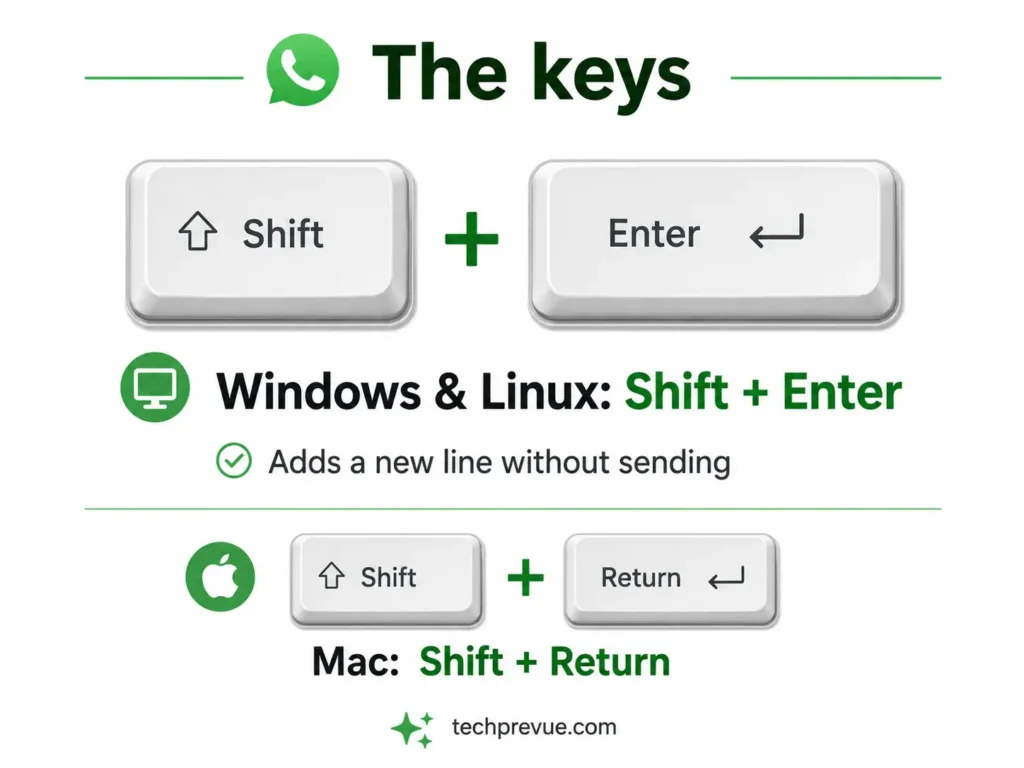
- Shift + Enter breaks the line. Enter sends. That is the whole rule. On Mac, use Shift + Return keys.
- It works the same in Chrome, Firefox, Edge, Safari, and Opera.
- Your phone behaves differently — the enter/return key there adds a line break rather than sending.
- The shortcut only works inside the message box. Try it anywhere else and nothing happens.
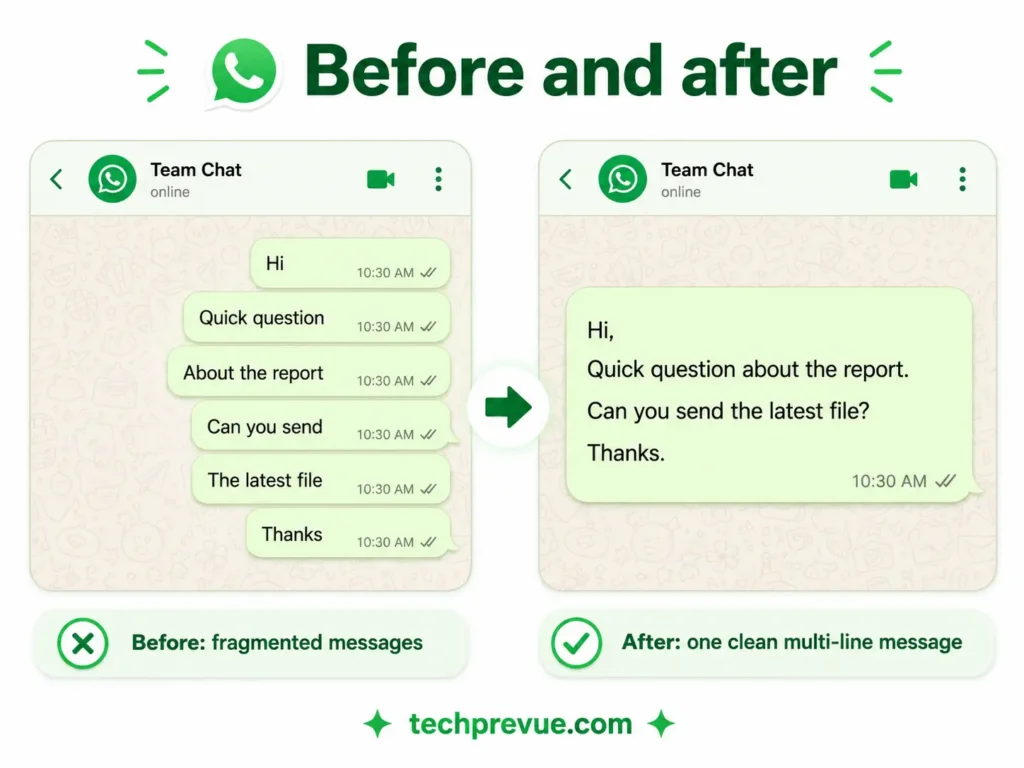
If you have ever sent “Hi, quick question about the” and then had to follow it with three more fragments, this page is 30 seconds well spent.
Below is how to go to next line in WhatsApp Web on every platform, plus blank lines, lists, formatting, and what to do when the shortcut appears to do nothing.
- How to go to next line in WhatsApp Web
- Why Enter sends your message instead
- How to move to the next line in WhatsApp Web on your phone
- Adding blank lines and paragraph spacing
- Line breaks inside bulleted and numbered lists
- Formatting that works alongside line breaks
- Where Shift + Enter does not work
- When Shift + Enter stops working
- Other shortcuts worth knowing
- Frequently asked questions
How to go to next line in WhatsApp Web
Press Shift + Enter while your cursor is in the message box.
The cursor drops to a new line and your message stays put. Type the next line, repeat as needed, then press Enter on its own when you are ready to send.
That is all there is to it. The rest of this page covers the situations where it behaves unexpectedly, and how to format what you are writing once you can control the line breaks.
On Windows and Linux
Hold Shift, press Enter once, release both. One press equals one line break.
Both Shift keys work, left or right. There is no difference between them.
On Mac
Hold Shift, press Return. Identical behavior, different key label.
Command + Return does not work. Neither does Ctrl + Enter, despite what a few guides claim. If you have read that Ctrl + Enter is an alternative, it is not one on WhatsApp Web.
Why Enter sends your message instead
This trips people up because almost every other text field on a computer treats Enter as a line break.
Chat applications inherit a different convention. Messaging is fast and conversational, so the most frequent action gets the easiest key, and sending is far more frequent than adding a paragraph.
Slack, Teams, Discord, and most AI chat interfaces work the same way. Once you know the pattern, it transfers.
It also explains why the mistake is so common among people who write a lot. The faster you type, the more your fingers treat Enter as punctuation rather than a command.
There may be a way to flip it. Some builds of WhatsApp Web include an Enter-key toggle under Settings → Chats. If you find it, you can make Enter add a line break and use a different combination to send.
Look for it before you assume you are stuck. If the option is not in your build, Shift + Enter remains the reliable route, and it works everywhere regardless of settings.
How to move to the next line in WhatsApp Web on your phone
Your phone follows a different rule, which is why the shortcut you learned on a laptop seems broken on mobile.
In the WhatsApp app on Android and iPhone, the return key on your on-screen keyboard inserts a line break. It does not send. Sending is a separate button beside the text box.
So on mobile you press return as many times as you like, then tap send when the message is finished. No modifier key involved.
This catches people moving between devices during the day. The rule is simple enough to remember: on a computer the keyboard sends, on a phone the button sends.
Adding blank lines and paragraph spacing
Press Shift + Enter twice to leave an empty line between paragraphs.
One press moves to the line directly below. Two presses create visible separation, which is what you want for anything longer than a couple of sentences.
There is no limit worth worrying about, but restraint reads better. Three or four short paragraphs land well; fifteen single lines look like someone spamming the chat.
You can also compose long messages in a text editor and paste them in. Line breaks are preserved when you paste, so this is a practical route for anything you want to draft carefully before sending.
This is the approach worth using for anything that matters — a client update, a price list, a set of instructions. Drafting in the message box means one slip of the finger sends an unfinished thought to someone whose opinion you care about.
Line breaks inside bulleted and numbered lists
WhatsApp supports real lists, and this is where line breaks stop being cosmetic.
To start a bulleted list, type a hyphen followed by a space, then your text. For a numbered list, type a digit, a period, and a space.
Then press Shift + Enter to move to the next item. Enter would send the half-finished list, which is the single most common way people end up posting three separate messages instead of one clean list.
A quick example of what to type:
- Milk
- Bread
- Eggs
The same applies to block quotes and code blocks. Start the line with > and a space for a quote, or wrap text in backticks for inline code, then use Shift + Enter to continue.
One behavior worth testing yourself: some documentation suggests Enter continues a list rather than sending it. On the browser version, Enter has sent the message in every case we could confirm, so treat Shift + Enter as the safe habit.
Formatting that works alongside line breaks
Line breaks and formatting combine, and together they turn a wall of text into something readable.
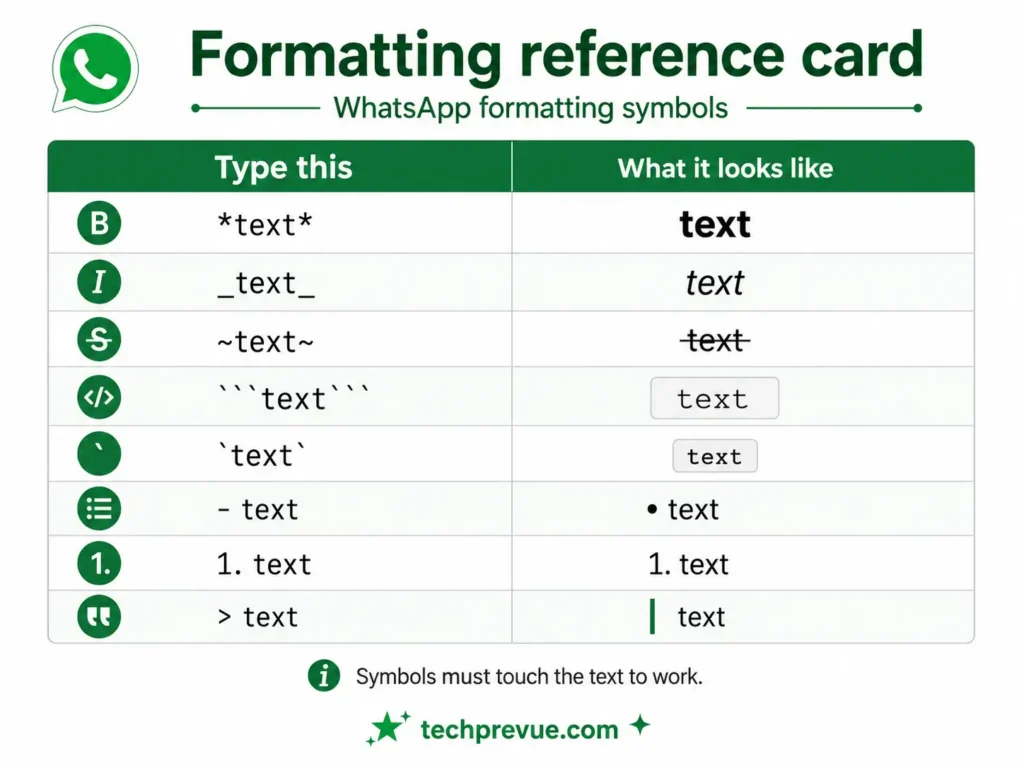
| Format | Type this | Result |
|---|---|---|
| Bold | *text* | text |
| Italic | _text_ | text |
| Strikethrough | ~text~ | ~~text~~ |
| Monospace | ```text``` | fixed-width |
| Inline code | `text` | fixed-width, inline |
| Bulleted list | - text | • text |
| Numbered list | 1. text | 1. text |
| Block quote | > text | indented, with a left bar |
Symbols must sit directly against the text with no space between. *bold* works; * bold * does not.
Bold, italic, and strikethrough can be stacked — *_text_* gives you both. Monospace overrides the others, so anything inside backticks stays plain.
That last property is useful in its own right. If you need to show an asterisk without triggering bold, wrap it in backticks.
Sourced form official WhatsApp formatting documentation.
Where Shift + Enter does not work
The shortcut is scoped to the message composition box and nowhere else.
Try it while editing your profile name, your About line, or a group description and nothing will happen — those fields are single-line by design. The same applies to the search bar and the caption field on some media uploads.
This is worth knowing before you conclude the shortcut is broken. If Shift + Enter is doing nothing, check where your cursor actually is.
It is the most common false alarm reported about this shortcut. Nothing is broken; the field simply does not accept more than one line of text, so there is nowhere for the cursor to go.
When Shift + Enter stops working
If the shortcut fails inside the message box itself, work through these.
| Symptom | Likely cause | Fix |
|---|---|---|
| Nothing happens at all | Cursor is not in the message box | Click into the box, then try again |
| Message sends anyway | Shift released a fraction early | Hold Shift down through the Enter press |
| Works in one browser, not another | Extension intercepting keystrokes | Test in a private window with extensions off |
| Works on the site, not in the desktop app | App build issue | Update the app, or use the browser version |
| Erratic behavior while typing another language | Input method editor capturing the keys | Switch input method, or paste the text in |
Extensions are the most frequent culprit on a machine where everything else works. Anything that remaps keys, blocks scripts, or “enhances” the interface can swallow the combination before the site sees it.
For anything broader than this shortcut, see why WhatsApp Web is not working.
Other shortcuts worth knowing
Line breaks are the one people search for. These are the ones that save the most time once you have it.
| Action | Windows and Linux | Mac |
|---|---|---|
| New line | Shift + Enter | Shift + Return |
| Send | Enter | Return |
| New chat | Ctrl + Alt + N | Cmd + Ctrl + N |
| Search within a chat | Ctrl + Alt + Shift + F | Cmd + Ctrl + / |
| Archive chat | Ctrl + Alt + Shift + E | Cmd + Ctrl + Shift + E |
| Mute chat | Ctrl + Alt + Shift + M | Cmd + Ctrl + Shift + M |
| Emoji panel | Ctrl + Alt + E | Cmd + Ctrl + E |
| Close chat | Escape | Escape |
Note the Mac column. Windows Ctrl becomes Cmd, but Windows Alt becomes Ctrl, not Option — a detail most published lists get wrong.
Typing a colon followed by two or three letters also brings up emoji suggestions, which is faster than opening the panel.
Frequently asked questions
What is the shortcut to go to the next line in WhatsApp Web?
Shift + Enter on Windows and Linux, Shift + Return on Mac. One press inserts one line break without sending.
Why does my message send when I press Enter?
Enter is mapped to send by default, following the same convention as most chat applications. Use Shift + Enter for a line break, or check Settings → Chats for an Enter-key toggle if your build has one.
Does Ctrl + Enter work as an alternative?
No. A few guides claim it does, but Shift + Enter is the working combination on WhatsApp Web.
How do I add a blank line between paragraphs?
Press Shift + Enter twice. The first press moves down one line, the second leaves an empty line.
Why does the return key work differently on my phone?
On mobile, return inserts a line break and a separate button sends. On a computer, the keyboard handles both, so a modifier key is needed to tell them apart.
Are line breaks preserved when I paste text in?
Yes. Text copied from a document or editor keeps its line breaks when pasted into the message box, which makes drafting elsewhere a practical option for long messages.
Tested on July 31, 2026 in Chrome Version 151.0.7922.72 on Windows 11 and Safari Version 26.0 on macOS, with WhatsApp Version 2.22.13.77 on Android.
New to the browser version? Start with how to use WhatsApp Web.
