
Quick answer: Your My Activity history is the record Google keeps of your searches, YouTube views, app usage, voice queries and AI prompts. You can see all of it at myactivity.google.com. Delete a single item, a date range, or everything from the Delete control above your activity, and set auto-delete to 3, 18 or 36 months.
Search for Google My Activity in any browser and this is the page you land on. Most people open it expecting a short list of yesterday’s searches. What they find instead is a scrollable diary going back years, complete with the app you used, the device you held and the rough location you searched from.
This guide walks through every part of your My Activity history. It covers how to read it, how to filter it, how to delete it properly, and the four other places your data quietly survives after you think you have wiped it clean.
One warning before you start. Google is mid-way through a significant change to these settings, and many published guides have not caught up. That change is covered below.
- What Is My Activity History?
- How to Open Your My Activity Page
- How to Check My Activity Today and Filter What You See
- The 2026 Change: Google Splits Search Services Out of Web & App Activity
- How to Delete My Activity: Every Method
- Auto-Delete: 3, 18 or 36 Months
- Where Your Activity Still Lives After You Delete It
- Gemini, AI Mode and Your My Activity History
- How to Stop Google Saving Activity
- Lock My Activity on a Shared Device
- Things People Confuse With My Activity
- Seven Mistakes People Make With My Activity
- 10-Minute My Activity Cleanup Checklist
- Frequently Asked Questions
- What to Do Next
What Is My Activity History?
Your My Activity history is a per-account log of what you do across Google products while signed in. It lives at myactivity.google.com and syncs across every device using that account.
Entries stack up under date headers in My Activity. Personalization is the reason Google leads with: saved activity produces faster searches, sharper YouTube recommendations and a Discover feed that guesses what you care about. Google also states it uses saved history to operate, secure, develop and improve its services, which for some settings includes training generative AI models.
The distinction that trips up almost everyone is this. Browser history belongs to a browser profile and can sync across your devices. My Activity history is a separate Google Account log, so clearing Chrome leaves the account record untouched, and clearing the account record leaves the browser untouched.
What Google Saves in Your My Activity History
According to Google’s account help documentation, the page lets you find and delete topics you searched, articles you read, videos you watched, content you uploaded, and recordings from Search Live or Translate.
In practice, a typical entry set looks like this:
- Google Search queries, including image and voice searches
- Sites you opened from a Search result
- YouTube videos watched and YouTube searches
- Maps searches and directions requests
- Google Play Store browsing and app installs
- Google Assistant and Gemini for Home commands
- Gemini Apps prompts and replies
- Chrome browsing history, but only if you are signed in to Chrome and syncing
Each entry carries a timestamp, the product it came from, and a Details link that explains why it was saved.
What My Activity Does Not Store
This is where a lot of published advice gets it wrong, usually by implying the page shows everything you do across Google, Gmail included. It does not.
Google states plainly that the page does not store content or files such as emails, or documents unless you uploaded them directly in a product like AI Mode. Your Gmail messages, Drive files and Google Photos library are managed inside those products, not here.
Two other exclusions matter. Timeline location data now lives on your phone rather than in this log, and anything you did while signed out of your account will not appear at all.
Reality check: If a guide tells you My Activity contains your emails, check its other claims carefully. Gmail content has never appeared in this log.
How to Open Your My Activity Page
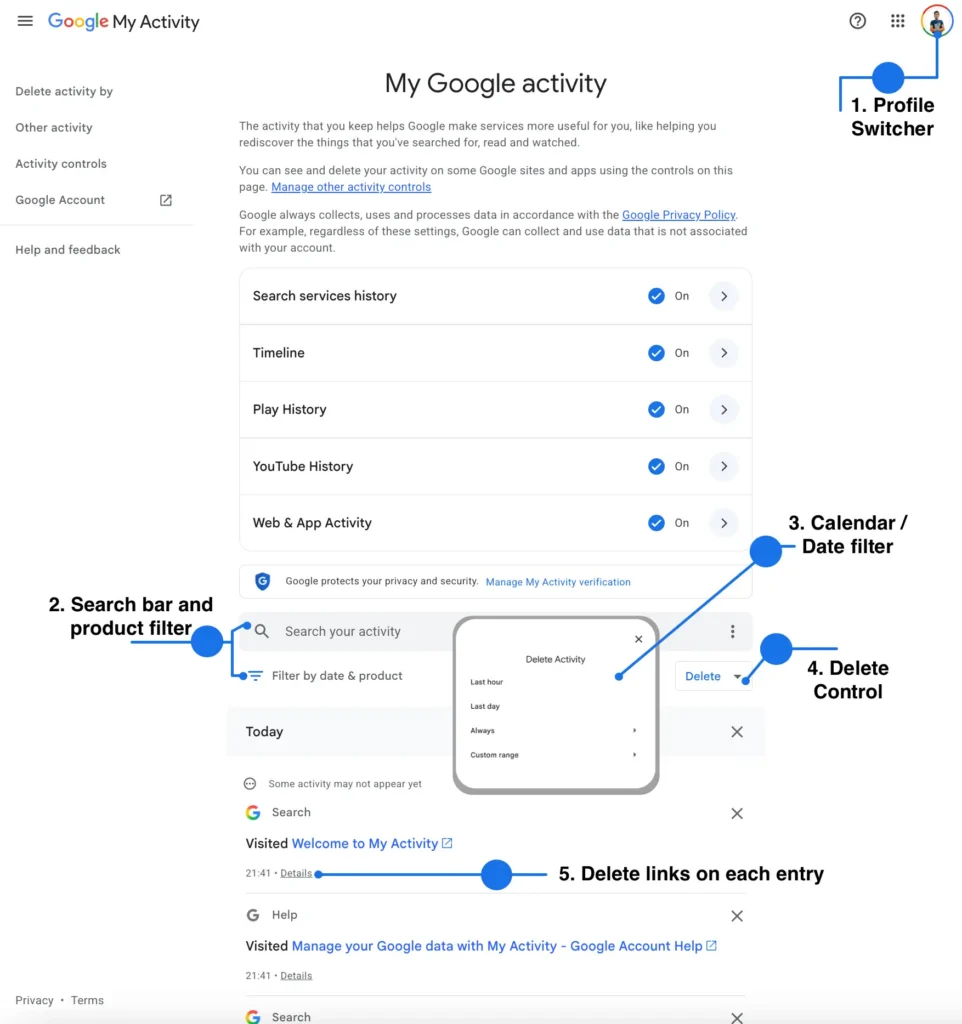
The fastest route to your My Activity history is the direct URL. Everything else is a longer path to the same screen.
On a Computer
- Open any browser and go to myactivity.google.com.
- Sign in to the Google Account you want to review.
- Confirm the account in the top-right corner before you delete anything.
If you prefer the menu route, open your Google Account, select Data & privacy in the left panel, then look under Personalization & activity.
On Android
- Open the Google app and tap your profile picture.
- Tap Manage your Google Account, then Data & privacy.
- Scroll to the history settings and open the activity page.
On Pixel and Samsung Galaxy phones you can also reach the same place through Settings → Google → Manage your Google Account. Menu labels shift between Android versions and manufacturer skins, so the browser URL stays the more reliable option.
On iPhone and iPad
The Google app follows the same path as Android. Tap your profile picture, open Manage your Google Account, then Data & privacy.
iOS users who only use Safari can skip the app entirely and type the URL. The record is identical either way, because it belongs to the account rather than the handset.
Add a My Activity Shortcut to Your Home Screen
If you audit your account regularly, save yourself the digging. Open myactivity.google.com in Chrome on your phone, tap the three-dot menu, and choose Add to Home screen.
You now have a one-tap privacy dashboard. This is a small habit that pays off most on shared family devices.
How to Check My Activity Today and Filter What You See
The default view is reverse-chronological, so today’s entries sit at the top under a date header. That answers the common “show me my activity today” question in about three seconds.
The value of the page, though, sits in its filters. Used well, they turn a wall of entries into an answer.
Filter by Date
Click Filter by date & product above your activities and pick a preset period, or enter your own start and end dates. Google’s deletion help page confirms you can combine a date filter and a product filter at the same time.
Use this when you need to reconstruct a specific day: what you searched before a purchase, or which evening you found that article you cannot re-find now.
Filter by Product
Click Filter by date & product bove your activities, then select the products you want to include. Filtering to YouTube alone, for example, strips out every search query and leaves only watch and search history from that service.
Keep in mind that some Google products do not save activity here at all. If a product is missing from the filter list, its data is stored elsewhere.
What the Details Panel Reveals
Select Details at the bottom of any item and, per Google’s activity access documentation, you see the date, the time and the reason it was saved. You may also see location, device and app information attached to the entry.
The panel is easy to miss and worth opening. It is how you tell a search made on a phone in Lucknow from one made in a browser on a work laptop in Chicago.
The 2026 Change: Google Splits Search Services Out of Web & App Activity
Google is splitting Web & App Activity apart. Follow older instructions and you will end up hunting for a setting that no longer controls what you think it controls.
Google’s Search Help now states that history and personalized recommendations for its Search services are moving into two new independent settings: Search Services History and Personalized Recommendations. The rollout is gradual, so two accounts opened side by side may show different screens.
Which Services Moved
The Search services group covers Search, Maps, Shopping, Flights, Hotels, Translate and News. Google explicitly notes that the group does not include Chrome, Gemini Apps, Google Assistant or YouTube.
Those four keep saving history under their own settings. Web & App Activity continues to control activity collection and personalization for the other Google services that sit outside the Search group.
How Your Old Settings Carried Over
Google based the new settings on your most recent choices. If both Web & App Activity and Search Personalization were on, both new settings are on. If both were off, both stay off.
There is one asymmetric case worth knowing. If Web & App Activity was on but Search Personalization was off, only Search Services History has been switched on.
Save Media, the New Subsetting
Search Services History can now include media from your interactions, which is new territory. Google lists Lens images, files you upload, and recordings from Search Live, Translate speaking practice and voice searches.
You control this through a Save Media checkbox that appears when Search Services History is on. If the idea of Google retaining your Lens photos and spoken practice audio bothers you, this is the box to clear.
Google also states that when Search Services History is off, your future activity will not be used to train its generative AI models unless you submit feedback. That is a meaningful sentence, and it is buried three help pages deep.
If You Do Not See the New Settings Yet
Do not assume something is broken. Google’s own guidance is that if the described settings do not match your screen, Search services history and recommendations are still controlled by the setting described on the Web & App Activity help page.
Update the Google app from the Play Store or App Store, or manage the settings from account.google.com in a browser. Last verified August 2026: the rollout is still gradual, so accounts continue to show different screens.
How to Delete My Activity: Every Method
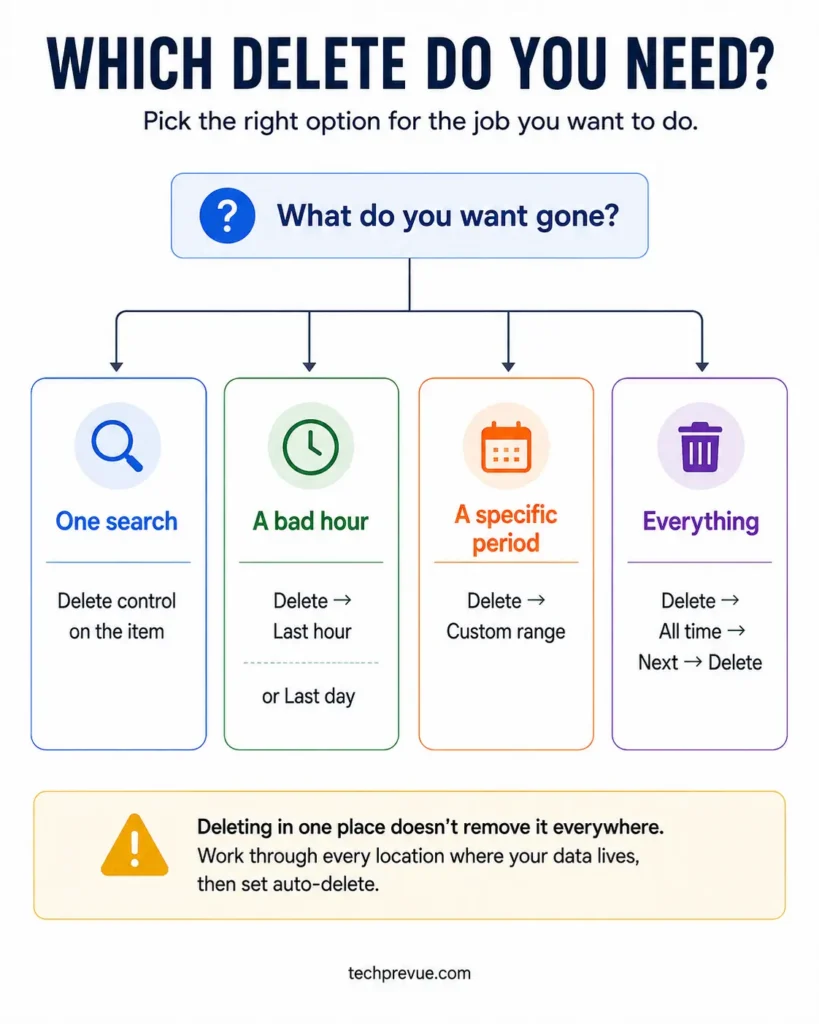
Deletion is where published guides diverge most, largely because the interface changed and older articles still describe a three-dot menu that is no longer the primary control. Everything below happens on one page: My Activity. Google delete controls now sit above the feed and on each individual entry.
Delete One Item
- Go to myactivity.google.com.
- Scroll to the entry, or find it using search and filters.
- Click the Delete control on that item.
Best for the single search you regret. Deleting one item does not affect personalization broadly.
Delete the Last Hour or Last Day
Click Delete above your activity, then choose Last hour or Last day. This is the fastest cleanup after someone else borrows your phone.
Delete a Custom Date Range
Click Delete, choose Custom range, and set your start and end dates. Use this when you want to erase a specific trip, a job hunt or a medical research period without touching anything else.
Delete by Product
Filter by product first, then click Delete next to the search bar and choose Delete Results. This is how you clear YouTube history while keeping your Maps searches, or the reverse.
Google History Delete All: The Full Sweep
You can clear everything Google holds, clear your Google history, delete all My Activity entries through Delete activity by first and then work through the remaining locations, in this order:
- Other Google activity — open the Main menu on the top left sidebar, choose Other activity, and work through each entry.
- Browser and on-device history — clear Chrome, Safari or Firefox separately on every device.
- Product content — Gmail, Drive and Photos are managed inside those products.
- Takeout archives — any export you already downloaded is yours to delete.
Skip step one and you may find location shares, Play Store history and assorted product logs still sitting in your account. It is a common reason people say deletion “did not work.”
Tip: Before a full wipe, start an export from Google Takeout. Deletion is not reversible, so if there is research or saved history you may want later, export it first.
Auto-Delete: 3, 18 or 36 Months
Manual cleanups fail because people forget. Auto-delete solves that by setting an expiry date on your My Activity history and letting Google enforce it.
To turn it on:
- Go to your Google Account and click Data & privacy.
- Under the Personalisation and activity, click the My Activity and choose one of the settings you want to limit.
- Click Choose an Auto-delete option, choose your retention window, then click Next and Confirm.
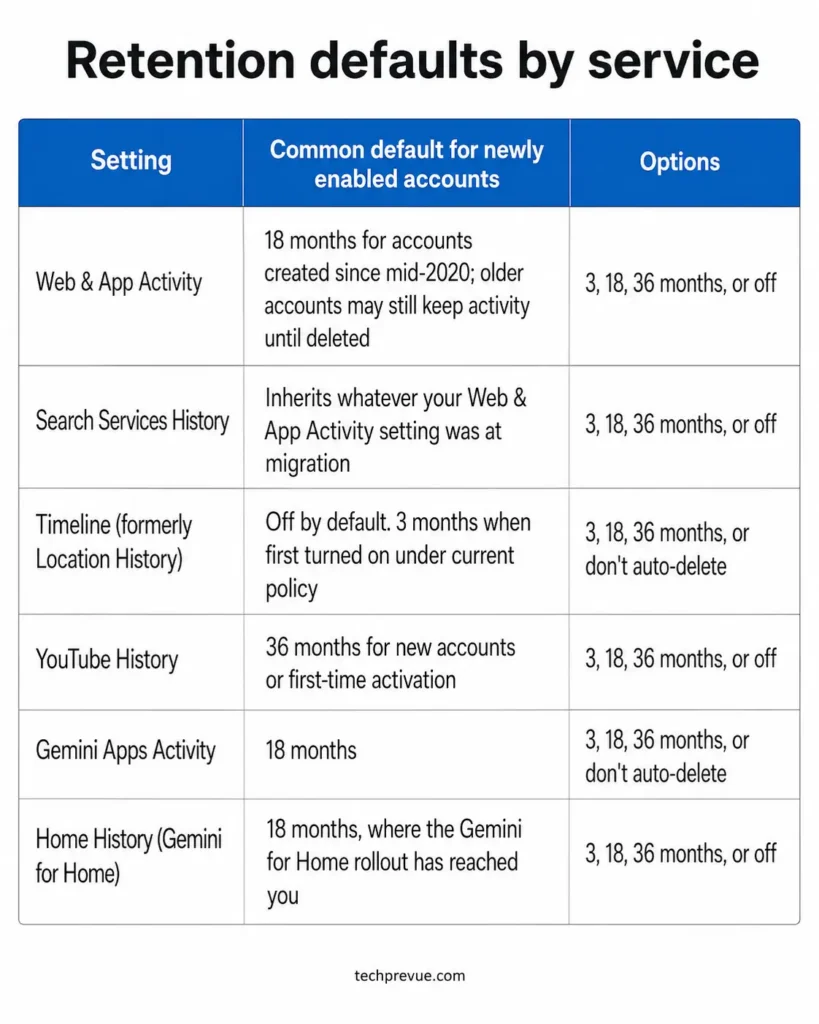
Now for the part a lot of published advice gets wrong. “Google keeps it forever unless you delete it” stopped being true for several services years ago, and the defaults differ by product.
| Setting | Common default for newly enabled accounts | Options |
|---|---|---|
| Web & App Activity | 18 months for accounts created since mid-2020; older accounts may still keep activity until deleted | 3, 18, 36 months, or off |
| Search Services History | Inherits whatever your Web & App Activity setting was at migration | 3, 18, 36 months, or off |
| Timeline (formerly Location History) | Off by default. 3 months when first turned on under current policy | 3, 18, 36 months, or don’t auto-delete |
| YouTube History | 36 months for new accounts or first-time activation | 3, 18, 36 months, or off |
| Gemini Apps Activity | 18 months | 3, 18, 36 months, or don’t auto-delete |
| Home History (Gemini for Home) | 18 months, where the Gemini for Home rollout has reached you | 3, 18, 36 months, or off |
There is also a deletion nobody advertises. Google notes that some activity disappears faster than your chosen window, and specifically that location information about your device and your IP address is removed from Web & App Activity after 30 days.
Which window should you pick? Three months if privacy is your priority and you rarely search for old queries. Eighteen months if you use Google to re-find things and want a middle path. Thirty-six months only if you treat your account log as a research archive.
Where Your Activity Still Lives After You Delete It
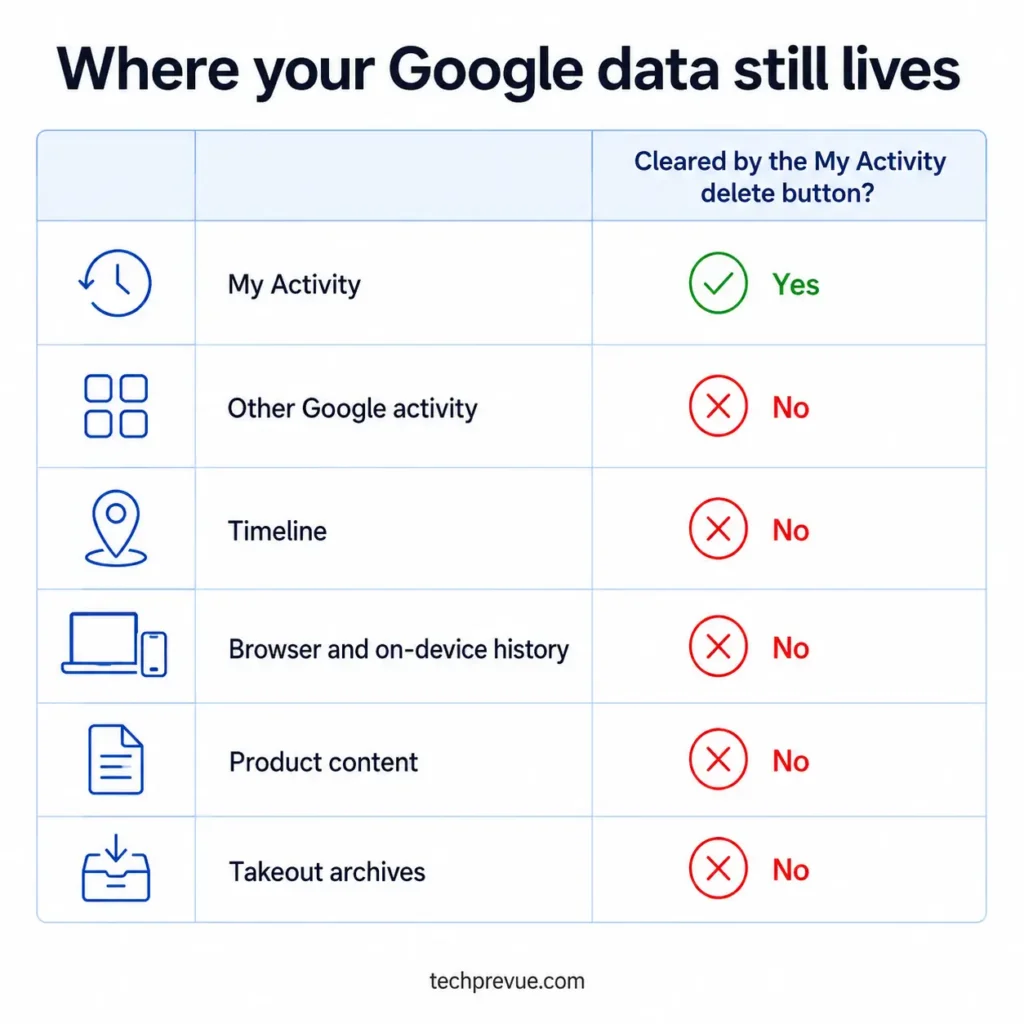
This is the section that separates a real cleanup from a cosmetic one. Your Google-related data can sit in several separate locations, and the delete button on one does nothing to the rest.
| Location | What it holds | Cleared by the My Activity delete button? | Where to clear it |
|---|---|---|---|
| My Activity | Searches, YouTube, Maps, Play, Assistant, Gemini | Yes | myactivity.google.com |
| Other Google activity | Product logs not shown in the main feed | No | More → Other activity |
| Timeline | Places visited and routes travelled | No | Account-wide delete in activity settings; per-visit edits in the Maps app |
| Browser and on-device history | URLs, cookies, cached pages, form data | No | Chrome, Safari or Firefox settings |
| Product content | Gmail messages, Drive files, Photos | No | Inside each product |
| Takeout archives | Anything you already exported | No | Delete the downloaded files yourself |
Other Google Activity
Open the Main menu (or see the left sidebar) and select Other activity. Under each item you can choose Manage Activity to delete it, or Details to find out where the deletion control lives.
The contents vary by account, because Google only logs what you actually use. Audit it once a quarter alongside your My Activity history and you will be ahead of most people reading about this topic.
Timeline, Formerly Location History
Location History was renamed Timeline, and it is now created locally on each signed-in device rather than held centrally. It is off by default, and you can optionally store an encrypted backup on Google’s servers. You cannot browse Timeline on a computer anymore, which is why several older articles describe a screen that no longer exists.
Google announced in December 2023 that Timeline would save directly on the device, and that first-time users would get a three-month auto-delete default rather than the previous eighteen months. Multiple devices no longer contribute to one shared Timeline.
The practical consequence splits two ways. You can turn off Timeline and delete all of it for your account from your Google Account activity settings in a browser, but editing or removing individual visits and routes still happens in the Maps app, and those per-device edits do not sync to your other devices.
Chrome Browsing History
Signing in to Chrome and syncing history sends that history into your account record. Deleting it from your account does not remove it from the browser, and Google’s help pages say so directly.
Clear browsing data inside Chrome as a separate step, on every device, using the instructions in the Chrome Help Center. On a shared laptop, do both or you have done neither.
Gemini, AI Mode and Your My Activity History
AI activity can appear in your My Activity history when the relevant Search Services History, Gemini Apps Activity or Home History setting is on. It behaves differently from a search query in ways worth understanding before you type anything sensitive.
Gemini Apps Activity Defaults
Gemini conversations are saved under Gemini Apps Activity and appear in the activity feed under that product filter. Google’s Gemini documentation states that activity older than 18 months is auto-deleted by default, changeable to 3 or 36 months, or switched off entirely.
You can reach the Gemini slice of your log directly at myactivity.google.com/product/gemini. Deleting a chat there also deletes the related audio, transcript, video and screen shares from any Gemini Live session in that entry.
What Deleting Does Not Reach
Here are two facts that no competing article on this topic currently mentions, both stated in the Gemini Apps Privacy Hub.
First, conversations sampled for human review are not deleted when you delete your activity. They are disconnected from your account and retained for up to three years.
Second, even with activity saving turned off, conversations are stored with your account for up to 72 hours so the service can run and process feedback. There is no setting that reduces that floor.
Practical rule: Most Gemini chats follow your auto-delete setting normally. The exception is the sample selected for human review, which is disconnected from your account and may be held for up to three years. Assume any single conversation could fall into that sample.
How to Stop Google Saving Activity
Deleting is retrospective. If you want less data going forward, you change the setting rather than clean up after it.
Turn Off vs Turn Off and Delete
- Go to your Google Account and select Data & privacy.
- Under the My Activity settings, select the setting you do not want saved.
- Select Turn off, then choose either Turn off or Turn off and delete activity.
The difference matters more than the wording suggests. Turn off stops future collection and leaves the past intact. Turn off and delete activity does both, and prompts you to confirm exactly what gets erased.
What you lose is real, so decide with open eyes. Personalized results get less useful, YouTube recommendations reset toward generic, and you lose the ability to re-find that article you half-remember from March.
The Limits of Incognito
Incognito stops your browser saving history on that device. It does not stop your account recording activity if you are signed in.
Google’s guidance is explicit on this point: signing in to your account in a private browsing window can still store search activity in that account. Plenty of people learn this the hard way when an “incognito” search shows up in their My Activity history the next morning.
Signed-out searching is not fully anonymous either. Google notes that search and ad results may still be customized using search-related activity when you are signed out.
Lock My Activity on a Shared Device
Shared family phones and shared work laptops are common in both the US and India. Google built a lock for your My Activity history to handle exactly this, and almost nobody uses it.
- Go to myactivity.google.com.
- Above your activity, select Manage My Activity verification.
- Select Require extra verification and save.
From then on, anyone opening the page on your signed-in account has to pass an extra check before the full history appears. It takes about fifteen seconds to switch on and it is the fastest privacy win in this guide.
If you have more than one Google Account, remember each account keeps its activity separate. Verification is set per account, so switch profiles and repeat.
Things People Confuse With My Activity
Four different tools get searched with almost identical wording. Here is what each one actually does.
| Tool | What it shows | Where it lives | Scope |
|---|---|---|---|
| My Activity | Searches, videos, app and AI activity | myactivity.google.com | Your Google Account, all devices |
| Chrome history | URLs you opened in that browser | Chrome → History | One browser on one device |
| Activity Monitor | CPU, memory, energy, disk and network usage | macOS Utilities folder | One Mac, live processes |
| Recent security activity | Sign-ins, password changes, new devices | Google Account → Security | Your Google Account |
If you are hunting for suspicious logins rather than searches, the security activity page is the one you want, not the activity feed.
Where Is Activity Monitor on My Mac?
Activity Monitor is Apple software with no connection to your Google Account. It sits in Applications → Utilities, and the quickest way to open it is Command + Space, type the first few letters, then press Return. It shows which app is eating your battery or pinning your processor, and it will never show you a single Google search.
Seven Mistakes People Make With My Activity
- Clearing browser history and calling it done. The account log is untouched. Two different systems, two different deletions.
- Skipping Other Google activity. This is the number one reason deleted data “comes back.”
- Assuming Incognito hides everything. Signed in means recorded, private window or not.
- Turning a setting off and expecting the past to vanish. Off stops the future. Choose “turn off and delete” if you want both.
- Forgetting Timeline lives on the phone. No web page will clear it for you anymore.
- Deleting the wrong account. If you are signed in to two or three Google Accounts, it is easy to clear one and assume the others are done. Check the account switcher first.
- Wiping everything with no export. Takeout takes five minutes and cannot be run retroactively.
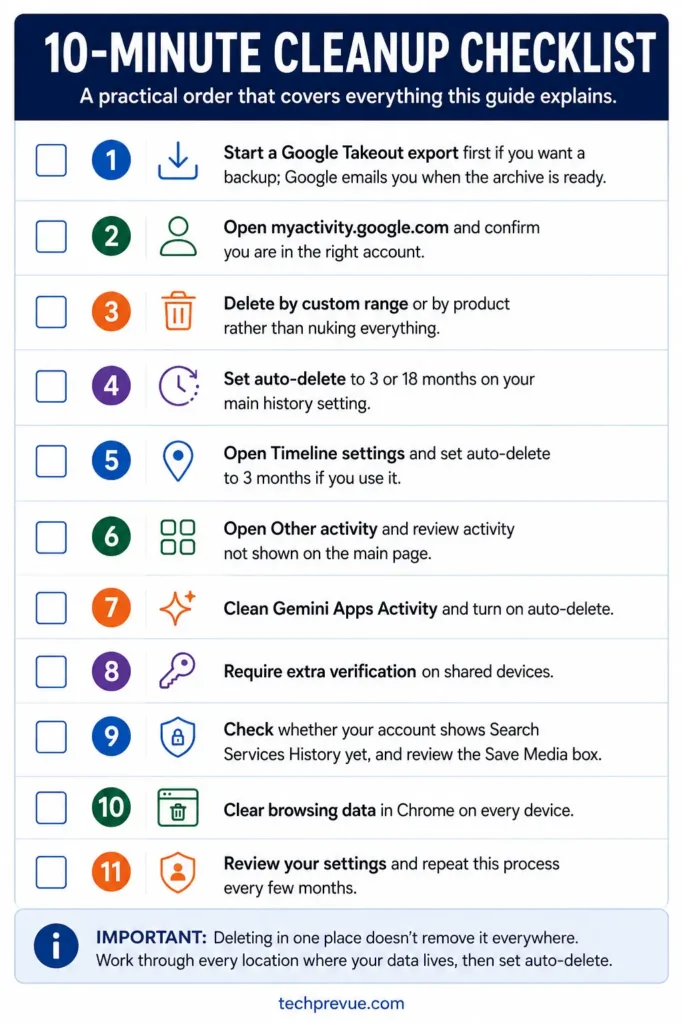
10-Minute My Activity Cleanup Checklist
Work through this list once, then repeat it every few months. Start with the export, because deletion is not reversible.
- [ ] Start a Google Takeout export if you want a backup; Google emails you when the archive is ready
- [ ] Open myactivity.google.com and confirm you are in the right account
- [ ] Skim the last 30 days for anything you would not want read aloud
- [ ] Delete by custom range or by product rather than nuking everything
- [ ] Set auto-delete to 3 or 18 months on your main history setting
- [ ] Open Main menu → Other activity and clear each listed item
- [ ] Set Gemini Apps Activity to 3 months if you use AI assistants often
- [ ] Turn on Require extra verification if you share a device
- [ ] Check whether your account shows Search Services History yet, and review the Save Media box
- [ ] Clear browsing data in Chrome on every device you use
- [ ] Open Google Maps on each phone and clear or limit Timeline
Frequently Asked Questions
How do I delete my activity on Google?
Go to myactivity.google.com, click Delete above your activity, choose All time or a shorter range, then confirm. To remove a single entry instead, click the delete control on that item.
Does deleting my activity history remove it from Google’s servers?
Deletion starts a removal process rather than an instant erase. Google removes the data from view first, then works through its storage systems, but retains certain data for limited business and legal purposes.
Why does deleted activity still show up?
Usually because the device was offline when you deleted, or because the data lives on a different surface. Reconnect the device, clear your cache and cookies, and check Other Google activity and your browser history.
How far back does my activity history go?
As far back as Google has saved activity under the history settings you had switched on, which is often later than the date you opened the account. Auto-delete, past deletions and periods spent signed out all shorten it.
Can someone else see my activity history?
Anyone signed in to your account on any device can open the page. Turn on Require extra verification to add a check before the full log is visible.
Is my activity history the same as browser history?
No. Browser history belongs to one browser on one device, while the account log follows your Google Account across every signed-in device.
Does deleting my activity affect my search results?
Yes, mildly. Google states that deleted activity is no longer used to personalize your experience, so recommendations and result ordering drift toward generic until new activity accumulates.
How do I see only today’s activity?
Open the page and the current date sits at the top of the feed. For a precise view, use the calendar filter and set both the start and end date to today.
Does turning off Web & App Activity delete what is already saved?
Not on its own. Choose Turn off and delete activity if you want the existing record removed at the same time.
Where is the activity monitor on my Mac?
In Applications → Utilities, or press Command + Space and type its name. It is an Apple system tool for monitoring processes and has no connection to your Google Account.
What to Do Next
Spend the ten minutes on the checklist above, then set auto-delete so you never have to think about it again. That single setting does more for your privacy than any monthly cleanup habit you will realistically keep.
Then check your My Activity history again once the Search Services History rollout reaches you. When it reaches your account, the Save Media box is the one setting worth a second look, because it governs images and audio rather than text.
Your My Activity history is one of the few privacy tools a large platform hands users with no strings attached. The people who benefit from it are simply the ones who open it.
