
Quick answer: The Alt key on Mac is the Option key, marked with the ⌥ symbol. It sits in the bottom row on both sides of the space bar — Command sits next to the space bar, and Option sits one key further out. Apple prints “option” on the key, and some keyboards print “alt” as well.
You pressed Alt and nothing happened. Or you went hunting along the bottom row and found no key labeled Alt at all.
Both are normal in your first week on a Mac. Apple ships a key that does the Alt job — it just carries a different name and behaves differently once you hold it down.
This guide shows you where the key is on every current Mac, what it does, which shortcuts are worth learning, and what to do when a shortcut you found online produces the wrong character.
Where is the Alt key on Mac keyboards?
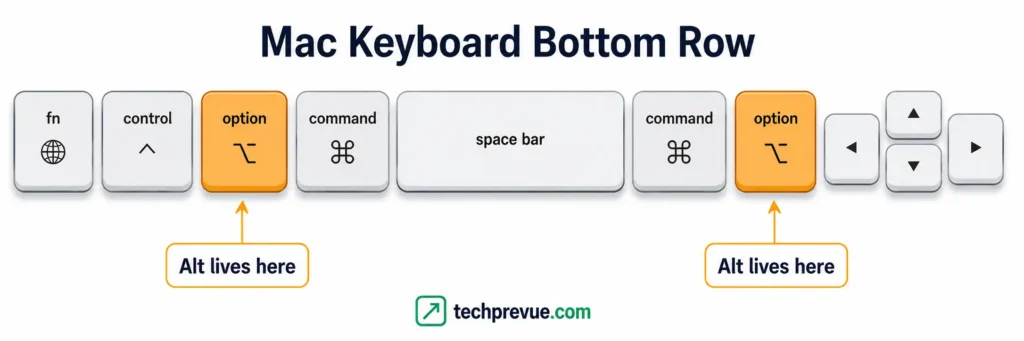
The Alt key on Mac keyboards sits in the bottom row, one key out from the space bar on each side. Command (⌘) is the key touching the space bar. Option (⌥) is the one immediately beyond it.
Read the bottom row left to right and you get this order:
fn / 🌐 → control → option → command → space bar → command → option → arrow keys
That single detail trips up more switchers than anything else. On a Windows keyboard, Alt touches the space bar. On a Mac, Command occupies that spot, so your thumb lands on the wrong key by muscle memory alone.
What the key is labeled on your Mac
Apple has used three different labels on this key over the years, and which one you see depends on your keyboard’s age and region.
| What’s printed on the key | Typically found on |
|---|---|
⌥ option | Current Apple keyboards, US layout |
alt ⌥ option | Many international layouts, including UK and European |
alt with ⌥ | Older Apple keyboards and MacBooks |
All three are the same key with the same function. If your keyboard says “option” and a tutorial says “alt,” press the same key.
Why there are two Option keys
Both Option keys do exactly the same thing. Neither is a primary or secondary version.
Two keys exist for reach. Shortcuts like Option-Command-Esc need three modifiers at once, and having a copy on each side means you can build any combination without twisting your hand. Left-handed and right-handed typists also settle on different sides naturally.
Where to find it on each Mac
The bottom row is consistent across Apple’s current lineup, so the Alt key on Mac hardware sits in the same place whether you’re on a laptop or a desktop keyboard.
| Mac | Where Option sits |
|---|---|
| MacBook Air, MacBook Pro | Bottom row, both sides, one key out from the space bar |
| MacBook Neo (released March 2026) | Same layout as other MacBooks |
| Magic Keyboard (with or without numeric keypad) | Both sides of the space bar |
| Magic Keyboard with Touch ID | Same, with Touch ID replacing the top-right key |
| Windows or third-party keyboard | The physical Alt key acts as Option |
Is there an Alt key on Mac? Alt and Option are the same key
Yes. Every Mac has two of them. Apple simply names the key Option instead of Alt on most of its keyboards.
The confusion is a naming problem, not a missing-feature problem. When a tutorial written for Windows says “hold Alt,” you hold Option, and the shortcut works.
You’ll also see it written as the Alt button on Mac, the Option button, or just ⌥. All four refer to the same physical key.
What the ⌥ symbol means
The ⌥ symbol is the Option key’s shorthand, and you’ll see it constantly once you start reading Mac menus. Open any app’s File or Edit menu and the shortcuts on the right side are written entirely in symbols.
Learning five symbols removes most of the guesswork:
| Symbol | Key |
|---|---|
| ⌥ | Option (Alt) |
| ⌘ | Command |
| ⌃ | Control |
| ⇧ | Shift |
| fn or 🌐 | Function / Globe |
So a menu showing ⌥⌘W means hold Option and Command, then press W. If ⌘ is equally unfamiliar, our guide to the Command key covers it in the same detail.
Why Apple calls it Option
The key predates Windows. On the Apple II in the early 1980s the same position held a key marked with a solid apple, and Apple later settled on “Option” to describe what it does — it gives you the optional version of whatever you’re doing.
“Alt” appeared alongside it from the 1990s, once Mac users started running software written for other platforms. Apple’s newest keyboards have largely dropped that second label, which is why a recent MacBook shows no Alt key anywhere.
What is the Option key on a Mac?
The Option key is a modifier. Pressed alone it does nothing at all — its entire job is changing what another key, click, or drag does.
That’s the mental shift worth making early. Command runs commands, and Shift capitalizes.
Option produces the alternate version of an action: the hidden character, the hidden menu item, the variant of a shortcut you already know.
What does the Option key do on a Mac?
The Option key does five distinct jobs. Once you can name them, you stop memorizing shortcuts one at a time and start predicting them.
1. It types characters that aren’t printed on the keys
Every letter and number key has extra characters hiding behind Option. On a US layout, Option-G gives ©, Option-R gives ®, and Option-2 gives ™.
This replaces the numeric Alt codes you may have used on Windows. Instead of Alt+0169 for a copyright symbol, it’s two keys.
2. It reveals hidden menu items
Hold Option while a menu is open and the menu itself changes. Apple documents this in the Mac User Guide: in many apps, File > Close becomes File > Close All while Option is held.
The same trick works on the menu bar icons at the top right of your screen. Option-clicking them exposes detail panels that are otherwise buried in System Settings.
3. It turns a shortcut into its variant
Add Option to a shortcut you already know and you usually get a more aggressive or more specific version of it.
| You know | Add Option to get |
|---|---|
| Command-W (close window) | Option-Command-W (close all windows of the app) |
| Command-M (minimize) | Option-Command-M (minimize all windows) |
| Delete (delete a character) | Option-Delete (delete the whole word) |
| Left Arrow (move one character) | Option-Left Arrow (move one word) |
4. It changes what a click or drag does
Hold Option while dragging a file and macOS copies it instead of moving it — the pointer changes to show a green plus sign as confirmation.
Option-double-clicking a folder opens it in a new window and closes the original, which keeps your desktop from filling with Finder windows.
5. It opens settings from the function row
Option plus a function-row key jumps straight to the matching settings panel. Option and a volume key opens Sound settings; Option and a keyboard brightness key opens Keyboard settings.
Adding Shift makes those same keys adjust in quarter-steps instead of full ones. That’s the fastest way to set volume precisely for a call.
Alt on Windows vs Option on Mac: what actually changed
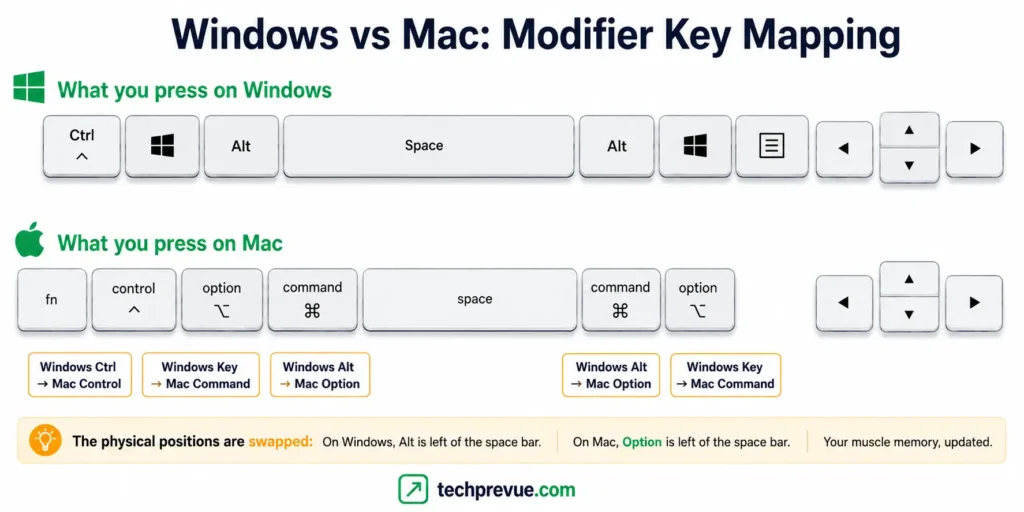
Here’s the part most guides skip. The Alt key on Mac is not a drop-in replacement for Alt on Windows, because macOS distributes Windows’ Alt functions across two keys.
Command took over the shortcut duties. Option kept the character and variant duties.
| What you want to do | Windows | Mac |
|---|---|---|
| Switch between apps | Alt + Tab | Command + Tab |
| Close the active window | Alt + F4 | Command + W |
| Go back a page | Alt + Left Arrow | Command + Left Arrow |
| Open the address bar | Alt + D | Command + L |
| New line inside a spreadsheet cell | Alt + Enter | Option + Return |
| Type a special character | Alt + numeric code | Option + a letter |
The pattern is simple enough to hold in your head: if the Windows shortcut ran a command, try Command. If it produced a character, use Option.
What replaced Ctrl + Alt + Delete
Ctrl + Alt + Delete did three jobs on Windows, so it maps to three different things on a Mac.
| What you wanted from Ctrl+Alt+Del | Mac equivalent |
|---|---|
| Force quit a frozen app | Option + Command + Esc |
| See what’s slowing the system down | Activity Monitor (in Applications > Utilities) |
| Log out | Shift + Command + Q |
Option-Command-Esc opens the Force Quit window, which lists your running apps and lets you close the unresponsive one. It’s the closest single match, and it works even when an app has stopped redrawing its window.
Where AltGr went
European and Indian keyboard layouts often have an AltGr key on the right that produces a third character from a key. macOS has no key with that name because Option already does the job.
If you’re used to AltGr + 4 or AltGr + E, use Option with the same key on your Mac.
How to use the Alt key on Mac
Using the Alt key on Mac takes three steps, and the first one is the step nearly every online tutorial leaves out.
Step 1: Check which keyboard layout you’re using
Option characters are not universal. They change with your input source, which is why the same shortcut gives different results on different Macs.
Option-2 produces ™ on a US layout and € on a British one. Neither guide is wrong — they’re describing different keyboards.
To check yours, open System Settings > Keyboard > Text Input, then look at your input sources. “ABC” is the standard US layout; “British,” “ABC – India,” and similar entries behave differently.
Step 2: Open Keyboard Viewer and hold Option
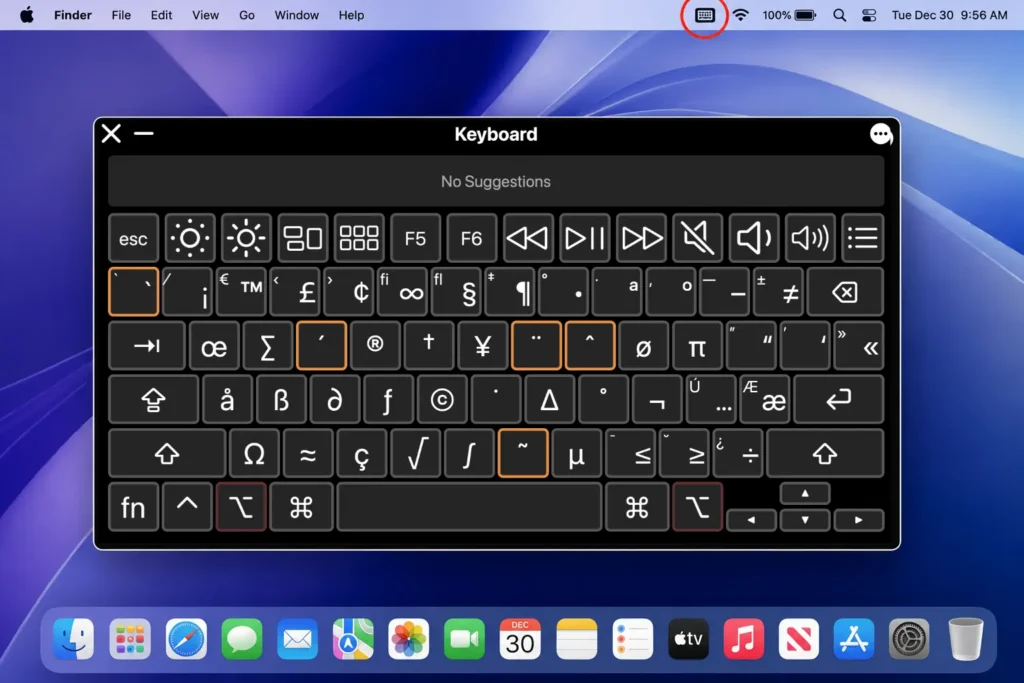
Keyboard Viewer is the tool that ends the guessing. It draws your keyboard on screen and updates live as you hold modifiers.
- Open System Settings > Keyboard > Text Input and click Edit beside Input Sources.
- Turn on Show Input menu in menu bar.
- Click the input menu icon in the menu bar and choose Show Keyboard Viewer.
- Hold Option.
Expected result: every key redraws to show the character it will produce while Option is held. Hold Option and Shift together for a second set. Click a character on screen to type it, or read the key and type it yourself.
This is the only method guaranteed correct for your Mac, because it reads your actual layout instead of assuming one.
Step 3: Hold Option first, then press the second key
Modifiers are held, not tapped. Press and hold Option, press the second key while still holding, then release both.
If you tap Option and release it before pressing the next key, nothing happens. This is the most common reason a shortcut “doesn’t work” on a first attempt.
Option key special characters by keyboard layout
Use the tables below as a starting point, then confirm against Keyboard Viewer. Layout matters more than any list on any website, including this one.
For emoji, arrows, and symbols that live outside the Option layer entirely, see our guide to typing special characters.
US layout (ABC)
| Press | You get |
|---|---|
| Option + G | © |
| Option + R | ® |
| Option + 2 | ™ |
| Option + 3 | £ |
| Option + Shift + 2 | € |
| Option + 8 | • |
| Option + 5 | ∞ |
| Option + V | √ |
| Option + = | ≠ |
| Option + Shift + K | (Apple logo, displays on Apple devices only) |
| Option + Shift + 8 | ° |
Where British and international layouts differ
The letter-based shortcuts above are mostly stable across Latin layouts. The number row is where they diverge, because currency symbols get reassigned.
On a British layout, Option + 2 gives € and Option + 3 gives #. If a shortcut list produces the wrong symbol on your Mac, the number row is almost always the reason.
Accented letters: the two-step method
Accents work differently from symbols. You press Option and an accent key, release both, then type the letter.
| Accent | Step 1 | Step 2 | Result |
|---|---|---|---|
| Acute | Option + E | e | é |
| Grave | Option + ` | a | à |
| Umlaut | Option + U | o | ö |
| Tilde | Option + N | n | ñ |
| Circumflex | Option + I | a | â |
After step 1 you’ll see a highlighted accent mark waiting on screen. That’s the cue that macOS is holding the accent for the next letter you type.
There’s a second route worth knowing: press and hold a letter key itself, and a small accent menu appears above the cursor. That method is faster for one-off accents, while the Option method is faster when you’re writing in another language continuously.
How to type the rupee symbol (₹) on a Mac
This one deserves its own answer because the advice online is contradictory.
On the default ABC layout, Option + 4 gives ¢, not ₹. The rupee symbol is only bound to that position on certain Indian input sources, so the shortcut works for some readers and fails for others.
Three methods that work regardless of layout:
- Character Viewer — press Control + Command + Space, search for “rupee,” and double-click ₹. Works in Pages, Word, Mail, Safari, Chrome, and most text fields.
- Text Replacement — open System Settings > Keyboard > Text Input > Text Replacements, and set a shortcut such as
rs.to replace with ₹. Best option if you type currency amounts daily. - Add an Indian input source — System Settings > Keyboard > Text Input > Edit >
+, then add an English (India) or Devanagari layout. Check the position with Keyboard Viewer after adding it.
For invoices and spreadsheets, Text Replacement saves the most time. For occasional use, Character Viewer needs no setup at all.
Essential Option key shortcuts, grouped by task
These are the shortcuts that earn their keep. Learn them by the job you’re doing rather than as one long list, and see our full Mac shortcut reference once these feel automatic.
System and windows
| Shortcut | What it does |
|---|---|
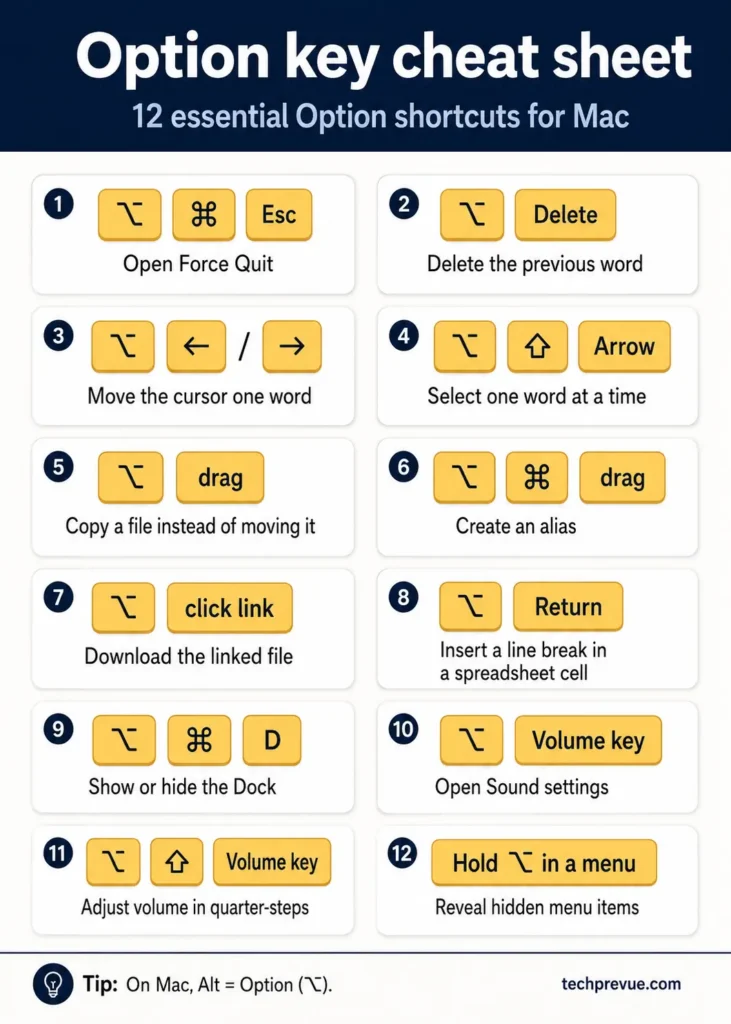
| Option + Command + Esc | Open Force Quit |
| Option + Command + D | Show or hide the Dock |
| Option + Command + W | Close every window of the current app |
| Option + Command + M | Minimize every window of the current app |
| Option + Volume key | Open Sound settings |
| Option + Shift + Volume key | Adjust volume in quarter-steps |
Finder and files
| Shortcut | What it does |
|---|---|
| Option + drag | Copy the file instead of moving it |
| Option + Command + drag | Create an alias |
| Option + Command + L | Open the Downloads folder |
| Option + Command + N | Create a new Smart Folder |
| Option + Command + P | Show or hide the path bar |
| Option + Shift + Command + Delete | Empty Trash without the confirmation dialog |
| Option in the Go menu | Reveal the hidden Library folder |
Text editing
| Shortcut | What it does |
|---|---|
| Option + Left / Right Arrow | Move the cursor one word |
| Option + Shift + Arrow | Select a word at a time |
| Option + Delete | Delete the previous word |
| Option + Shift + Command + V | Paste and match the destination style |
Safari and browsers
| Shortcut | What it does |
|---|---|
| Option + Command + F | Jump to the search field |
| Option + click a link | Download the linked file |
| Option + Command + T | Show or hide the toolbar |
Excel for Mac
Excel on Windows lets you press Alt to reveal KeyTips — the letter hints that drive the ribbon without a mouse. Recent versions of Excel for Mac support the same thing once you enable it in Excel’s settings under Accessibility and assign it to the Option key.
Option + Return also gives you a line break inside a cell, which is the Mac equivalent of Alt + Enter.
Terminal
| Shortcut | What it does |
|---|---|
| Option + Left / Right Arrow | Move by word on the command line |
| Option + Delete | Delete the previous word |
| Option + click | Move the cursor to that point in the line |
Option-click: the hidden menu map
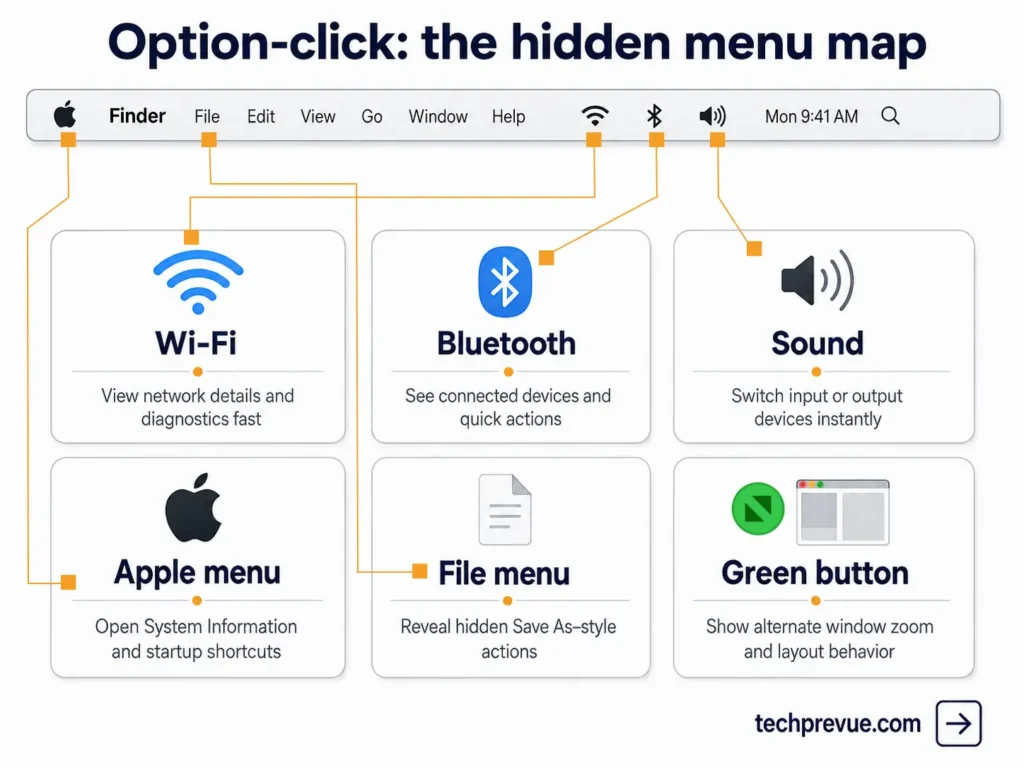
This is the Option trick that saves the most time day to day, and almost nobody finds it by accident. Hold Option, click, and the thing you clicked shows more than it normally would.
| Option-click this | What appears |
|---|---|
| Wi-Fi icon | Your network’s IP address, router, channel, and signal strength |
| Bluetooth icon | Connected device details, including battery and firmware |
| Volume icon | Input and output device switcher |
| Apple menu | “System Information…” replaces “About This Mac”; “Force Quit” replaces “Force Quit…” |
| File menu (most apps) | Close All replaces Close |
| Green window button | Zoom the window instead of entering full screen |
| Notification banner | Extra actions for that notification |
| Time Machine icon | Browse other backup disks |
Try the Wi-Fi one now. It’s the fastest way to read your IP address on a Mac, and it takes one click instead of four.
Using a Windows keyboard with a Mac
Plenty of people run a Mac mini or MacBook with a PC keyboard, either to save money or because they prefer mechanical switches. macOS handles this without any setup.
How macOS maps the keys by default
| Key on your Windows keyboard | What macOS treats it as |
|---|---|
| Alt | Option (⌥) |
| Windows logo key | Command (⌘) |
| Ctrl | Control (⌃) |
| Backspace | Delete |
| Enter | Return |
Apple’s own keyboard shortcut documentation states this directly: on keyboards made for Windows PCs, press Alt instead of Option, and Ctrl or the Windows key instead of Command.
There’s a catch worth knowing. The physical positions are swapped: a Mac keyboard runs Control, Option, Command, while a Windows keyboard runs Ctrl, Windows, Alt.
So the key sitting where you expect Command is actually Option, and vice versa. That mismatch, not the naming, is what makes a PC keyboard feel wrong for the first few days.
How to swap Command and Option
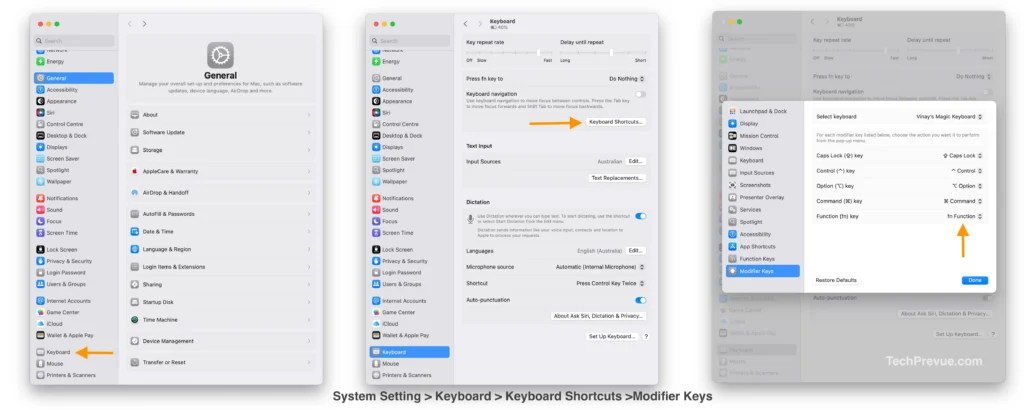
- Connect the keyboard.
- Open System Settings > Keyboard.
- Click Keyboard Shortcuts, then select Modifier Keys.
- Choose your external keyboard from the dropdown at the top. This matters — the setting applies per keyboard.
- Set Option Key to Command, and Command Key to Option.
- Click Done.
Expected result: the key physically next to your space bar now acts as Command, matching a Mac keyboard’s finger positions. Your MacBook’s built-in keyboard is unaffected, because the change is scoped to the selected device.
Remap or retrain?
Both choices are defensible, and the right one depends on how you work.
| Remap the keys if | Leave the defaults if |
|---|---|
| You use one keyboard almost exclusively | You switch between a MacBook and an external keyboard |
| You’re a long-time Windows typist with deep muscle memory | You also use a Windows PC daily |
| You touch-type without looking | You need the printed labels to match behavior |
Remapping and then switching machines several times a day tends to make things worse. If you’re on a MacBook with an external keyboard on the desk, retraining is the calmer path.
The Option key at startup: what changed on Apple silicon
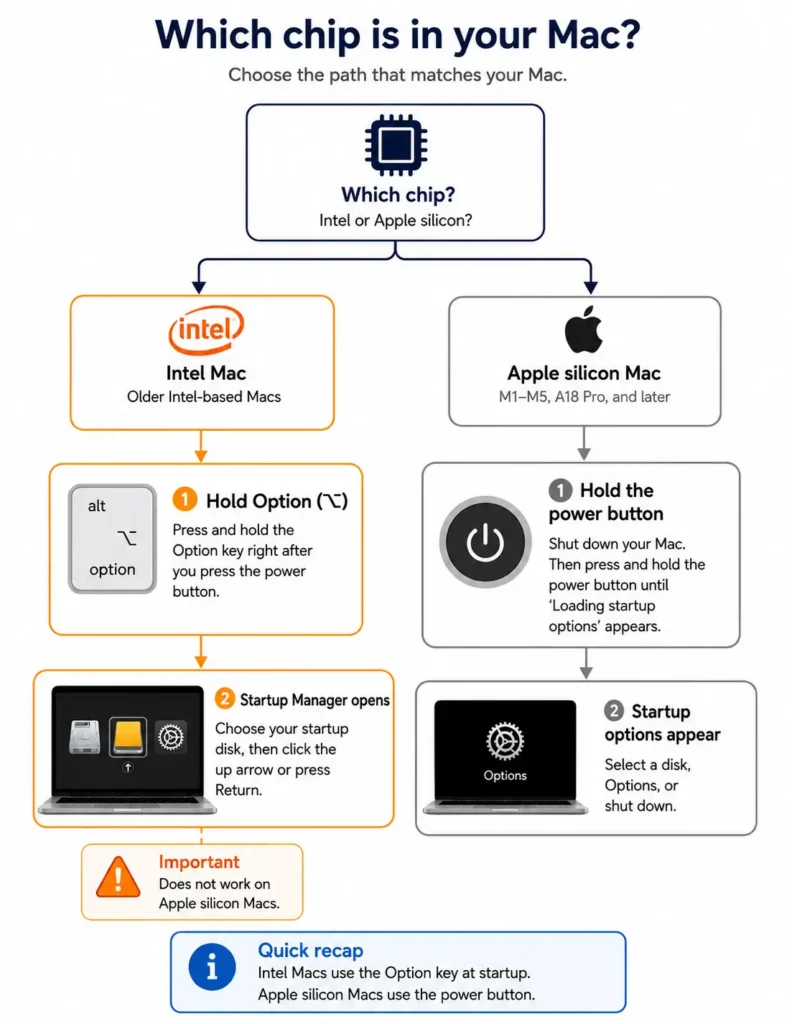
A lot of Mac advice still tells you to hold Option while your Mac boots to choose a startup disk. That instruction is now wrong for most readers, and it’s worth being precise about why.
Intel Macs
Holding Option (or Alt) during startup opens Startup Manager, where you pick a startup disk or volume. Apple lists this among its startup key combinations, all of which apply to Intel-based Macs.
Apple silicon Macs
Holding Option does nothing at boot. Instead, shut the Mac down, then press and hold the power button until “Loading startup options” appears.
From that startup options screen you can choose a startup disk, open Recovery, or hold Shift while clicking Continue to boot into safe mode. Apple silicon Macs start too quickly for the old key-press detection window, which is why the method changed.
Which one do you have?
Click the Apple menu and choose About This Mac. If the chip line reads M1, M2, M3, M4, M5, or A18 Pro, you have Apple silicon and the power button method applies. If it reads Intel, the Option key method applies.
Apple’s last Intel Macs were discontinued in 2023, so if your Mac is recent, the power button is your route.
Alt key on Mac not working? Seven things to check
Work through these in order — the top three account for most cases.
- You’re tapping instead of holding. Hold Option down, press the second key, then release both together.
- Your keyboard layout doesn’t match the tutorial. Open Keyboard Viewer, hold Option, and read the actual character for your layout.
- The app has claimed the shortcut. Apps override system shortcuts. Test the same combination in Finder or TextEdit to see whether the key itself is fine.
- Modifier keys were remapped. Open System Settings > Keyboard > Keyboard Shortcuts > Modifier Keys, select the keyboard in use, and click Restore Defaults.
- Sticky Keys is on. Check System Settings > Accessibility > Keyboard. Sticky Keys changes modifiers from held to tapped, which breaks every combination you’re used to.
- You’re on the wrong keyboard’s settings. Modifier key changes apply per device. If you have both a built-in and an external keyboard, confirm you selected the right one.
- The key is physically stuck. Type a paragraph in TextEdit. If characters come out wrong without touching Option, the key or its sensor is stuck — a symptom, not a shortcut problem.
If Option works everywhere except one app, the app is the cause. If it fails system-wide, it’s settings or hardware.
Mistakes switchers make in the first week
Copying shortcut lists without checking the layout. Most published tables assume a US keyboard and never say so. This is the single biggest source of “the shortcut gave me the wrong symbol.”
Remapping too early. Give the defaults a week. Plenty of people remap on day two, then spend months fighting their MacBook’s built-in keyboard.
Expecting Option to behave like Windows Alt. It doesn’t open menus by itself. Command handles the shortcuts; Option handles the characters and the variants.
Ignoring Option-click. The hidden menus are the highest-value trick here, and they take five seconds to learn.
Option key cheat sheet
Everything essential in one block.
| Where it is | Bottom row, both sides, one key out from the space bar |
| What it’s called | Option, marked ⌥, labeled “alt” on some keyboards |
| Alt + Tab | Command + Tab |
| Ctrl + Alt + Del | Option ⌥ + Command + Esc |
| Alt + Enter | Option ⌥ + Return |
| Copy a file | Option ⌥ + drag |
| Delete a word | Option ⌥ + Delete |
| Move by word | Option ⌥ + Arrow |
| See hidden menu items | Hold Option ⌥ while a menu is open |
| See every Option character | Keyboard Viewer, then hold Option⌥ |
| Windows keyboard | The Alt key already works as Option⌥ |
| Startup disk | Option⌥ on Intel; power button on Apple silicon |
Frequently asked questions
Is Alt the same as Option on a Mac?
Yes. Alt and Option are two names for the same key, marked ⌥. When a guide says press Alt, press Option.
Why doesn’t my Mac keyboard say Alt?
Apple’s recent keyboards print only “option” and the ⌥ symbol. Older Apple keyboards and many international layouts print “alt” as well, but the key and its function are identical.
What is Alt + Tab on a Mac?
Command + Tab. Hold Command and press Tab repeatedly to cycle through open apps, then release Command to switch. Add Shift to cycle backward.
What is Ctrl + Alt + Delete on a Mac?
Option + Command + Esc opens Force Quit, which is the closest equivalent. For system monitoring use Activity Monitor, and to sign out use Shift + Command + Q.
What is Alt + Enter on a Mac?
Option + Return. In Excel and Numbers it inserts a line break inside a cell instead of moving to the next one.
Can I change what the Option key does?
Yes. Open System Settings > Keyboard > Keyboard Shortcuts > Modifier Keys, choose the keyboard you want to change, and assign a different action. The setting applies per keyboard, and Restore Defaults undoes it.
Does holding Option at startup still work?
Only on Intel Macs, where it opens Startup Manager. On Apple silicon Macs, shut down and hold the power button until “Loading startup options” appears.
What is the ⌥ symbol called?
It’s the Option key symbol, sometimes described as a switch or track symbol. It appears in Mac menus wherever a shortcut uses Option.
Written for macOS Tahoe 26. Menu paths and shortcuts verified on Aug 02, 2026. Where Apple’s own documentation covers a behavior, it’s linked inline.
