
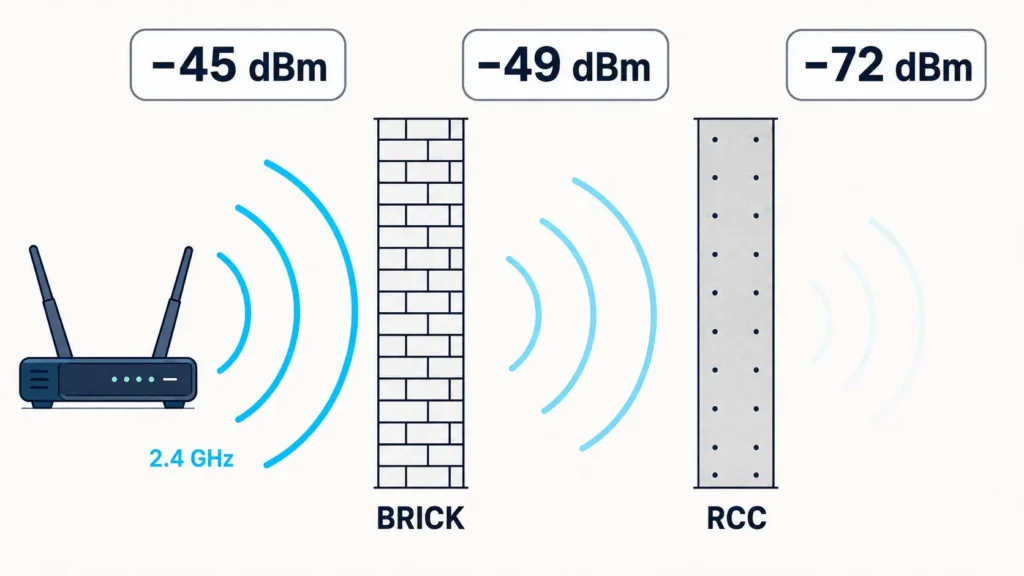
A heavy concrete wall costs your WiFi about 23 dB at 2.4 GHz and about 45 dB at 5 GHz. Out of decibels and into plain numbers: the signal reaching the far side is roughly 200 times weaker on one band and about 30,000 times weaker on the other.
That single figure explains dead rooms better than any tip list. It also explains why moving the router fixes everything in one house and changes nothing in the next.
Most guides on how to boost WiFi signal hand you fifteen adjustments and no way to tell whether any of them worked. This one gives you a number to read, a target to hit, and a re-measure step after every change.
Quick Answer: How to Boost WiFi Signal
To boost WiFi signal, measure signal strength in dBm at the weak spot first. Then reposition the router high and central, put each device on the right band, and pick a clear, narrower channel. If the reading stays below −67 dBm, add a mesh node or a wired access point.
Key takeaways
- Bars are useless. dBm is the number that matters. Aim for −67 dBm or better in every room you actually use.
- Free fixes come first. Placement, band assignment, and channel width routinely buy 6–15 dB at no cost.
- Stop pushing signal through heavy walls. Put a node on the far side instead.
- Re-measure after every change. Under 3 dB of difference is noise, not an improvement.
First, Confirm It’s WiFi and Not Your Connection
Before you work out how to boost WiFi signal, spend sixty seconds ruling out the connection itself.
Plug a laptop into your router with an Ethernet cable and run a speed test. Then unplug it, stand in the same spot, and run the same test over WiFi.
If the wired result is close to your plan speed and the wireless result collapses, you have a coverage problem and the rest of this guide applies. If the wired result is also slow, your WiFi is fine and the fault sits upstream — our guide to fixing a slow internet connection works through the modem, the line, and the ISP in order.
One more case worth ruling out: if wired speeds are fine for most things but collapse for streaming or downloads specifically, read up on bandwidth throttling before you buy hardware you don’t need.
How to Measure Your WiFi Signal in dBm
Signal strength is measured in decibel-milliwatts. The numbers are negative, and closer to zero is stronger — −55 dBm beats −75 dBm.
The scale is logarithmic, which is why it’s worth learning:
- 3 dB is double or half the power.
- 10 dB is ten times the power.
- So −60 dBm carries ten times more power than −70 dBm, even though the numbers look adjacent.
Once you understand that, learning how to boost WiFi signal stops being guesswork and starts being arithmetic.
1. Windows 11
Open Command Prompt and run netsh wlan show interfaces. Windows reports Signal as a percentage rather than dBm.
Convert it approximately: divide the percentage by two and subtract 100. A reading of 60% lands near −70 dBm. It’s rough, but it’s consistent, which is all you need for before-and-after comparisons.
2. macOS
Hold Option and click the WiFi icon in the menu bar, then choose Open Wireless Diagnostics. From the menu bar, select Window > Performance.
That panel plots RSSI and the noise floor live. Walk around the house with the laptop open and you have a survey.
3. Android
Menu names vary by manufacturer. On many phones, Settings > About phone > Status lists WiFi signal strength in dBm directly.
If yours doesn’t expose it, any WiFi analyzer app from the Play Store reports dBm, channel, and the networks competing with you.
4. iPhone
iOS does not show users a dBm figure at all. Borrow an Android phone or use a laptop for the survey, then confirm the result on the iPhone with a speed test in the same spot.
What Your Reading Means
| Reading | What it supports |
|---|---|
| −30 to −50 dBm | Excellent. You are near the router |
| −50 to −60 dBm | Strong. Full speed for anything |
| −60 to −67 dBm | Good. The accepted design floor for voice and video |
| −67 to −75 dBm | Marginal. Calls stutter and speeds fall sharply |
| Below −75 dBm | Effectively a dead zone |
The −67 dBm line isn’t arbitrary. Cisco’s WLAN site survey guidelines set −67 dBm as the minimum recommended signal for voice, with a signal-to-noise ratio of at least 25 dB. Enterprise networks are designed to that floor, and it’s a sensible target for a home where people take video calls.
Signal alone isn’t the whole story. A strong signal in a noisy room still performs badly, which is why the noise figure in Wireless Diagnostics matters. Subtract noise from signal to get your SNR.
How to Boost WiFi Signal in Home Without Spending Anything
Work these six in order and measure after each one. Searches for “how to boost WiFi signal in home” and “how to boost WiFi signal in house” come down to the same list, and most homes gain 6–15 dB from it before any money changes hands.
1. Move the Router Toward the Demand, Not the Floor Plan
“Central” is the standard advice, and it’s only half right. Center the router on where people actually use the internet, which is rarely the geometric middle of the house.
If three of the four rooms you care about sit on one side of the home, the router belongs on that side. Every meter and every wall you remove from the worst path is signal you get back.
2. Get It Off the Floor and Out of the Cabinet
Floor level is the worst place in any room. Furniture, appliances, and the floor slab itself absorb signal, and the router’s pattern radiates outward rather than upward.
Put it on a shelf at chest height or higher, out in the open. A closed TV cabinet or a metal-shelved rack can cost more than a brick wall.
3. Point the Antennas Correctly
External antennas are dipoles. They radiate in a donut shape, strongest at right angles to the antenna itself — so a vertical antenna covers the floor it sits on and does poorly upstairs.
With two or more antennas, leave one vertical and angle another to horizontal. The vertical one serves the same floor, the horizontal one serves the floor above or below.
4. Put Each Device on the Right Band
2.4 GHz travels further and crosses walls better. 5 GHz is faster over shorter distances. 6 GHz is faster still and has the shortest reach of the three.
Before it meets a single wall, 5 GHz already starts about 7 dB behind 2.4 GHz simply because higher frequencies lose more energy over distance.
Put laptops, phones, and streaming boxes on 5 GHz or 6 GHz when they’re near the router. Leave smart plugs, sensors, cameras, and anything in a far room on 2.4 GHz. If your router publishes one merged network name and keeps making the wrong call, split the bands into separate names and assign devices yourself.
5. Fix the Channel, and Stop Using the Widest One
On 2.4 GHz, only channels 1, 6, and 11 don’t overlap. Pick one of those.
Channel width is the setting almost nobody touches, and it matters more than the channel number. Every doubling of channel width raises the noise floor by about 3 dB, so a 160 MHz channel gives up roughly 9 dB of effective range compared with a 20 MHz one.
Practical settings for most homes:
- 2.4 GHz: 20 MHz. Wider brings no useful speed and floods the band.
- 5 GHz: 80 MHz. Drop to 40 MHz if the far rooms are the problem, and only use 160 MHz if every device sits close.
6. Update Firmware and Clear Out the Stragglers
Firmware updates fix real throughput and stability bugs, and most people have never installed one. Check the router’s admin page or app.
While you’re in there, disable legacy 802.11b data rates if the option exists. One old device connecting at 1 Mbps holds airtime that everything else has to wait for.
Those six steps are the entire free answer to how to boost WiFi signal in home layouts. Only once they are exhausted does hardware become the right call.
How to Boost WiFi Signal Through Walls
Here is where most advice goes vague. Everyone says concrete is bad; almost nobody says how bad, which leaves the question of how to boost WiFi signal through walls half answered.
RF design software carries measured transmission losses for building materials, and the numbers published by iBwave make the problem concrete, in both senses:
| Material | Loss at 2.4 GHz | Loss at 5 GHz | Power lost at 5 GHz |
|---|---|---|---|
| Chipboard, hollow door | 0.5 dB | 0.8 dB | ~17% |
| Lime brick | 4.3 dB | 7.8 dB | ~83% |
| Drywall partition | 5.4 dB | 10.1 dB | ~90% |
| Heavy concrete | 22.8 dB | 44.8 dB | ~99.997% |
(Published as dBm in the original table; attenuation is correctly expressed in dB.)
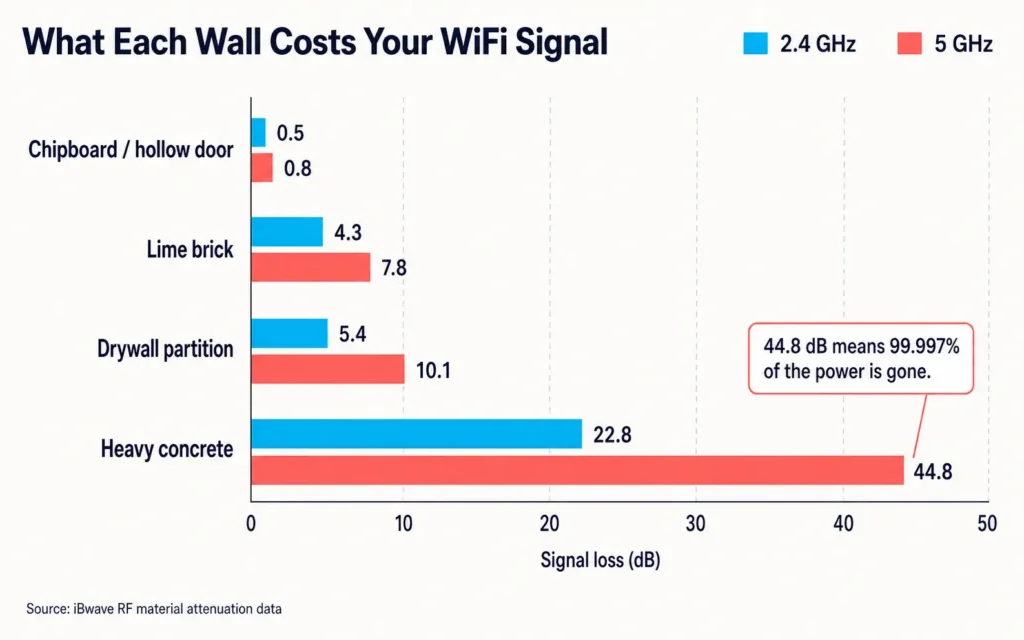
Two things jump out. Dense materials roughly double their loss on 5 GHz, and a single heavy concrete wall is not a partial obstacle — on 5 GHz it is a wall in the literal sense.
Why This Hits Indian Homes Harder
Most US housing is timber frame with drywall partitions, which is the 5–10 dB row of that table. Indian construction is overwhelmingly RCC with solid brick infill, which is the 8–45 dB rows.
A 2 BHK flat can lose more signal across eight meters than an American timber home loses across twenty. If you’ve read US advice on how to boost WiFi signal through walls and found it didn’t apply, this is why.
Worked example. Router in the drawing room, one brick wall and one RCC wall between it and the far bedroom. On 5 GHz that path costs about 7.8 + 44.8 = 52.6 dB before free-space loss even enters the calculation. Nothing usable survives. On 2.4 GHz the same two walls cost about 27 dB — thin, but alive.
The Angle Matters as Much as the Count
A signal crossing a wall head-on passes through its thickness. A signal hitting it at a sharp angle passes through far more material and loses proportionately more.
This is why a router placed to shoot down a hallway or through an open doorway often beats a router that is technically closer but firing diagonally through two corners. Sight lines through open doors are worth more than a meter or two of distance.
The Rule
Once you’re past roughly 15 dB of wall loss on the path, stop trying to push through it. The fix for how to boost WiFi signal through walls is not a stronger transmitter — it is a second radio on the far side of the wall, fed by a cable, a powerline link, or a mesh backhaul.
Extender vs Mesh vs Powerline vs Wired Access Point
Once the free fixes are spent, how to boost WiFi signal becomes a hardware question. There are four real options, and the difference between them is backhaul.
| Option | Throughput cost | Best for | Where it fails |
|---|---|---|---|
| Single-radio repeater | Up to 50% on the extended side | One room, light use | Rebroadcasts whatever weak signal it receives |
| Dual/tri-band extender with dedicated backhaul | Small | One room, moderate use | Still capped by its link back to the router |
| Mesh, wireless backhaul | 20–50%, depending on node link quality | Several weak areas | Nodes placed too far apart |
| Mesh or AP, wired backhaul | Effectively none | The best result available | Needs an Ethernet run |
| Powerline adapter | Highly variable | Rooms no radio reaches | Separate circuits, old wiring, surge strips |
The extender penalty is widely misstated. A single-radio repeater listens and retransmits on the same radio, so it can only use half the airtime — that’s where the “extenders halve your speed” claim comes from. A dual-band or tri-band extender that keeps a dedicated radio for the link back to the router does not pay that penalty. The label on the box, not the category, decides this.
Placement decides the rest. Put the extender or mesh node somewhere it still reads better than −60 dBm from the router. Placed inside the dead zone, it faithfully rebroadcasts a dead signal.
If you can run a cable, run the cable. A mesh node or access point on wired backhaul is the only option in that table with no wireless penalty at all, and a ₹500 Ethernet cable outperforms a ₹15,000 mesh kit on wireless backhaul in a concrete home.
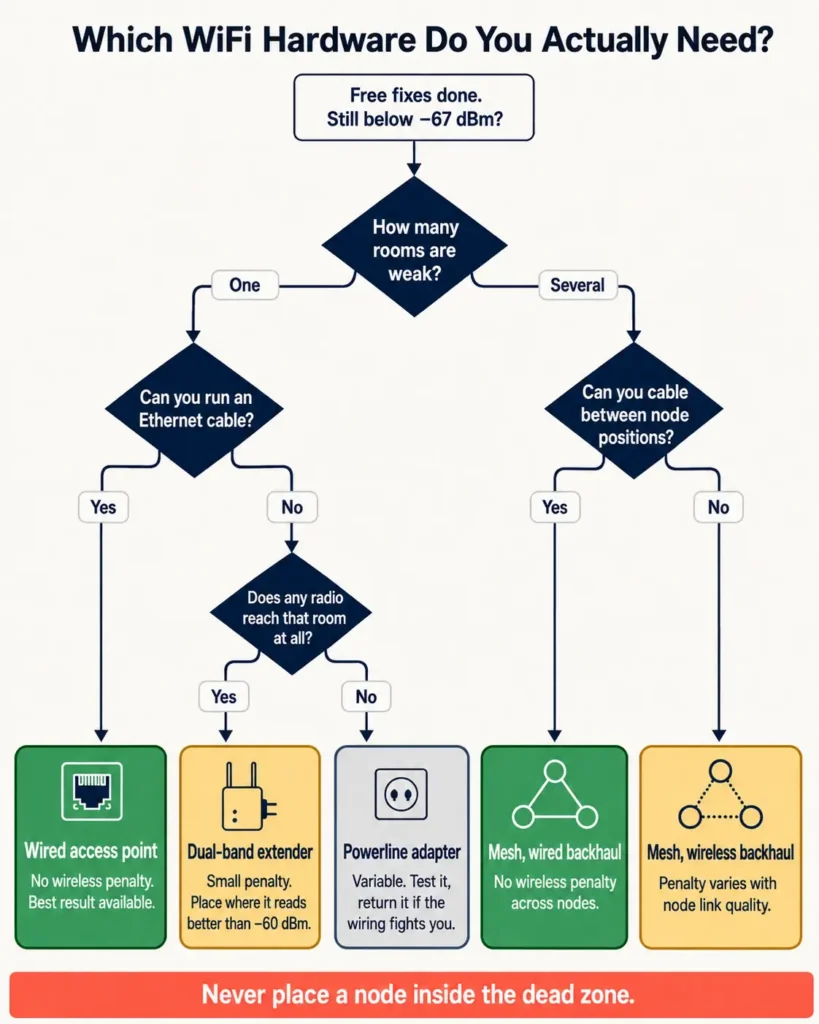
Choosing quickly: one weak room and a cable is possible → wired access point. One weak room and no cable → dual-band extender. Several weak rooms → mesh, wired between nodes if you can manage it. A room no radio reaches at all → powerline, tested and returned if the wiring doesn’t cooperate.
What Changed in 2026: The 6 GHz Band
This is the part no other guide on how to boost WiFi signal has caught up with, and it matters most in India.
On January 20, 2026, India’s Department of Telecommunications notified the Use of Low Power and Very Low Power Wireless Access System including Radio Local Area Network in Lower 6 GHz band (Exemption from Licensing Requirement) Rules, 2026, published on the DoT website. It delicensed 500 MHz between 5925 and 6425 MHz for low-power indoor use — no licence, no frequency assignment.
Wi-Fi 6E and Wi-Fi 7 are now legal to use on 6 GHz in India. The United States went further and earlier, with the FCC opening the full 5.925–7.125 GHz range to unlicensed use in 2020.
What Indian Readers Need to Do About It
Many 6 GHz-capable phones and laptops sold in India shipped with that radio disabled in region firmware, because the band wasn’t legal here. The hardware is in the device; the permission was not.
Check for a system update before you conclude your phone doesn’t support it. Router makers similarly need India-specific firmware and WPC approval before 6 GHz ships enabled on models sold locally.
The Part Vendors Skip
6 GHz has the worst wall penetration of the three bands. It will not extend your coverage, and buying a Wi-Fi 7 router will not by itself reach the room that’s dead today.
What it does is give devices near the router a wide, empty lane — which clears congestion off 5 GHz for everything further away. Treat 6 GHz as a congestion fix that indirectly helps coverage, never as a coverage fix in itself.
Should You Wait for Wi-Fi 8?
No. Wi-Fi 8 (IEEE 802.11bn, branded Ultra High Reliability) targets Wi-Fi Alliance certification around the turn of 2027–28, with IEEE approval in 2028.
Qualcomm’s summary of the standard is telling: peak speed stays where Wi-Fi 7 left it. The goals are 25% higher throughput in poor signal conditions, 25% lower worst-case latency, and 25% fewer dropped packets while roaming. Useful, and two years away. Buy Wi-Fi 7 today.
What Does Not Boost Your WiFi Signal
Several popular answers to how to boost WiFi signal do nothing measurable. Skip these.
- Aluminium foil and parabolic reflectors. They redirect power rather than add it. Gain in one direction is loss in every other, so if you have dead zones on two sides you’ve made one of them worse.
- “WiFi booster” apps. No app can change a radio’s transmit power. They clear caches and re-associate, nothing more.
- Raising the router’s transmit power. The link is two-way, and your phone transmits at a fraction of the router’s power. Turn the router up and it shouts further than the phone can answer — more bars, no working connection.
- Adding antennas. Extra antennas add spatial streams, which is capacity, not reach.
- Upgrading your internet plan. Bandwidth does not cross a concrete wall any better at 1 Gbps than at 100 Mbps.
Verify the Fix
Every answer to how to boost WiFi signal is worth exactly what you can measure. Use the same spot, the same device, and the same height each time.
Take three readings thirty seconds apart and record the middle one:
| Location | dBm before | dBm after | Speed before | Speed after |
|---|---|---|---|---|
| Far bedroom | −78 | −61 | 12 Mbps | 190 Mbps |
| Kitchen | ||||
| Balcony |
Under 3 dB of change is measurement noise. 6 dB or more is a genuine improvement — that’s four times the power arriving at the device.
Frequently Asked Questions
How to boost WiFi signal in house without buying anything?
Move the router to a high, open, central position relative to where you actually use the internet, angle one antenna horizontally for other floors, split the 2.4 and 5 GHz networks and assign devices deliberately, then narrow the 5 GHz channel to 80 MHz. Measure in dBm before and after — these four changes together commonly return 6–15 dB. That is most of how to boost WiFi signal in house conditions without spending anything.
Does WiFi go through walls, and which walls block it most?
It does, but every wall takes a cut. A hollow door costs under 1 dB and a drywall partition around 5–10 dB, while a heavy concrete wall costs roughly 23 dB at 2.4 GHz and 45 dB at 5 GHz. Metal, foil-backed insulation, and low-emissivity window glass are worse than their thickness suggests, because they reflect rather than absorb.
Is a WiFi extender or a mesh system better?
An extender suits a single weak room; mesh suits a home with several. The more useful distinction is backhaul — a single-radio extender loses up to half its throughput, a dual-band unit with a dedicated backhaul radio loses very little, and any node connected by Ethernet loses effectively nothing.
Does Wi-Fi 6E or Wi-Fi 7 improve range?
Not directly. Both add the 6 GHz band, which has the shortest reach and the poorest wall penetration of the three. They improve capacity and congestion near the router, which frees up 5 GHz for distant devices — a real benefit, but an indirect one.
The Short Version
Knowing how to boost WiFi signal comes down to four steps in order.
- Confirm it’s WiFi with a wired-versus-wireless test.
- Measure in dBm at every weak spot and write the numbers down.
- Exhaust the free fixes — placement, height, antenna angle, band assignment, channel width, firmware.
- Add a radio on the far side of anything costing more than about 15 dB, wired if a cable can reach it.
Then measure again. Every credible answer to how to boost WiFi signal ends the same way: a guess tells you nothing, a 17 dB improvement tells you the job is done.
