
Between October 2024 and September 2025, Seqrite Labs recorded 265.52 million malware detections across more than 8 million endpoints in India — roughly 505 every minute.
The number that matters more is a different one. One of the fastest-rising delivery techniques doesn’t defeat your antivirus at all. It asks you to run the attack yourself, and people do.
That shift is why most advice on how to prevent malware is now half a decade out of date. Router settings and antivirus subscriptions still matter, but they are no longer where infections start.
This guide covers how to prevent malware attacks the way they actually happen now — what changed, which defenses carry the weight, and which long-repeated tips quietly stopped working.
- How to Prevent Malware in 2026
- What Malware Actually Looks Like in 2026
- The Paste Test: One Rule That Stops Most 2026 Malware
- How to Prevent Malware: 9 Defenses Ranked by Payoff
- Do You Still Need Paid Antivirus in 2026?
- Advice That Expired: 2024 vs 2026
- Warning Signs Your Computer Is Already Infected
- What to Do If You Think You're Infected
- Frequently Asked Questions
- The Short Version
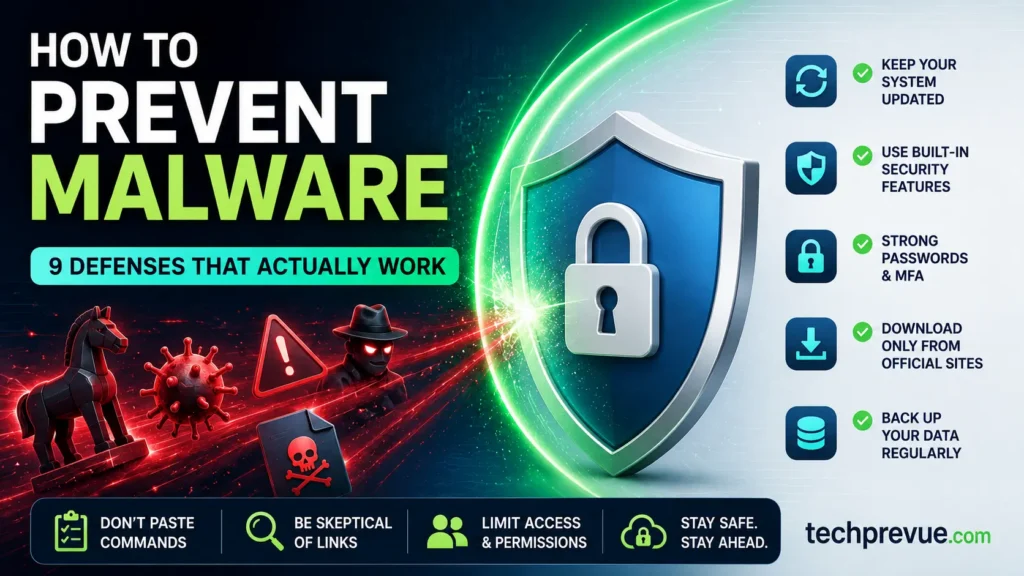
How to Prevent Malware in 2026
Run an operating system that still receives patches, switch on the four Windows Security settings most people leave off, keep passwords out of your browser, download software only from the vendor’s own site, and never paste a command into Run or Terminal because a web page told you to.
Those five habits close off the highest-value routes attackers use against home users. If you remember one thing about how to prevent malware, make it the last one.
The rest explains why each defense works and what to do if you’re already infected.
What Malware Actually Looks Like in 2026
The payloads haven’t changed much. Ransomware still encrypts, stealers still steal, remote access trojans still hand your desktop to a stranger. What changed is delivery. You can’t work out how to prevent malware without knowing how it arrives, and the arrival route is the part that moved.
Three routes matter more than the rest in 2026, and each one changes what how to prevent malware means in practice.
1. The Paste Attack (ClickFix)
You land on a page that shows what looks like a Cloudflare or Google verification check. Instead of clicking traffic lights, it tells you to press Windows + R, then Ctrl + V, then Enter.
The page has already copied a command to your clipboard. Those three keystrokes run it.
MITRE added this technique to its ATT&CK framework in March 2025 as T1204.004. The Center for Internet Security reported that in the first half of 2025 it accounted for more than a third of all non-malware alerts across its government network monitoring service.
It works because you launch the command yourself, with your own permissions. That bypasses controls aimed at malicious attachments and ordinary browser downloads — there is no email for a filter to score and no download for SmartScreen to weigh. Endpoint protection can still catch the command, its behavior, or the payload it retrieves; it just loses the earliest warning. The variants now include fake browser update prompts, fake “verify your audio” screens before video calls, and macOS versions that ask you to open Terminal instead.
Any serious answer to how to prevent malware attacks in 2026 starts here, because this route walks straight past the tools most people rely on.
2. Poisoned Search Results and Fake Installers
Attackers buy ads and manipulate rankings so their download page sits above the real one. One campaign running quietly since October 2025 impersonated more than 25 popular applications, including VLC, OBS Studio and KMS Tools. Investigators only mapped its full scope in March 2026.
The trick is that the download works, which is why how to prevent malware here has nothing to do with scanning the file. You receive a ZIP containing the genuine application plus a hidden component, the real software opens normally, and nothing looks wrong.
Similar campaigns have cloned software vendor sites using near-identical domains and character substitutions, and more recently have targeted people searching for AI developer tools. Here, how to prevent malware comes down to where you click, not what you install.
3. Infostealers
An infostealer runs for a few seconds, takes everything of value, and often deletes itself. What it takes: saved browser passwords, autofill records, crypto wallet files, and — the part most people miss — active session cookies.
A session cookie is the token a site issues after you’ve already passed multi-factor authentication. An attacker who loads your cookie into their own browser never triggers a login event, so your MFA never fires. Session theft is why how to prevent malware and how to protect your accounts are now the same question.
The supply chain is industrial. Flashpoint counted 1.8 billion credentials harvested by infostealers in the first half of 2025 alone, drawn from 5.8 million infected devices. Verizon’s 2025 DBIR found that 54% of the ransomware victims it sampled had their domains show up in infostealer logs or marketplace listings.
So any plan for how to prevent malware has to cover what happens after a device is compromised, not only before.
| How it reaches you | What it takes | The one control that stops it |
|---|---|---|
| Paste attack (ClickFix) | Full device control, stealer payload | Never paste commands from a web page |
| Fake installer via ads or search | Backdoor bundled with real software | Download from the vendor domain only |
| Infostealer from any of the above | Passwords, cookies, wallets, tokens | Passwords out of the browser + revoke sessions |
| Malicious browser extension | Everything you do in the browser | Quarterly extension audit |
| Unpatched software exploit | Silent code execution | Automatic updates, supported OS |
The Paste Test: One Rule That Stops Most 2026 Malware
A CAPTCHA or browser verification check will never ask you to open Windows Run, PowerShell, Command Prompt or Terminal and paste a command. If a verification step tells you to leave the browser and run something, close the tab.
That single reflex defeats nearly every version of the paste attack, and it’s the most useful of all the ways to prevent malware right now because it needs no software and no settings. If you have one sentence to explain how to prevent malware to someone, use that one.
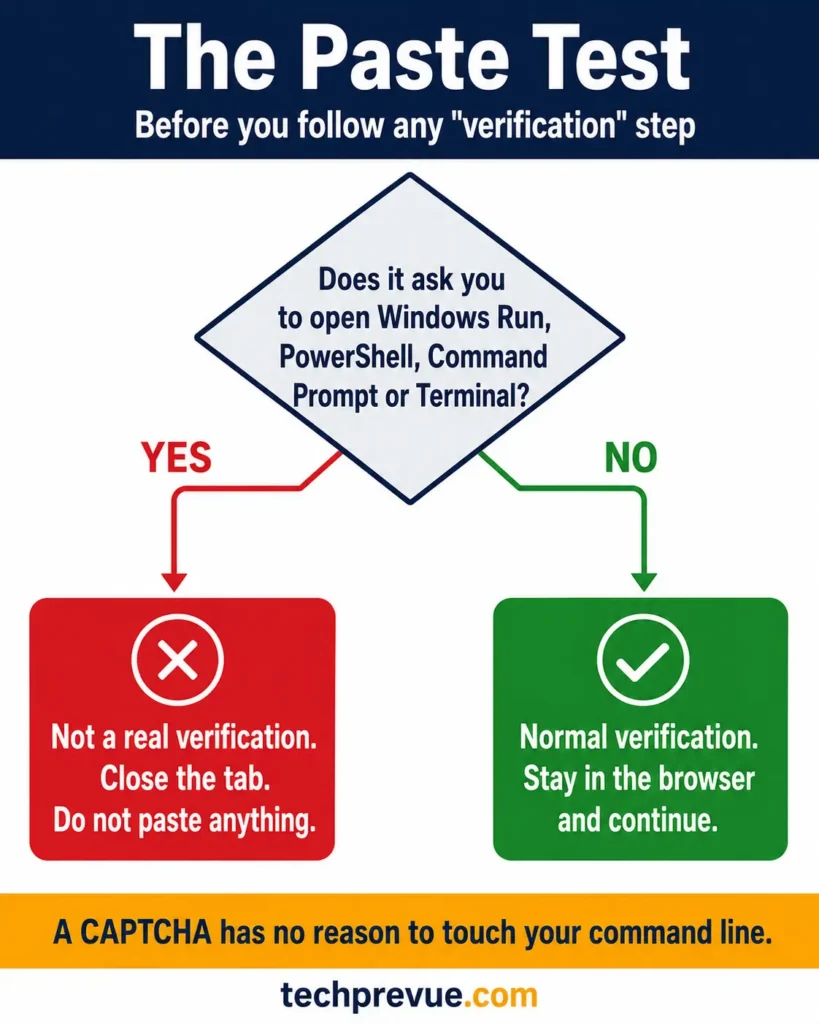
Real verification keeps you inside the browser. You type characters, click images, or tick a box. It never sends you to an operating system dialog.
Legitimate software documentation does sometimes ask you to run terminal commands — installers for developer tools do it routinely. The tell is the context. A verification step has no reason to touch your command line, ever.
Four red flags worth memorizing:
- Any instruction involving Win+R, Terminal, PowerShell or Command Prompt. Not Microsoft, not Adobe, not your bank.
- A long, scrambled string copied to your clipboard for you. Real tokens can be long too. The tell is a verification page that fills your clipboard and won’t continue until you run what it put there.
- A verification check appearing where one never appeared before. On its own that can be legitimate. Paired with an instruction to leave the browser, it isn’t.
- A pop-up saying “press Allow” or “copy this command to continue.”
In a ClickFix attack, seeing the lure is not the execution step — the compromise happens when you run the command it hands you. If you closed the tab without pasting anything, clear your clipboard and move on.
How to Prevent Malware: 9 Defenses Ranked by Payoff
These are ordered by how much risk each removes, not by how easy it is. The first three deserve priority because each closes off several infection paths at once; the last closes the fewest.
1. Run an Operating System That Still Gets Patches
Windows 10 reached end of support on October 14, 2025. Unpatched systems are the easiest target there is, which makes this the highest-value answer to how to prevent malware on any device you own.
If you’re still on Windows 10 version 22H2, Microsoft’s consumer Extended Security Updates program now runs to October 12, 2027 — later than the October 2026 date many articles still quote. You can enroll at no extra cost by syncing your PC settings, by redeeming 1,000 Microsoft Rewards points, or with a one-time $30 purchase, and one license covers up to 10 devices.
Enroll from Settings > Update & Security > Windows Update. ESU buys time, not safety; plan the move to Windows 11 inside it. Staying on a supported release is the one answer to how to prevent malware that needs no ongoing effort.
On a Mac, install every security update Software Update offers, and move to a newer major macOS release once your hardware supports it. Apple does keep patching some older releases, but coverage varies by version — checking Software Update is one of the more overlooked ways to prevent malware from finding an open door.
2. Check These Four Windows Security Settings
Windows ships with strong protections. Some are on by default, some depend on your hardware or install history, and most people have never opened the panel to find out which. Open the Windows Security app and work through these four:
| Setting | Where to find it | What it does |
|---|---|---|
| Controlled folder access | Virus & threat protection > Manage ransomware protection | Blocks untrusted apps from modifying Documents, Pictures and other personal folders |
| Memory integrity | Device security > Core isolation details | Uses virtualization-based security to harden kernel-mode code integrity against malicious or vulnerable drivers |
| Reputation-based protection | App & browser control | A group of related protections — SmartScreen checks, Block potentially unwanted apps, phishing protection. Switch on whichever your Windows version offers |
| Smart App Control | App & browser control > Smart App Control settings | Blocks untrusted and unsigned apps outright |
Two caveats on Smart App Control. It only activates on a clean Windows 11 install or after a reset, and it runs an evaluation period first, switching itself off if it decides your app mix isn’t compatible. Availability also varies by region. If yours is off and grayed out, that is usually why — the other three still work.
Microsoft’s own malware prevention guidance covers the same ground for anyone who wants the vendor version. These four toggles are the closest thing to a one-time fix in any discussion of how to prevent malware attacks.
Restart after enabling memory integrity. If it refuses to switch on, an outdated driver is usually the reason; update the driver from the manufacturer rather than deleting it.
3. Get Your Passwords Out of the Browser
The browser credential store is the first place an infostealer looks, and the format is well documented. Everything saved in Chrome, Edge or Firefox should be treated as exposed if that device is ever compromised.
Move them to a dedicated password manager, then turn off the browser’s built-in password saving. A dedicated manager cuts your exposure to commodity malware built specifically to raid browser credential stores, though no vault is immune once the endpoint itself is compromised.
Use passkeys wherever a service offers them. They can’t be phished or replayed from a stolen log — though a stolen session cookie can still hijack a session you already opened.
Keep multi-factor authentication on regardless. It won’t stop a stolen session cookie, but it blocks every password-only attack, which is still most of them. Where a service offers a “sign out of all sessions” button, use it after any suspected compromise. Credential hygiene is the part of how to prevent malware damage that keeps paying off even when prevention fails.
4. Download From the Vendor, Never From the Ad
Type the vendor’s domain directly or use a bookmark. Sponsored results at the top of a search page are the exact position attackers pay for.
Three habits that follow from this:
- Skip ad results entirely when you’re looking for software to install.
- Read the publisher name in the User Account Control prompt before approving an installer.
- Treat “crack”, “keygen”, “activator” and “free download” portals as hostile by default.
Of all the ways to prevent malware, sourcing discipline is the least glamorous and among the most reliable.
5. Audit Your Browser Extensions Every Quarter
Extensions run inside the session where you bank, work and authenticate. Attackers increasingly buy or hijack established extensions and push a weaponized update to people who already trust them.
Open your browser’s extension manager, remove anything you don’t actively use, and check the permissions on what’s left. An extension that reads and changes data on all websites needs a very good reason to exist. Few people think of add-ons when they think about how to prevent malware, which is exactly why attackers like them.
6. Patch Everything Else, Automatically
Enable automatic updates for Windows or macOS, your browser, and every application that offers it. Browsers usually finish applying an update when you relaunch them, so close and reopen yours whenever an update is pending.
Router firmware belongs in this list too. Most modern routers update themselves; check the admin panel once a year to confirm. Automatic patching is the lowest-effort of the defensive measures against malware attacks available to you.
7. Keep One Backup Malware Cannot Reach
Ransomware encrypts what your account can write to — including mapped network drives and synced cloud folders. An always-connected, always-writable backup is the first thing it reaches.
Follow 3-2-1: three copies, two types of media, and at least one kept offline, immutable, or protected by versioning you can roll back. In practice, for most people that means Windows File History or Time Machine to an external drive that you physically disconnect when the backup finishes.
Test a restore once. An untested backup is a hope, not a plan — and backups are what turn a question about how to prevent malware into a question about how much it costs you.
8. Do Daily Work in a Standard Account
Malware inherits your permissions. Running as a standard user rather than an administrator limits what a payload can install system-wide and forces a visible prompt when something tries.
Create a separate admin account, use it only for installs, and do everything else from the standard one. This costs a password prompt occasionally and removes a whole class of damage. It is one of the few defensive measures against malware attacks that works regardless of the payload.
9. Secure the Router — Briefly
Router hardening protects your network. It does very little against code you ran yourself, so it belongs at the bottom of any honest list of defensive measures against malware attacks.
Do these four and move on: change the default admin password, use WPA3 or WPA2 encryption, enable automatic firmware updates, and switch off WPS and remote management.
Skip MAC address filtering. It looks like access control but it isn’t — MAC addresses travel unencrypted and can be copied in seconds.
Do You Still Need Paid Antivirus in 2026?
For malware detection alone, most home users don’t need to pay. This is the part of how to prevent malware that has changed most quietly.
AV-Comparatives ran its Malware Protection Test in March 2026 against 10,000 live samples on Windows 11. Microsoft Defender blocked 99.93% — five compromised cases per 10,000 behind the joint leaders at 99.98%.
The more revealing column is false alarms. Defender logged 3, the second-lowest in the entire test. Several products with higher raw protection rates were downgraded in the awards for flagging clean files, while Defender took the top ADVANCED+ rating.
| Product | Online protection rate | False alarms | Award |
|---|---|---|---|
| F-Secure | 99.98% | 19 | ADVANCED |
| TotalAV | 99.98% | 19 | ADVANCED |
| Kaspersky | 99.97% | 2 | ADVANCED+ |
| Norton | 99.97% | 9 | ADVANCED+ |
| McAfee | 99.97% | 14 | ADVANCED |
| Bitdefender | 99.94% | 4 | ADVANCED+ |
| ESET | 99.93% | 16 | ADVANCED |
| Microsoft Defender | 99.93% | 3 | ADVANCED+ |
| Quick Heal | 99.50% | 16 | TESTED |
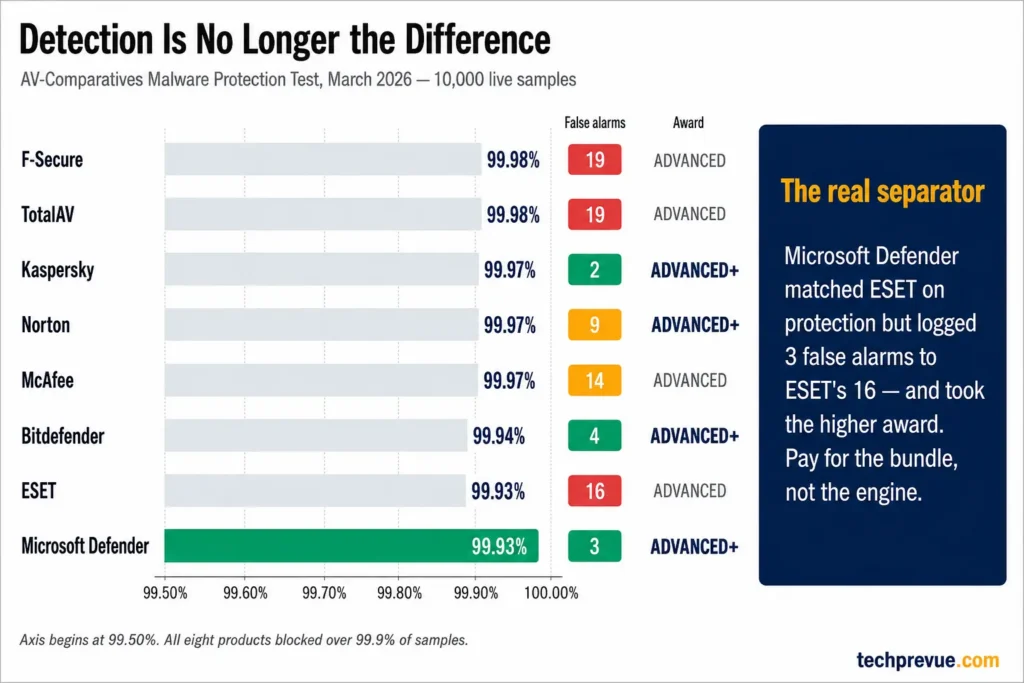
AV-TEST’s May-June 2026 Windows 11 home user round put Defender at 6/6 for protection, 5.5/6 for performance and 6/6 for usability.
AV-Comparatives cautions against choosing a product on the strength of one test, and that’s fair. But the pattern holds across both labs: at this tier, detection is no longer what separates the options.
Pay for a suite if you want the bundle — identity and dark web monitoring, parental controls, a VPN, scam call alerts, or one dashboard across a family’s devices. Those are real features. Paying purely for better detection is harder to justify in 2026.
One rule either way: never run two real-time antivirus engines at once. Doubling up is not how to prevent malware; it is how to break both scanners.
Advice That Expired: 2024 vs 2026
Much of what circulates about how to prevent malware attacks was sound a few years ago and isn’t anymore. If you learned how to prevent malware before 2023, check this list before passing the advice on.
| Common advice | Why it no longer holds |
|---|---|
| Enable MAC filtering on your router | MAC addresses broadcast in cleartext and are trivially spoofed. It filters honest devices only. |
| Look for HTTPS — it means the site is safe | HTTPS is now the default across the web, and malware is distributed over it routinely. The padlock means encrypted, not trustworthy. |
| Buy premium antivirus | Microsoft Defender took AV-Comparatives’ top ADVANCED+ award in March 2026, with the second-lowest false alarm count in the test. Free is no longer the weak option. |
| Generate a strong password, then tweak it with personal logic | Tweaking a generated password destroys its randomness and creates a predictable pattern across accounts. Use a manager and passkeys. |
| Avoid ISP-supplied routers | A control and privacy consideration, not a malware defense — and often not a choice on Indian fiber connections. |
| A firewall blocks almost all malicious activity | Windows Firewall filters traffic in both directions, and outbound rules can restrict some malware communication. But no firewall makes code you chose to run safe. |
| MFA protects your accounts completely | Stolen session cookies bypass it entirely. Keep MFA, but treat it as one layer, not a guarantee. |
Warning Signs Your Computer Is Already Infected
Knowing how to prevent malware is only half the job. Here is what to look for:
- Browser extensions, toolbars or a search engine you didn’t install
- Windows Security switched off, or refusing to update its definitions
- Unfamiliar programs launching at startup, or high disk and CPU use when idle
- Password reset emails and login alerts from services you didn’t touch
That last one is often the only signal. Modern infostealers run for seconds and remove themselves, so a clean-feeling PC is not evidence of a clean PC. If credentials start appearing where they shouldn’t, assume the device, not just the account. Detection is the weak point in every plan for how to prevent malware, which is why the habits above matter more than the scanners.
Not every slowdown is malware. If speed is the only symptom, rule out the ordinary causes first — our guide to fixing a slow internet connection covers the usual suspects.
What to Do If You Think You’re Infected
Work through these in order — speed matters more than thoroughness here, and this is the part of how to prevent malware damage that most guides skip.
- Disconnect from the internet. Unplug the Ethernet cable or switch off Wi-Fi. This cuts the channel a stealer or remote access tool uses to send data out.
- Stop logging in to anything on that machine. Every password you type now is a password you’ll have to change twice.
- Run an offline scan. Windows Security > Virus & threat protection > Scan options > Microsoft Defender Antivirus (offline scan). This reboots into a clean environment where rootkits and other evasive threats have a much harder time hiding.
- From a different, clean device, change your passwords — email first, then banking, then everything reused. Email is the reset path for every other account you own.
- Revoke active sessions on every major account, and check for changes you didn’t make: unknown recovery emails or phone numbers, new app passwords, mail forwarding rules.
- Reset MFA on critical accounts and re-enroll your authenticator.
- Consider a clean reinstall if a remote access tool or stealer is confirmed. Removal tools clean known payloads; they can’t prove nothing else was left behind.
If money moved: in India, call the national cybercrime helpline on 1930 immediately and file at cybercrime.gov.in. Reporting fast gives banks and law enforcement the best chance of putting the transferred funds on hold. Recovery speed is the last line in any plan for how to prevent malware from costing you money. In the US, report to the FBI’s IC3 and to the FTC at reportfraud.ftc.gov — the FTC also publishes step-by-step removal advice for consumers.
Account compromise often spreads sideways through messaging apps. If yours has been hit, our guide on whether someone can hack your WhatsApp covers the warning signs and the recovery steps.
Frequently Asked Questions
Does Windows Defender prevent malware on its own?
For detection, yes — it matched the best paid products in AV-TEST’s 2026 rounds. But no scanner stops a command you typed yourself, which is how the paste attack works. Defender is the floor of how to prevent malware, not the whole plan.
Can you get malware without downloading anything?
Yes. A ClickFix command can fetch and run malware without the normal browser download flow — some variants execute in memory, others write files to disk. Malicious browser extensions and compromised ad scripts are two more routes that involve nothing you’d recognize as a download — which is why how to prevent malware is now as much about habits as about software.
What are the best ways to prevent malware on a family computer?
Give each person a standard (non-administrator) account, keep one admin account for installs only, turn on Controlled folder access, and enable Block potentially unwanted apps. Shared machines collect toolbars and bundled software faster than any other kind — a quarterly extension and startup-app review catches most of it. If teenagers use the same PC, our guide to the risks teenagers face online covers the social side of the same problem.
Is a VPN a defensive measure against malware attacks?
Not directly. A VPN encrypts traffic and hides your IP address, which helps on public Wi-Fi, but it doesn’t inspect downloads or block malicious commands. Some VPN suites bundle a domain blocker, and that part does help — the tunnel itself doesn’t. Treat a VPN as a privacy tool sitting alongside your defensive measures against malware attacks, not as one of them.
The Short Version
Attackers stopped trying to beat your antivirus and started trying to recruit you. That’s the whole story of 2026, and it’s why the most valuable thing on this page isn’t a setting — it’s the paste test.
The rest of how to prevent malware fits in one line: run a supported OS, turn on the protections you already own, keep credentials out of the browser, and get software from the source. Then, when a page asks you to press Windows + R, close the tab.
Last updated: August 13, 2026
